

Turvo Integration Guide
Updated today
TrackFlo reads your Turvo workspace through the Turvo Public API and receives changes in near real time through Turvo webhooks. Everything your team does on a load in TrackFlo is written back to the same shipment in Turvo, so both systems show one story.
What TrackFlo reads
Shipments in active statuses, from Covered through Route complete, refreshed on a schedule as a backstop to webhooks.
Full shipment detail: customer and carrier orders, the route with appointments, arrival and departure times, equipment, tags, and the assigned drivers.
Freight from the items on the customer order: each item's name, piece count and weight, summed into order totals. Only quantities recorded in a Piece unit are counted as pieces. An item counted in pallets or another handling unit contributes its weight but not a piece count.
Proof-of-delivery documents your users attach in Turvo, when the document subscription is enabled (below).
What TrackFlo writes
Status changes with a timestamp and location, bound to the stop they refer to. Notes carry a
(via TrackFlo)suffix so both systems can tell them apart from Turvo-native notes.Stop arrivals and departures on the shipment route.
Driver and tracking details: driver name and phone, truck and trailer, and a Turvo Driver app invite.
Proof of delivery uploaded as a Proof of delivery document.
What your Turvo admin sets up
1. An API user with Public API access
Create a Turvo user for TrackFlo and share its username, password and API key with us. Public API access is an entitlement granted per workspace, separate from the login itself. If it is missing, the user can log in but every read fails with error 109, "Client is unauthorized to access Public API". Ask Turvo to enable Public API for the user in each workspace you want connected. Sandbox and production are separate workspaces with separate entitlements and credentials.
2. A webhook subscription
In your Turvo workspace, add a webhook subscription pointing at your tenant's TrackFlo endpoint:
https://<tenant>-integration-webhooks.trackflo.tech/webhook-ingestTrackFlo gives you the exact hostname and a bearer token for the subscription. Turvo must send it as the Authorization: Bearer <token> header. Requests with any other value are rejected with 403.
Subscribe to these events:
Entity | Event | Why |
|---|---|---|
Shipment | Update | Route, appointment, carrier and driver changes |
Shipment | Status | Status moves, including the ones TrackFlo itself pushes |
Documents | Create | Proof-of-delivery sync from Turvo into TrackFlo |
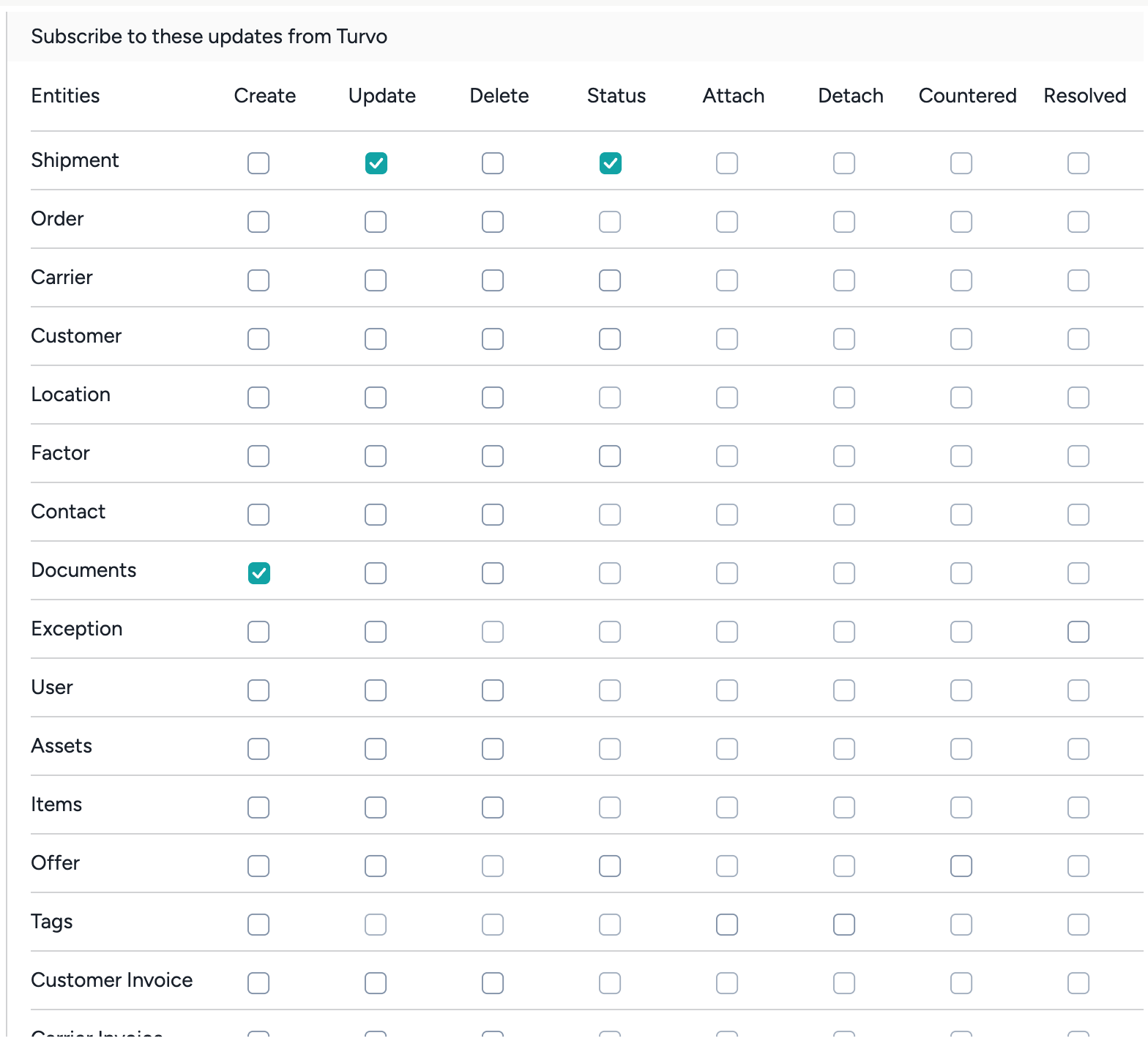
The Documents subscription is optional. Without it TrackFlo still uploads PODs to Turvo, but documents your team attaches in Turvo will not appear in TrackFlo. It is configured per workspace, so a subscription created in the sandbox does not carry over to production.
Things to know
Turvo confirms our own writes back to us. A status pushed from TrackFlo comes back seconds later as a webhook. TrackFlo recognises its own notes by the
(via TrackFlo)suffix and does not duplicate them.Filtered shipment lists only cover recent shipments. Turvo's list endpoint, when filtered by status, returns shipments created in roughly the last four to five months. Live freight is always inside that window. Very old sandbox test shipments are not, so a sandbox full of stale data can look empty to the scheduled sync even though individual shipments still read fine by id.
Status is a ladder. TrackFlo pushes Covered, Dispatched, At pickup, Picked up, En route, At delivery, Delivered and Route complete. Billing stages are owned by your accounting team and are never set from TrackFlo.
Carrier changes are handled. When a carrier is replaced on a shipment, Turvo keeps the old carrier order marked deleted. TrackFlo follows the live one.
Tags can be surfaced in TrackFlo as visibility groups. Tell us how your team uses tags so we map them the way you expect.