

# Viewing more Load info
Viewing Load Information
TrackFlo houses the information and actions you need to clear tracking load exceptions - nothing more, nothing less. You can view this information summarized on the More Info tray on the load on your Active Load page, or you can click into each load’s unique landing page for even more detail.
More Info Tray
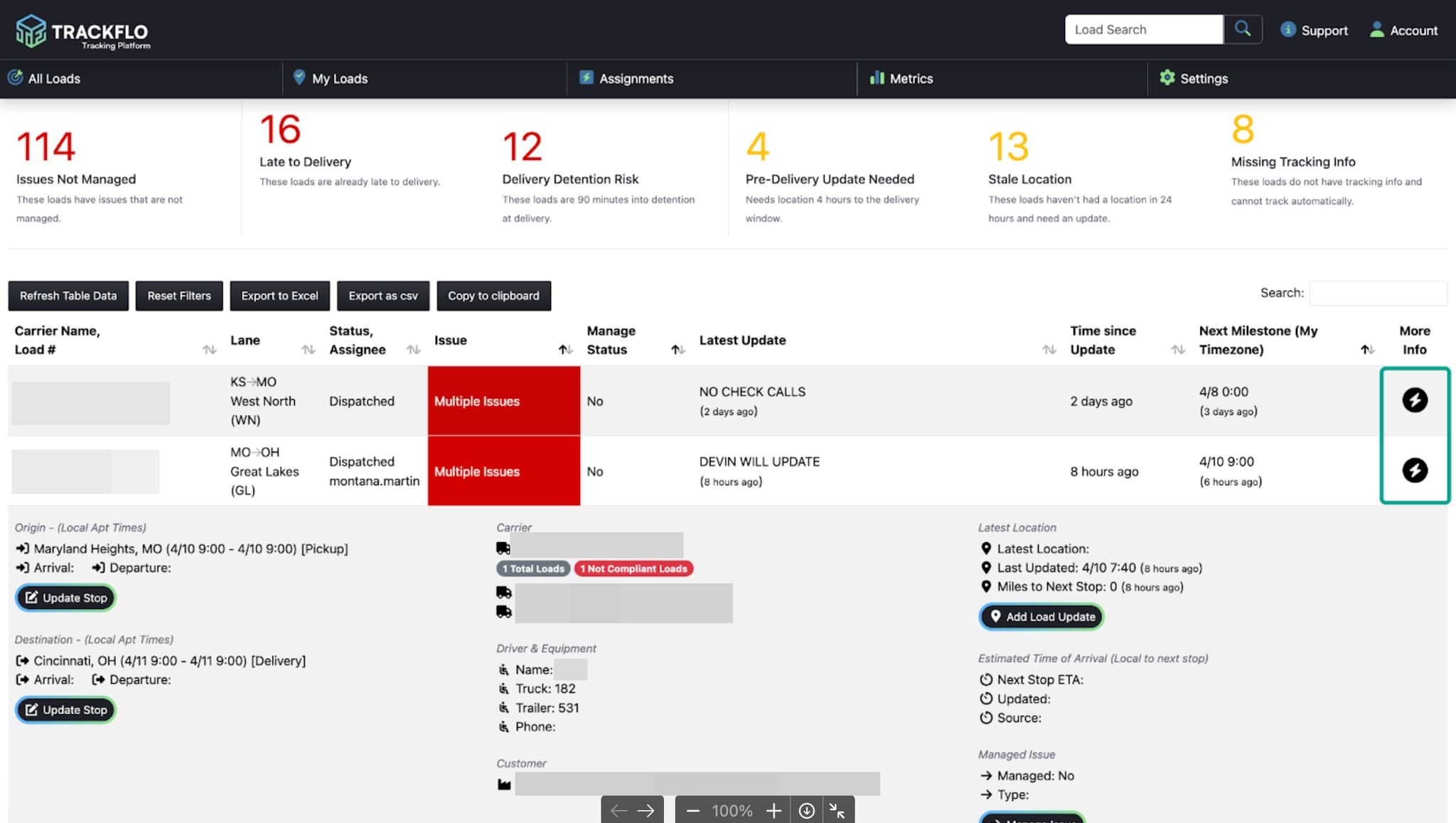
Click the lightning bolt icon on the right side of the load bar opens the More Info tray, giving you access to critical information and actions to get your job done.
Lightning bolt icon opens the load tray
From the tray, you can:
Learn more: View stop, carrier, driver, and latest update information (including ETA)
Take action: Add a load update, update a stop, update the load status, or manage the load (For more information on how to use these actions, see Resolving Exceptions > Actioning Issues & Updating Loads below)
View in TMS: If there’s a datapoint you need to resolve an issue that is not available in TrackFlo, click “View in TMS” to be taken directly to the load in your TMS
Unique Load Page
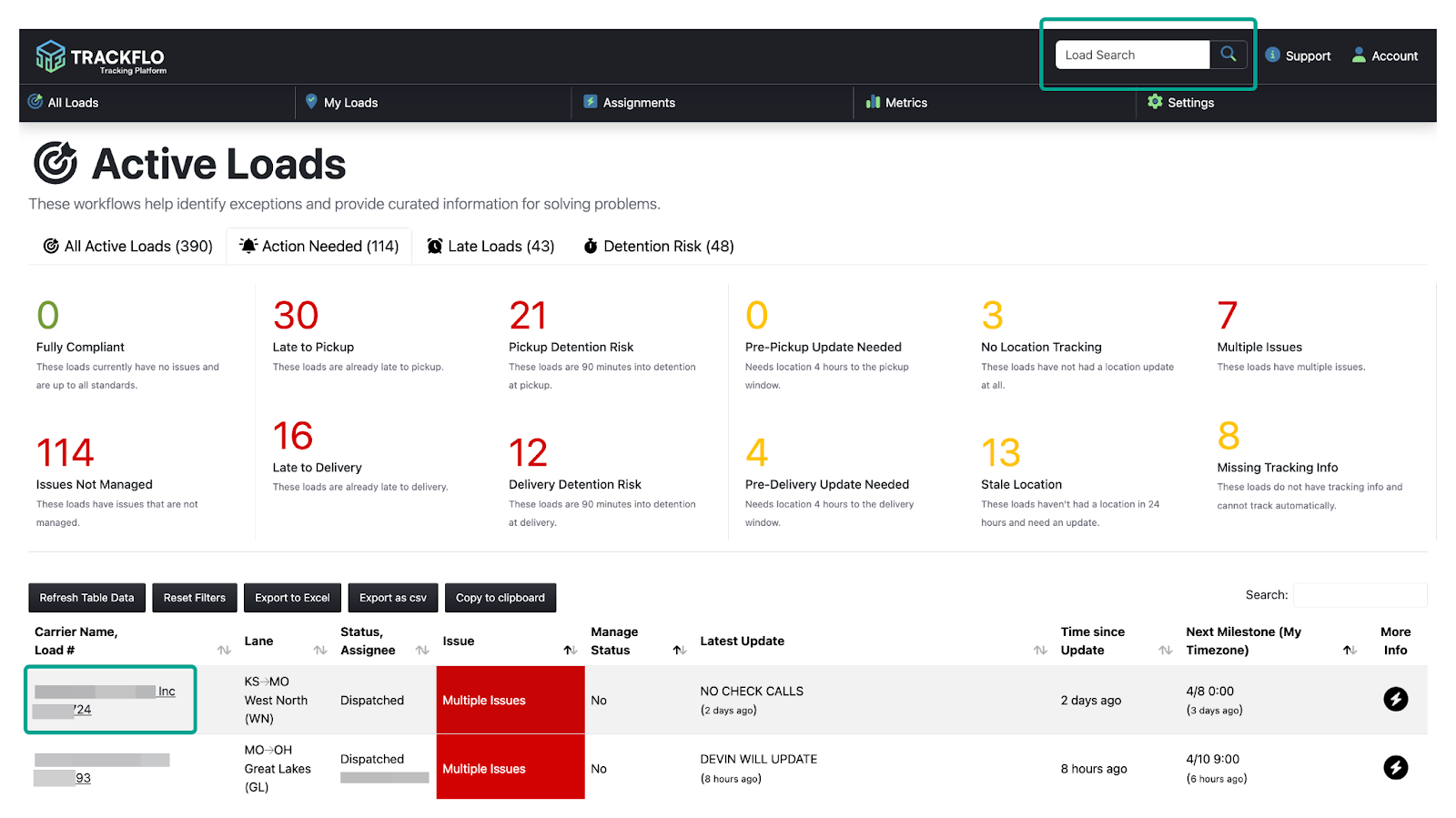
To access a load’s unique page, click (or search for) the load ID:
Each load’s unique page includes the data in the More Info tray, plus:
Contact information for both carriers and your internal team
Load History: Updates, actions, issues, and assignments
Map of locations