

Drivers hand paperwork to dispatch. If the driver step never lands, the carrier email step is the one that works, and it needs a POD contact stored.
Collect PODs Within 24 Hours
Updated today
Automate the chase for proofs of delivery, give the remaining paperwork its own board, and measure how fast PODs actually arrive. Carriers are usually contracted to send a POD within 24 hours and rarely do; teams tell us replies arrive "60 to 75 percent of the time" and the rest are chased by hand, with "a lot of manual outreach, some automated outreach." With the Get POD rule, the chase runs itself for up to 72 hours after delivery and stops the moment a POD arrives.
What you need
The Admin role.
Outreach Rules Enabled? ticked on the Outreach Settings tab of Company Settings.
A POD contact for each carrier, so the email step reaches whoever has the paperwork.
Set it up
1
Turn on Get POD
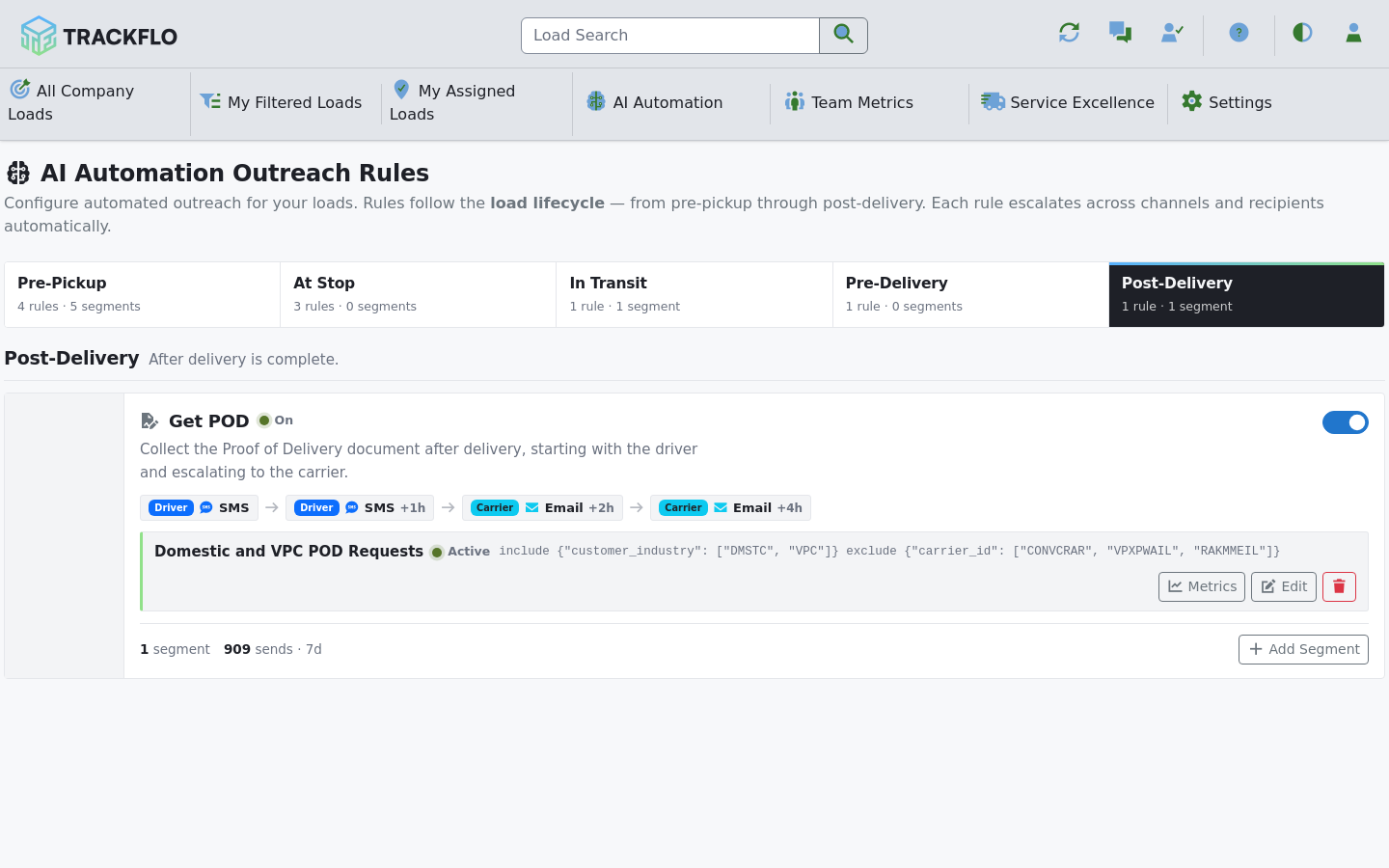
In AI Automation Outreach Rules, turn on Get POD under Post-Delivery. It asks the driver by SMS, then the carrier by email, for up to 72 hours after delivery. The default segment covers every load; add segments for customers who need a different cadence.
2
Store each carrier's POD contact
Set a Primary POD Contact on each carrier's tracking preferences, so the email step reaches the person who actually has the paperwork.
3
Set quiet hours
A POD request at midnight gets ignored. With quiet hours set, the sequence holds the step until the window ends rather than skipping it.
4
Check the documents, then trust them
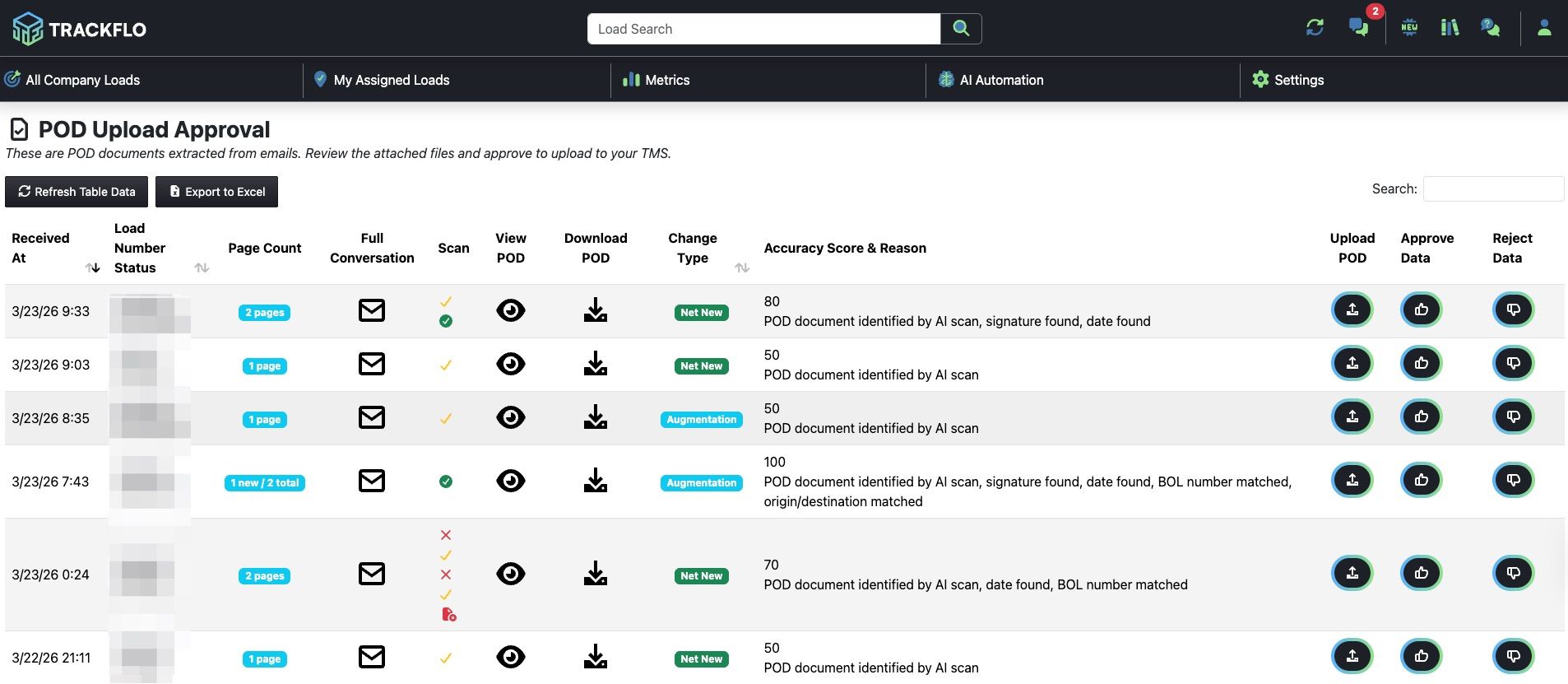
Drivers can reply with a photo in PDF, JPEG, PNG, TIFF, HEIC, or HEIF, and we convert it to a PDF. Turn on Scan Inbound PODs with AI in Outreach Settings (off by default) to check each page is a POD for the right load. Uploads wait on the POD Upload Approval tab of the Data Approval board until someone approves them, or clear automatically once you set a threshold for Net New / POD Upload.
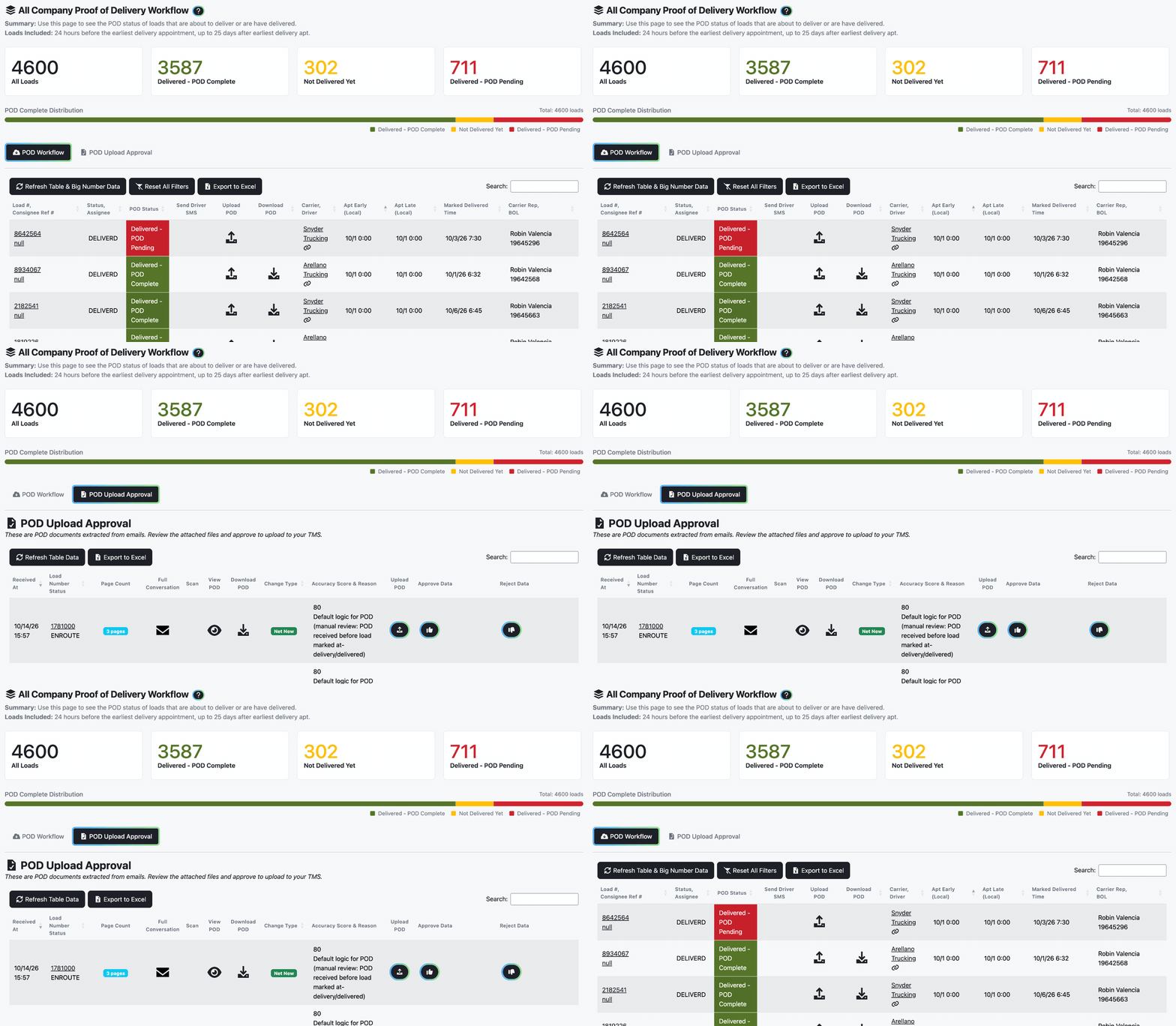
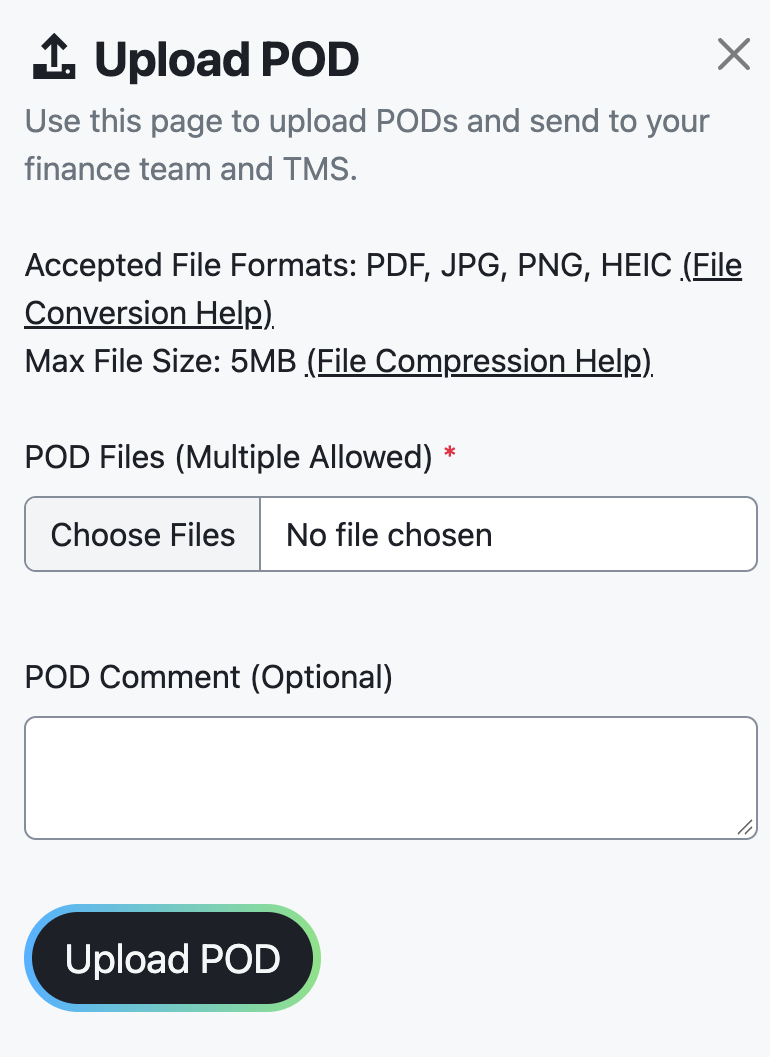
The Proof of Delivery workflow shows POD status for every load about to deliver or already delivered, so whoever chases paperwork sees only paperwork. Upload a POD you received outside TrackFlo from the load page, and it's sent to your TMS.
When it doesn't go to plan
Drivers never send the POD
A lumper receipt or scale ticket isn't on the load
Only the POD is filed on the load. Other documents that arrive with a reply stay attached to that message in the load's history.
Approving PODs one at a time is eating the day
Once a few weeks of audit rows are marked Correct, raise the POD Upload threshold. With AI scanning on, the scan has already checked the load number.
Measure it
The summary cards on the Proof of Delivery workflow count Delivered - POD Complete, Delivered - POD Pending, and Not Delivered Yet; Pending stays low and Complete climbs toward the share of carriers who can send a photo.
The Get POD rule's sends · 7d is high and its segment metrics show replies: the chase is happening without a tracker.
The POD Upload Approval tab is cleared daily, then thins out as the auto-approval threshold takes over.
Related recipes
Recover Detention and Accessorial Dollars
Catch dwell while it happens, record times that hold up, and find the dollars you never billed.
Read recipeStop Retyping Carrier Emails into Your TMS
Carrier replies become approved TMS updates without anyone typing them.
Read recipeProduct docs
Customers can sign in to open the full guides:
Was this helpful?
Was this helpful?