

Check, in order: Outreach Rules Enabled? in Company Settings; that the segment is Active, not Paused; that the load is inside the window and has a pickup appointment; and that quiet hours aren't in effect. The engine runs every 15 minutes.
Get Every Load on Tracking Before Pickup
Updated today
Have TrackFlo ask the carrier for driver and tracking details and text the driver before pickup, so loads arrive at the shipper already tracking instead of becoming a morning of check calls. Teams tell us "we want to be at 100%, we want to have every single load on tracking," and that "we'll spend all morning just tracking every day." Three outreach rules cover the window before pickup and stop on their own once they get what they asked for.
What you need
The Admin role.
Outreach Rules Enabled? ticked on the Outreach Settings tab of Company Settings. It's off until you turn it on, and no rule sends while it's off.
A pickup appointment on each load, and a carrier email on file so the request has somewhere to go.
Set it up
1
Ask the carrier for tracking details
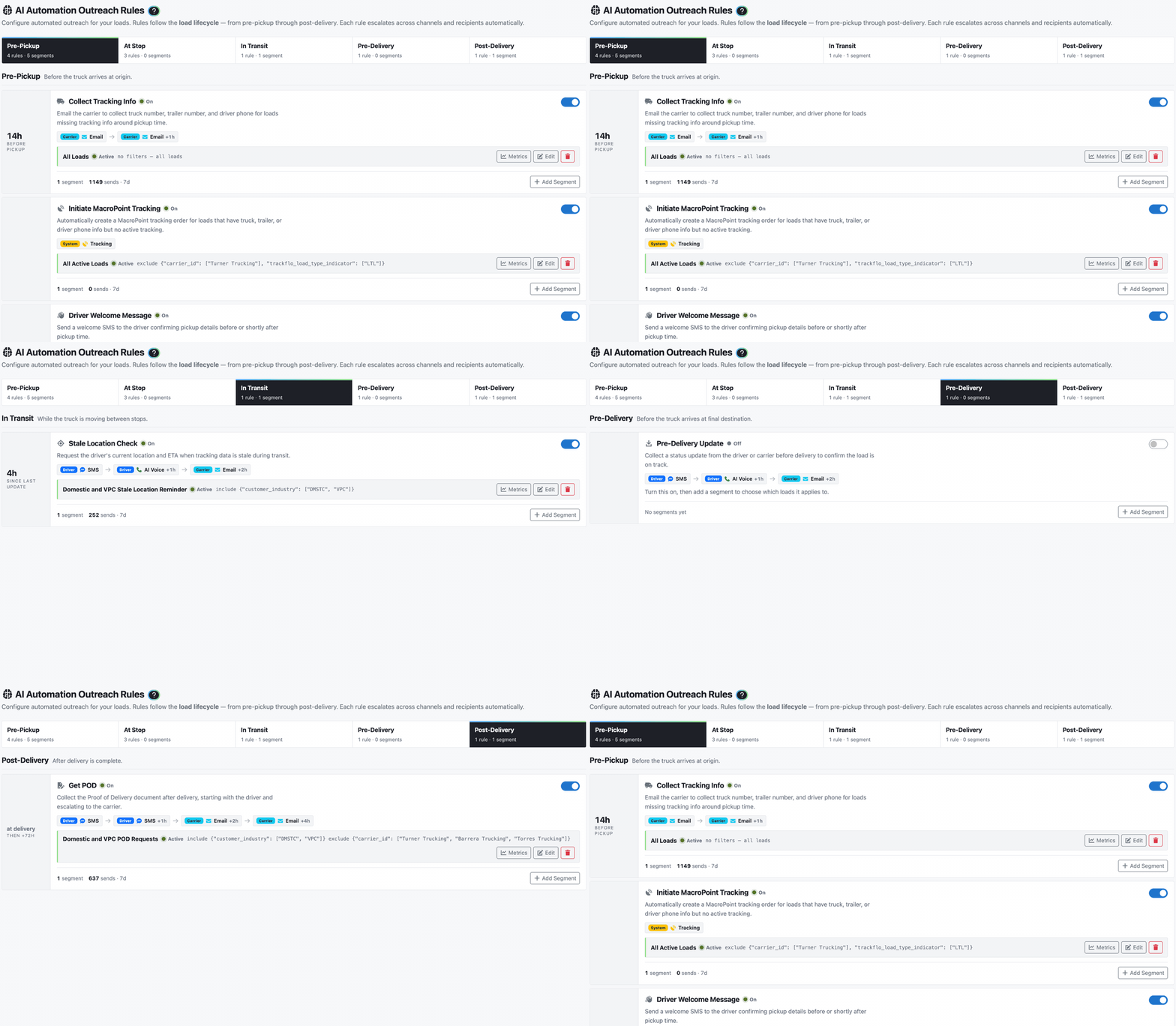
Open AI Automation > AI Automation Outreach Rules and, under Pre-Pickup, turn on Collect Tracking Info. From 4 hours before pickup to 24 hours after, it emails the carrier for the driver, truck, trailer, phone, and tracking link on any load that has none of them, and follows up an hour later if nobody replies. The sequence stops once the carrier's reply produces approved driver details.
2
Welcome the driver
Turn on Driver Welcome Message. As soon as a load has a driver phone, in the same window, it texts the driver with the load number, pickup, and delivery, and asks for their location and ETA to pickup. Any reply counts as success.
3
Confirm the driver before pickup
Turn on Pre-Pickup Update to check in with the driver 2 hours before pickup, by SMS, then AI voice, then email, until a location comes in.
4
Tune timing, quiet hours, and wording
Turning a rule on creates an active All Loads segment with our default steps. Select Edit on the segment to change its timing, set Quiet Hours, or reword the text; use Add Segment to give certain customers or carriers different timing. Text messages are capped at 160 characters once merge tags fill in, and the editor counts as you type.
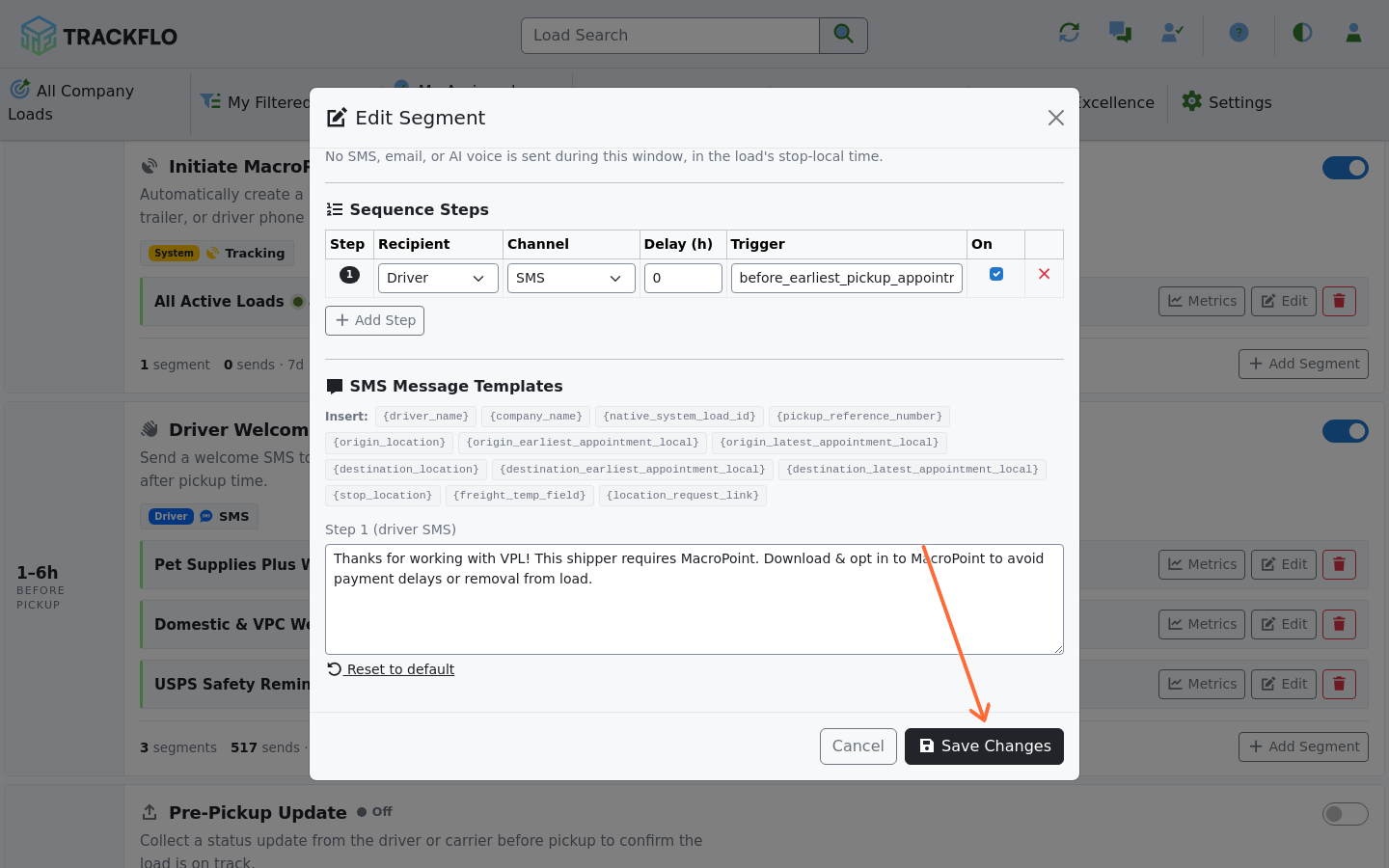
Before a driver's first text, we send a one-line introduction naming your company with "Reply STOP to opt out," and a driver who replies STOP is never texted again. Loads your TMS marks as no-contact are skipped by every rule.
When it doesn't go to plan
The rule is on but nothing has sent
Collect Tracking Info skipped a load
It only asks when the load has no driver, truck, trailer, phone, or tracking link. If any one of them is already filled in, it treats the load as covered.
The driver never got the welcome text
The load has no driver phone yet, the truck had already arrived at pickup, or the driver opted out.
My template won't save
It's over 160 characters once merge tags such as the location fill in, or it contains a character such as a curly quote or a degree sign that doubles the cost of a text. Shorten it or swap the character.
Measure it
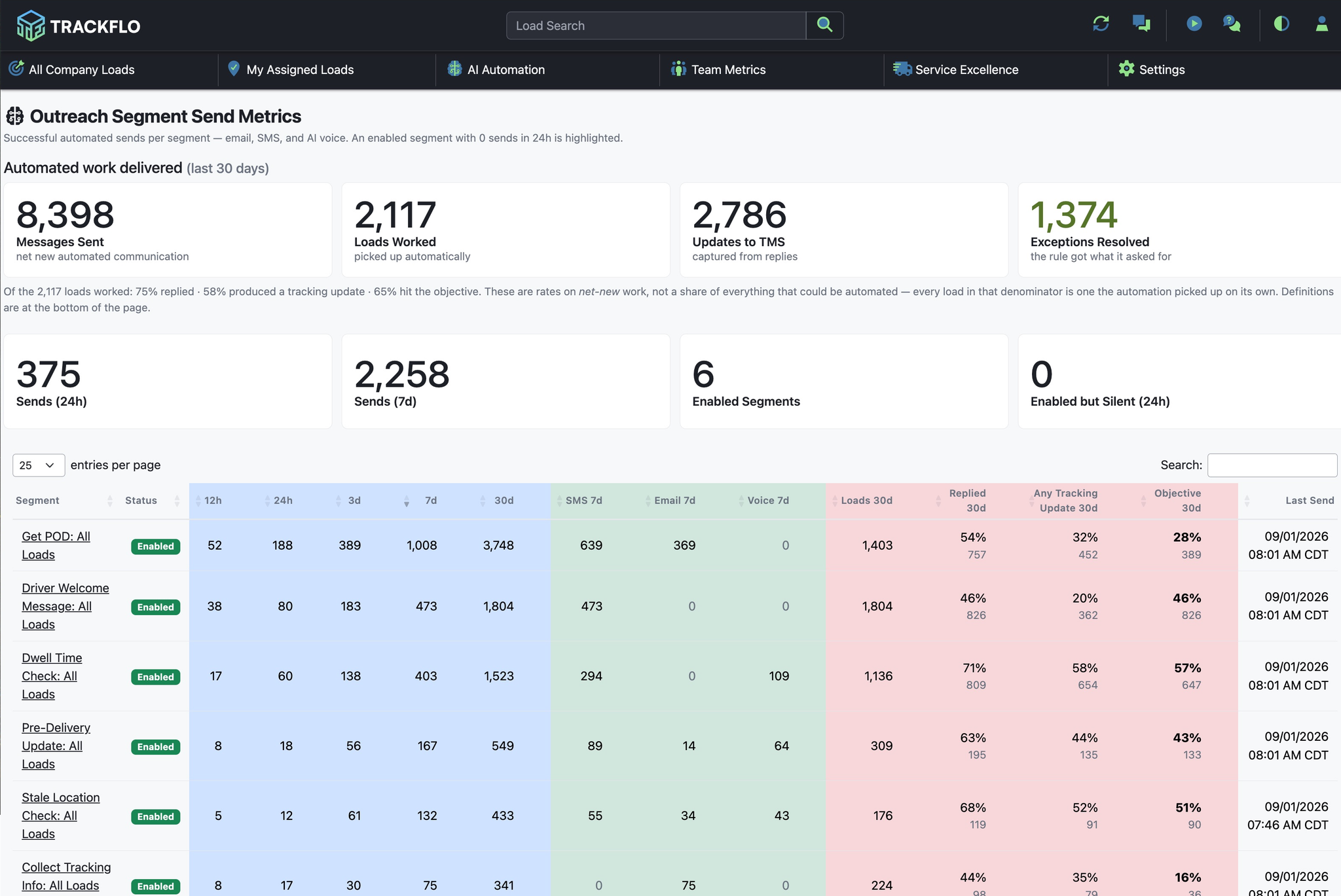
Each rule's card shows sends · 7d, and Outreach Rule Metrics shows how often each one met its objective: driver details saved to your TMS, or the driver replied.
The Missing Tracking Info and Dispatch Needed counts on your board fall, and loads reach pickup with a location already coming in.
The load page's Outreach Automation History tab shows every message and reply on a single load.
Related recipes
Stop Retyping Carrier Emails into Your TMS
Carrier replies become approved TMS updates without anyone typing them.
Read recipeWork Exceptions Instead of Making Check Calls
Let automation collect routine updates so the team works only the loads at risk.
Read recipeProduct docs
Customers can sign in to open the full guides:
Was this helpful?
Was this helpful?