

Configure the Big Numbers Layout
Updated today
The Big Numbers Layout editor sets which exception tiles appear at the top of your boards, in what order, and how wide each one is. Only admins can open it, and the layout you save applies company-wide across your main boards and every Custom Board.
These tiles are the first thing your team looks at each shift, so the arrangement is worth deciding deliberately rather than leaving on the default.
Before you start
You need the Admin role to open the editor. The layout is shared across the whole company, so changes affect every board and every tracker — coordinate with your tracking leads before saving.
Open the editor
Go to Settings.
Open Settings again.
Select Big Numbers Layout.
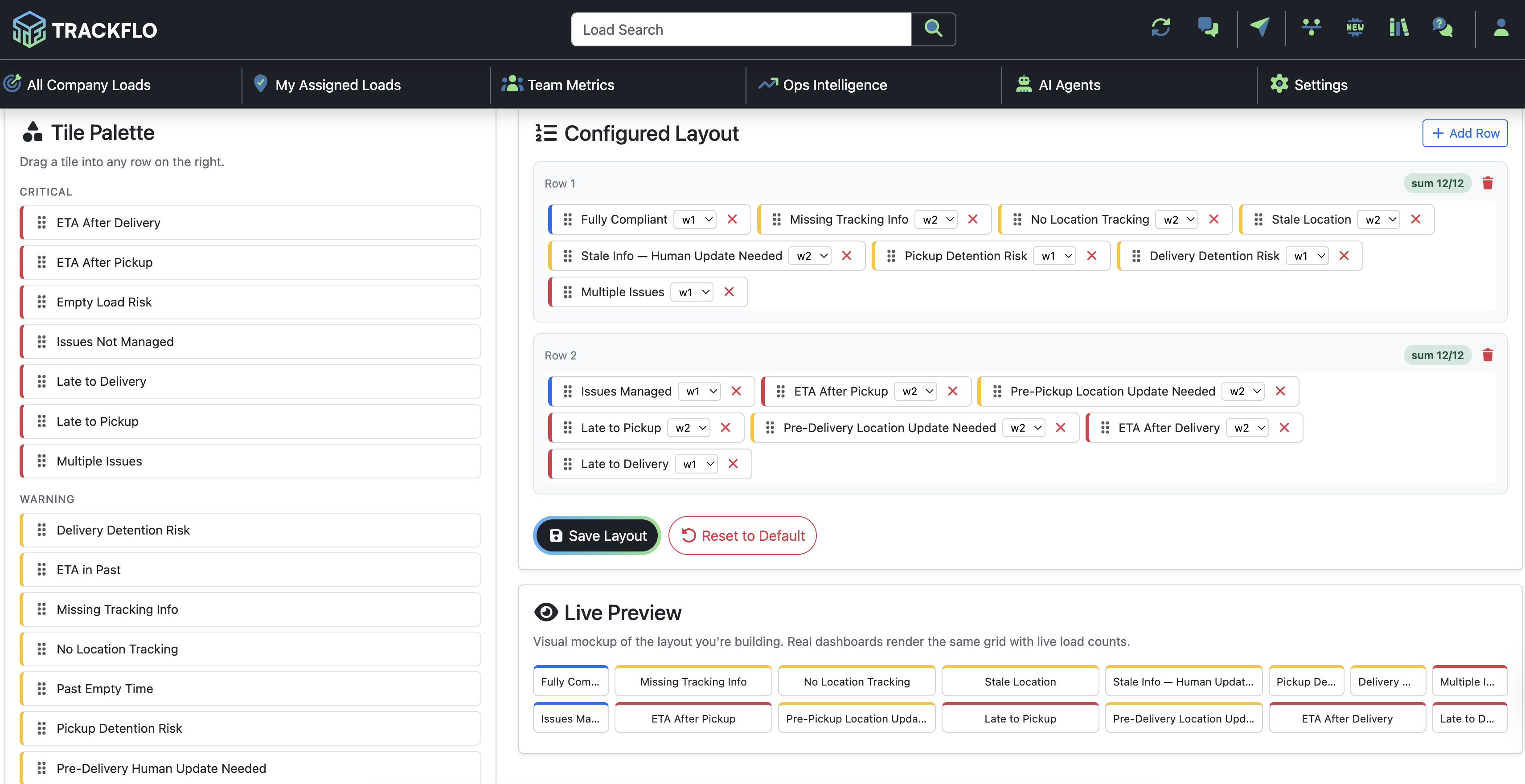
You land on the Big Numbers Layout Editor. The page shows the Exception Coverage panel, the Tile Palette, the Configured Layout, and a Live Preview of your board.
Build the layout
Each row on your board is a horizontal band of tiles. A tile is 1 to 6 columns wide, and you pick its width from the Column width (1-6) control.
Drag a tile from the Tile Palette into a row, or select a tile and choose Add this tile to the layout.
Set each tile's width with Column width (1-6).
To reorder tiles within a row, drag them.
To remove a single tile, select Remove tile.
To start a new band, select Add Row.
To delete a band, select Remove row.
You can't remove the only remaining row — a layout needs at least one row.
Choose tiles from the palette
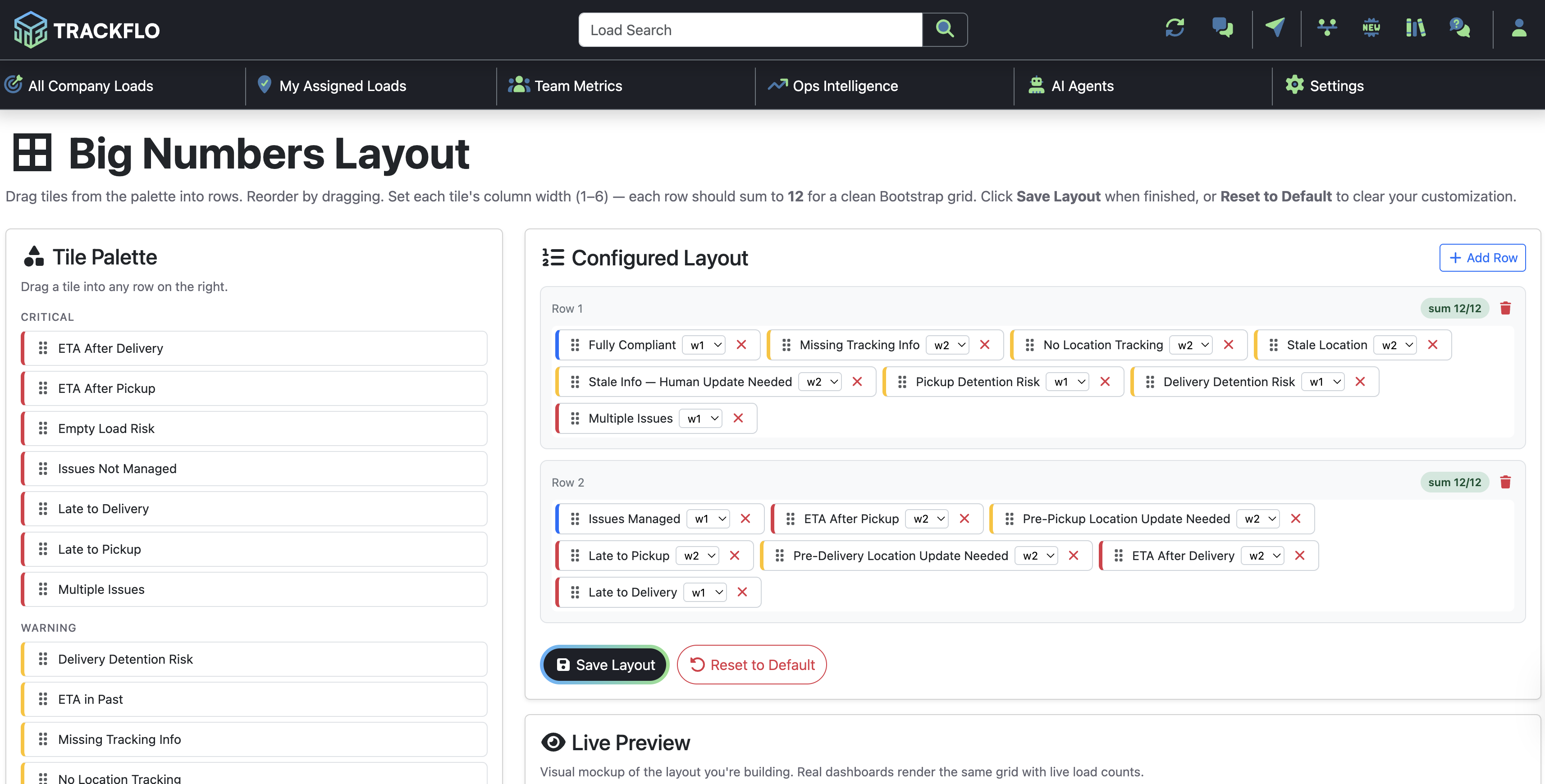
The Tile Palette lists every exception tile, grouped by severity. Tiles you leave in the palette don't appear on the board.
Critical — Breakdown, Empty Load Risk, ETA After Delivery, ETA After Pickup, Issues Not Managed, Late to Delivery, Late to Pickup, Multiple Issues
Warning — At Delivery Too Long, At Pickup Too Long, Delivery Detention Risk, Dispatch Needed, ETA Drift, ETA in Past, Missing Tracking Info, No Location Tracking, Past Empty Time, Pickup Detention Risk, Pre-Delivery Human Update Needed, Pre-Delivery Location Update Needed, Pre-Pickup Human Update Needed, Pre-Pickup Location Update Needed, Stale Info - Human Update Needed, Stale Location, Stationary Too Long, Temperature Update Needed, Wrong Direction
Info — Fully Compliant, Issues Managed
Deciding what goes where
The layout should reflect what your team chases first. A few arrangements that work:
Lead with your biggest cost. If detention is where you're losing money, put Pickup Detention Risk and Delivery Detention Risk in Row 1. If on-time performance is the number you're judged on, lead with Late to Pickup and Late to Delivery.
Group by severity. Critical tiles in Row 1, Warning tiles in Row 2. Trains the eye to scan top-down by urgency.
Group by workflow stage. Row 1 for pre-pickup, Row 2 for in-transit, Row 3 for delivery. Matches how trackers actually move through a load's life.
Make the important counts bigger. A wider tile reads as more important. Give your two or three real priorities w3, and leave the rest at w1 or w2.
Leave out what you don't use. If your freight has no temperature requirements, the Temperature Update Needed tile is permanent noise. Fewer tiles means faster scanning.
Read the Exception Coverage panel
The Exception Coverage panel compares the Service Level exceptions you've turned on against the tiles on your board. It shows a summary in the form "enabled enabled · shown shown · missing missing" and flags three states:
Turned on, but not on your board — an enabled exception has no tile, so its count isn't visible.
On your board — the tile is placed and its exception is enabled.
On your board but turned off everywhere - these can only read 0 — the tile is placed, but no Service Level enables its exception, so it always shows zero.
When no exceptions are turned on for any service level, the panel says so. A tile tied to a disabled exception always reads zero, so skip those tiles to keep the board clean.
Check this panel before you save. The first state is the one that costs you something: an exception your service levels are detecting that nobody can see a count for.
Use the 12-column rule
Each row is meant to total 12 columns of width. The row shows a status like sum 12/12 so you can see whether it adds up. This is a visual indicator only — the save step does not reject a row whose widths don't total 12.
Because nothing blocks the save, a row that doesn't total 12 will go live looking uneven. Check the Live Preview rather than trusting that the editor would have stopped you.
Save or reset
When the layout is ready, select Save Layout.
A successful save confirms the layout was updated. The new tile arrangement and widths apply across your main boards and all Custom Boards; each board still shows counts scoped to its own filters.
To undo your customization, select Reset to Default and confirm. Resetting reverts to the default layout: Row 1 holds Fully Compliant, Missing Tracking Info, No Location Tracking, Stale Location, Pickup Detention Risk, and Delivery Detention Risk; Row 2 holds Issues Managed, Pre-Pickup Location Update Needed, Late to Pickup, Pre-Delivery Location Update Needed, Late to Delivery, and Multiple Issues. Tiles start at a width of 2.
Reset is one click, so experiment freely. If a layout hasn't earned its place after a couple of weeks, go back to default and start again.
What this does and doesn't change
The layout is shared across every board. You can't give different boards different tile arrangements today — each board shows the same tiles with counts scoped to its own filters.
Your saved layout persists across TrackFlo updates.
When it doesn't work
If a save or reset fails, the editor tells you why.
Empty Layout — "Add at least one tile before saving." You tried to save with no tiles in the layout.
Invalid Layout — "Layout must contain at least one row with at least one known tile." Add a row and a tile, then save again.
Cannot Remove — "A layout needs at least one row." You tried to remove your only remaining row.
Save Failed or Reset Failed — "Could not reach the server." A network problem stopped the change from saving. Check your connection and try again.
If a tile reads zero when you expect a count, that's not a layout fault — check the Exception Coverage panel and your Tracking Service Levels.
Related
Custom Tracking Boards — how the shared layout shows scoped counts per board
Tracking Service Levels — the exceptions that drive each tile's count