

Customize the load page buttons
Updated today
The Load Page Buttons editor customizes the button columns at the top of the private load page: which buttons appear, which titled column each one sits in, the column titles, and the order of both. Only admins can open it, and the setup you save applies to every load page for your company.
Before you start
You need the Admin role to open the editor and to save or reset. The button setup is shared, so changes affect every load page and every tracker.
Open the editor
Go to Settings.
Open Settings again.
Select Load Tray Layout.
Select Load Page Buttons.
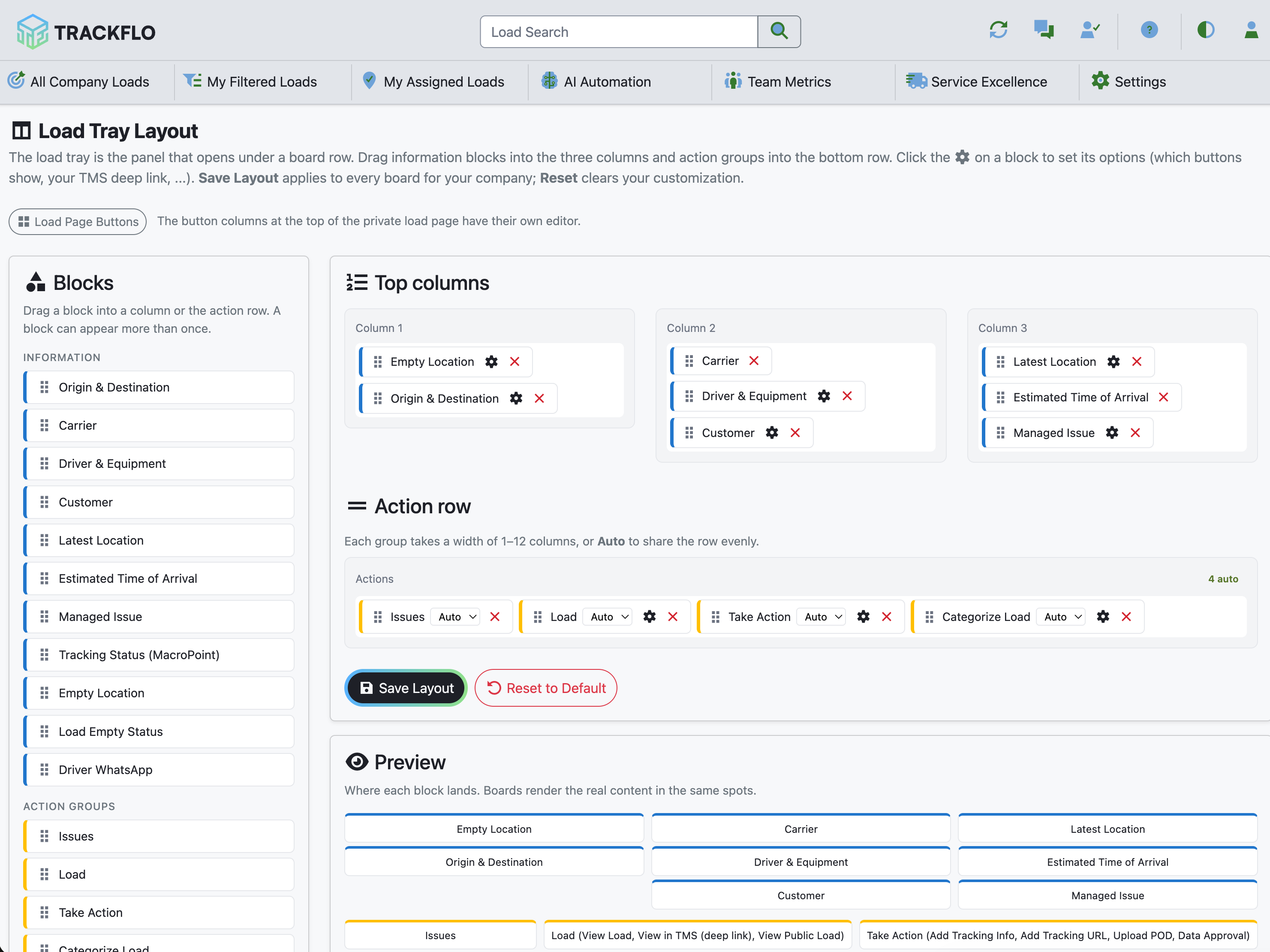
You land on the Load Page Buttons editor. The page shows the Buttons palette, the button columns, the TMS deep link panel, and a Preview. Select Back to Load Tray Layout to return to the tray editor.
Build the button columns
Drag a button from the Buttons palette into a column. A button can appear in one column only: if you drop a button that is already placed into another column, it moves there. Removing a button from a column puts it back in the palette.
Drag a button from the Buttons palette into a column.
To reorder buttons within a column, drag them.
To reorder columns, drag a column header.
To rename a column, select its title and type a new one, up to 40 characters.
To add a column, select Add column.
To remove a button, select Remove button on its chip.
To remove a column, select Remove column (its buttons return to the palette).
Empty columns are not saved. A column needs at least one button before Save Buttons keeps it.
Default columns
Out of the box, the buttons are grouped into five titled columns:
Update TMS — Load Update, Load Status, Tracking Info
Docs — Upload POD, Download POD (when complete)
External Contact — Driver SMS Conversation, Driver AI Voice Call, Carrier Email Conversation
Manage Load — Manage Issue, Tracking URL, Data Approval
Categorize Load — Exception, Ignore
The palette also lists View in TMS (deep link), Dispatch Load (Mastery offcanvas), Dispatch Load (one-click, Edge), Event Management, and Initiate / Update MacroPoint Tracking. Drag any of them into a column to use them.
Set the TMS deep link
The TMS deep link panel is used by the View in TMS button. Enter a Button label and a URL template, for example https://your-tms.example.com/loads/{load_id}. In the template, {load_id} is your TMS load number and {load_key} is your TMS internal key.
Leave the URL blank and the View in TMS button is hidden, both in the preview and on the load page. When the URL is set, the button opens your TMS in a new tab. The label can be up to 60 characters and the URL template up to 500 characters.
Save or reset
When the columns are ready, select Save Buttons.
A successful save shows Buttons Saved: "Load page buttons updated. Reload a load page to see them." Reload a load page to see the new buttons. To undo your customization, select Reset to Default and confirm. Reset shows Buttons Reset: "Reverted to the default load page buttons."
When it doesn't work
Empty Layout — "Put at least one button in a column." A layout needs at least one button before it saves.
Invalid Layout — "Put at least one button in a column." The server rejected the save for the same reason. Add a button to a column and save again.
Save Failed or Reset Failed — "Could not reach the server." A network problem stopped the change from saving. Check your connection and try again.