

Check What TrackFlo Received with Integration QA
Updated today
Integration QA is a page in the TrackFlo app that shows what we stored from your API calls: how complete each field is, one load's records and whether it can show on the board, and the requests we refused with the reason. Open it whenever an upload doesn't look right in TrackFlo.
Open Integration QA
You need a TrackFlo login with the Admin role in your company. If the developer building the integration doesn't have one, an Admin at your company can open the page for them, or ask your TrackFlo contact.
Sign in at app.trackflo.tech (or your sandbox app, when you're testing against the sandbox).
Open Settings in the top bar.
Choose System Status & Performance, then Integration QA.
The page shows your company's data only. Each environment has its own Integration QA, so sandbox uploads appear on the sandbox app, not in production.
Look up a load
Enter a load number in Load Lookup to see everything we hold for it and whether each of its legs can be on the board. You can enter the load ID (1083452) or its permalink (1083452-acme).
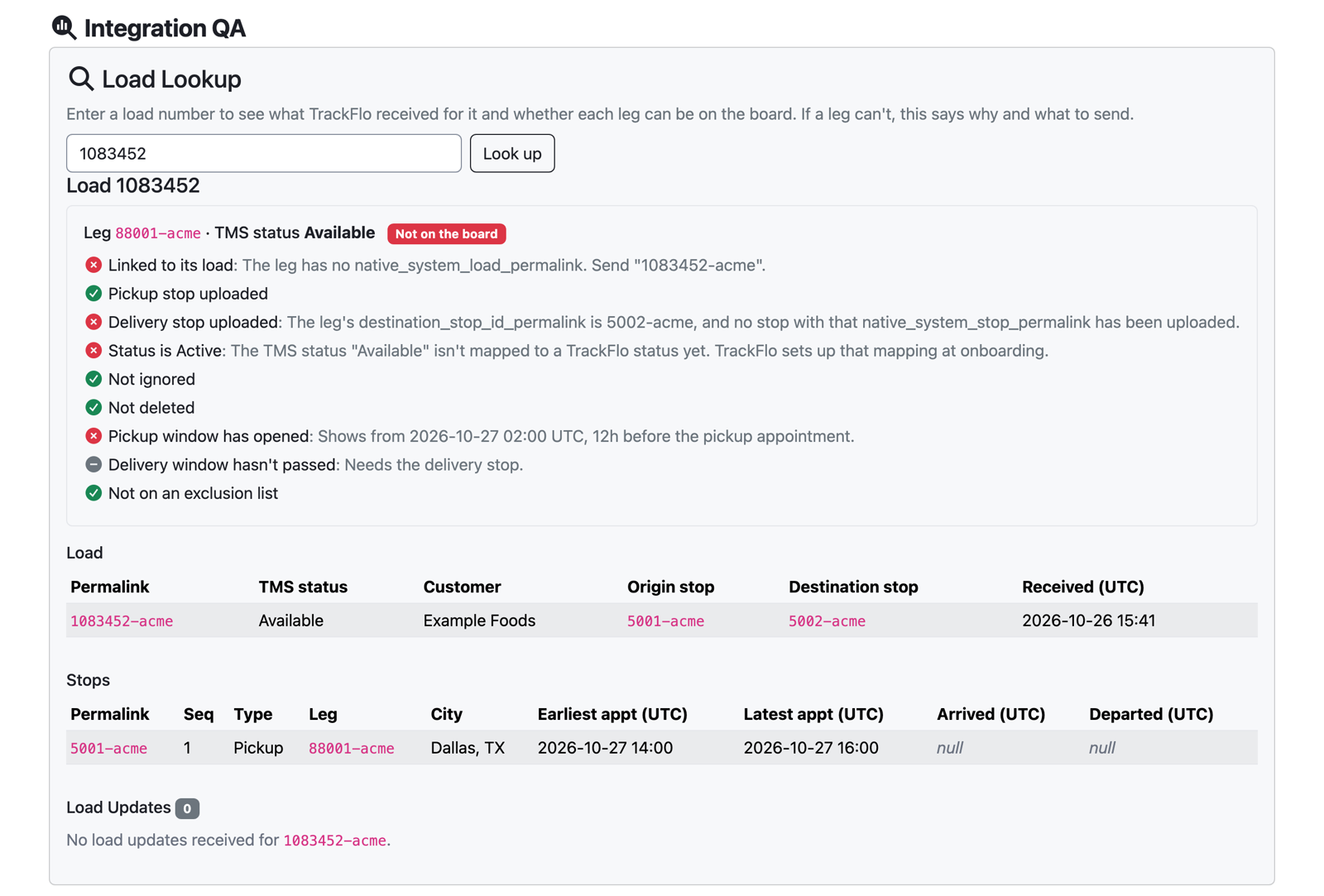
Each leg gets a checklist: linked to its load, pickup and delivery stops uploaded, status is Active, not ignored, not deleted, pickup window has opened, delivery window hasn't passed, and not on an exclusion list. A failed check says what to send to fix it, and Why an Uploaded Load Isn't on the Board explains each one.
Problems across the load appear above the legs, for example a load with no legs, or a stop whose
native_system_load_leg_permalinknames a leg that isn't on this load.The stored records follow: the load, its stops with their appointment, arrival and departure times, and the five newest load updates with a total count. Times are in UTC.
A grey check means it can't be judged yet because an earlier one failed, for example the pickup window when the pickup stop hasn't been uploaded. Fix the red checks first.
See refused requests
The Refused API Requests tab lists the last 200 requests we refused from your company's API keys over the past seven days, newest first. Each row shows the time (UTC), the endpoint, the status code, the record's permalink and load number, the reason we sent back, and the first characters of the key that sent it. Click a load number to look it up.
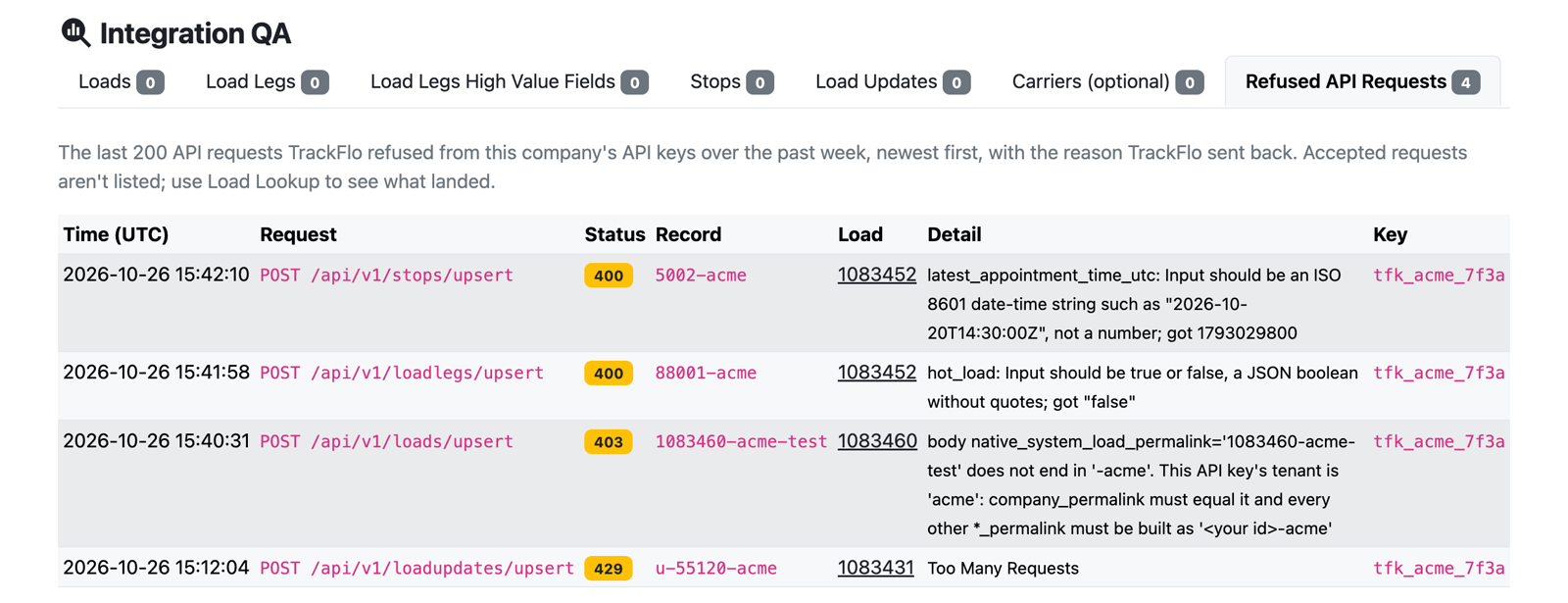
Accepted requests aren't listed. To confirm one landed, look up its load.
A request with a missing or unrecognised
X-API-Key(401) isn't listed, because we can't tell which company sent it.We never store request bodies here, only the fields above.
What each status code means and what to do about it is in Rate Limits and Errors.
Check field coverage
One tab per object (Loads, Load Legs, Stops, Load Updates, Carriers) shows, for every field, the share of records created in the chosen window that have it filled in, plus sample values from the newest of those records. Switch the window between 12h, 24h, 7d and 30d at the top of the page.
Population % is red at 0%, yellow when some records have the field, and green above 90%.
Severity marks how much a field matters: critical fields are needed for a load to work in TrackFlo, important ones power specific features.
Integration fields only (on by default) hides fields TrackFlo fills in itself, so you see only what your integration is expected to send.
Hourly Volume under each table counts records created per hour over the last 24 hours (UTC), which shows whether your sync is running.
The Load Legs High Value Fields tab groups the leg fields TrackFlo relies on most, such as the latest location, account managers and carrier contacts.