

That load isn't in TrackFlo in this environment yet. Send it through the Integration API, then check it in Load Lookup: the load number is your native_system_load_id.
Test and Check Your Integration with Integration QA
Updated today
Integration QA is a page in the TrackFlo app for building and checking an integration yourself. It shows what we stored from your API calls and how complete each field is, one load's records and whether it can show on the board, and every API call with what we answered. If you've built write-back endpoints, it also sends test updates to your TMS and shows what came back. Open it whenever an upload or an update doesn't look right.
Open Integration QA
You need a TrackFlo login with the Admin role in your company. If the developer building the integration doesn't have one, an Admin at your company can open the page for them, or ask your TrackFlo contact.
Sign in at app.trackflo.tech (or your sandbox app, when you're testing against the sandbox).
Open Settings in the top bar.
Choose System Status & Performance, then Integration QA.
The page shows your company's data only. Each environment has its own Integration QA, so sandbox uploads appear on the sandbox app, not in production, and a test update sent from the sandbox goes to the endpoints we have for your staging TMS.
Look up a load
Enter a load number in Load Lookup to see everything we hold for it and whether each of its legs can be on the board. You can enter the load ID (1083452) or its permalink (1083452-acme).
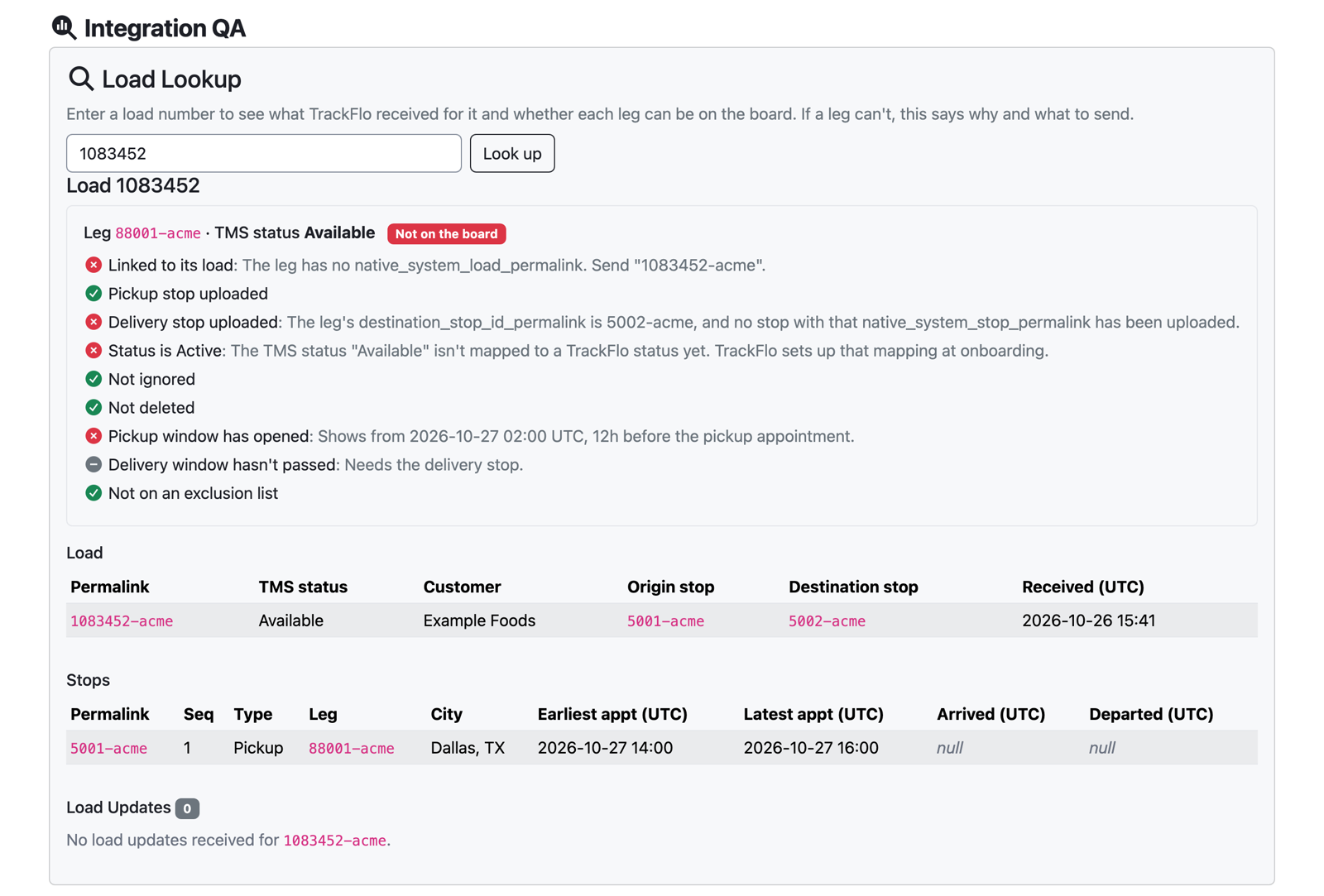
Each leg gets a checklist: linked to its load, pickup and delivery stops uploaded, status is Active, not ignored, not deleted, pickup window has opened, delivery window hasn't passed, and not on an exclusion list. A failed check says what to send to fix it, and Why an Uploaded Load Isn't on the Board explains each one.
Problems across the load appear above the legs, for example a load with no legs, or a stop whose
native_system_load_leg_permalinknames a leg that isn't on this load.The stored records follow: the load, its stops with their appointment, arrival and departure times, and the five newest load updates with a total count. Times are in UTC.
A grey check means it can't be judged yet because an earlier one failed, for example the pickup window when the pickup stop hasn't been uploaded. Fix the red checks first.
See every API call
The API Calls tab lists the calls between your systems and TrackFlo, newest first. What it holds depends on whether we've turned on the full log for your company, which we do while you're building an integration.
With the full log: every call your system makes to the Integration API and every update we send to your write-back endpoints, with the request and response bodies.
Without it: only the Integration API calls we refused or answered with a warning, without bodies.
What's kept, and for how long
Calls | Kept | Listed |
|---|---|---|
Integration API calls we refused, or accepted with a warning | The last 200, for 7 days | Always |
Integration API calls we accepted | The last 500, for 3 days | With the full log |
Updates we sent to your write-back endpoints, real and test, one row per attempt | The last 500, for 3 days | When you have write-back endpoints |
Refused calls are kept apart from accepted ones, so a busy sync never pushes a refusal out of the list. A call with a missing or unrecognised X-API-Key (401) isn't listed, because we can't tell which company sent it.
Reading a row
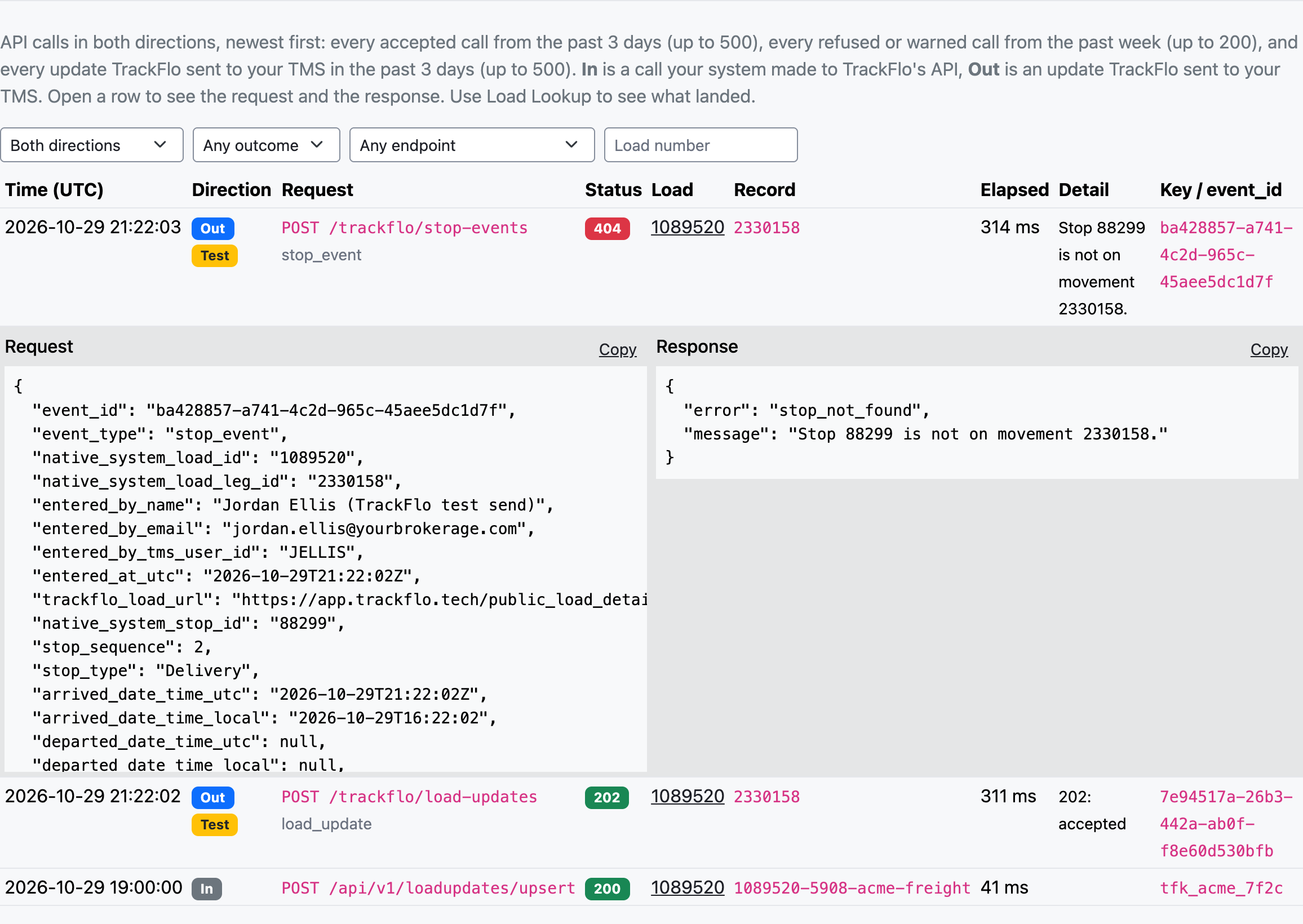
With the full log, each row has the columns below. Without it, the tab shows the time, request, status, record, load, detail and key, with a warning in blue, a 4xx in yellow and a 5xx in red.
Direction: In is a call your system made to TrackFlo; Out is an update we sent to your TMS. Test marks an update sent from the 2-Way Integration Updates tab.
Request: the method and path. An Out row also shows the update type, and which retry it was.
Status: green for success, blue for a call we accepted with a warning, red for a refusal or a failure. no answer means your endpoint didn't respond: we couldn't connect, or it took longer than 30 seconds.
Load and Record: the load number, which opens it in Load Lookup, and the record's permalink (In) or the leg id (Out).
Elapsed: how long the call took.
Detail: on an In row, the reason we refused the call or the warning we sent back; on an Out row, your response's
message.Key / event_id: the first characters of the API key that made an In call, or the
event_idof an Out update.
Filter by direction, outcome, endpoint or load number. Click a row to see its request and response bodies, each with a Copy button. We keep up to 16 KB of each body; a longer one is cut short with a note saying how long it was. We never keep an API key, and a document's file is logged by its size and checksum, not stored. What each status code means is in Rate Limits and Errors.
Test your write-back endpoints
The 2-Way Integration Updates tab appears once you have write-back endpoints set up with us. It sends any of the five updates to the endpoint you built, for a real load, and shows exactly what went out and what came back. Nothing changes in TrackFlo when you send a test.
Before you start:
We need your endpoint URLs and the key you issued us for this environment, and your firewall must allow our IP address.
The load must already be in TrackFlo in this environment, sent through the Integration API, so its ids exist on both sides. Check it in Load Lookup first.
Send a test update
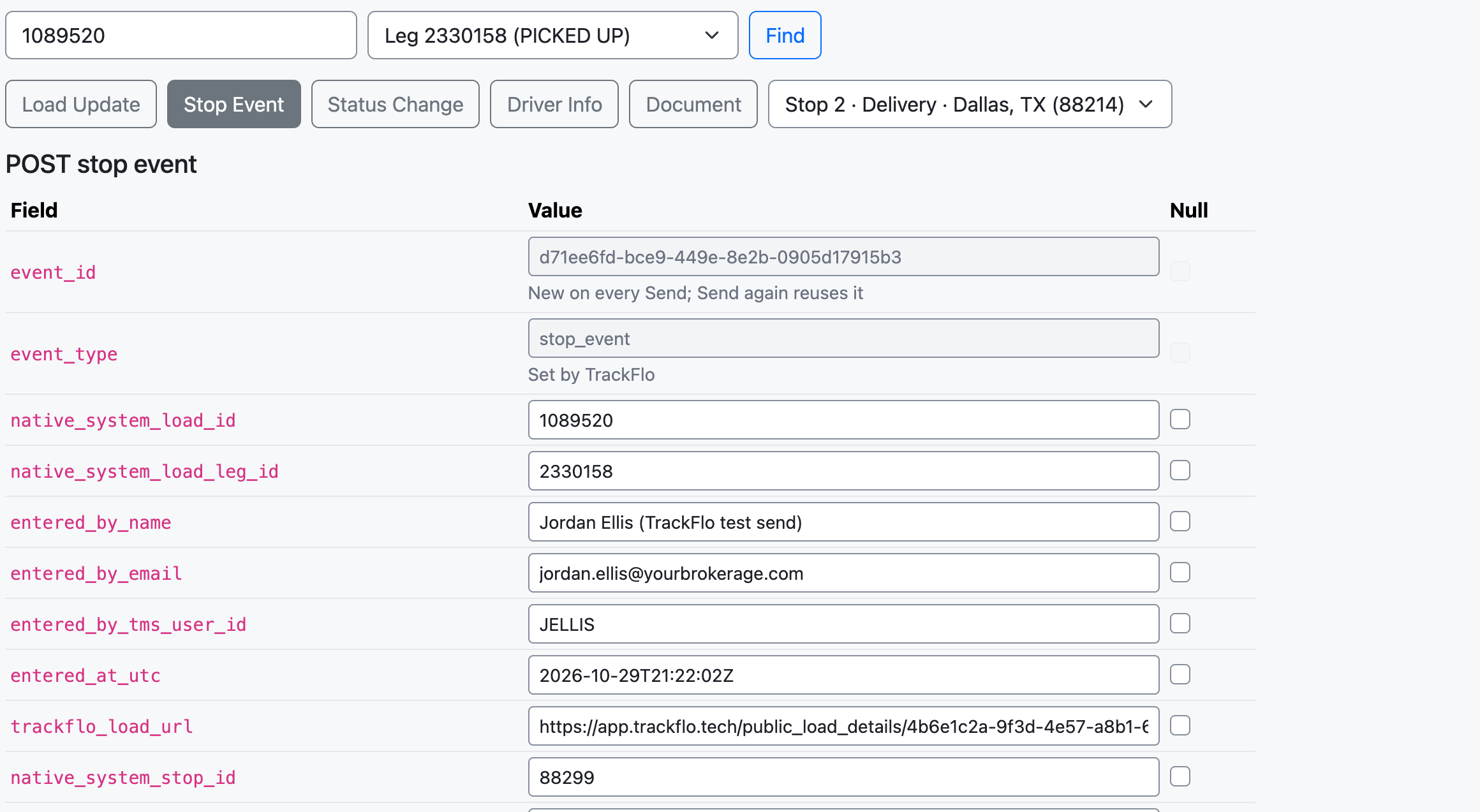
Enter the load number, click Find, and pick the leg.
Click Load Update, Stop Event, Status Change, Driver Info or Document. For a stop event, pick the stop; for a status change, pick the status.
Change any value you want to test (see below).
Click Send. The result usually appears within a few seconds.
What each update starts with
Each button loads the request we would send for that leg, built the same way as a real update, with sample values where a real one would carry a tracker's input.
Update | Starts with |
|---|---|
Load Update | The comment |
Stop Event | An arrival now at the stop you picked, in that stop's timezone, with no departure and source |
Status Change | The status you picked from your codes, trigger |
Driver Info | The driver, phone numbers, truck, trailer and tracking link we hold for the leg |
Document | A one-page sample PDF, |
Change values
Any value can change; field names can't. We set
event_type,event_idand a document's file fields.Null sends the field as null. Untick it to type a value.
Numbers and true/false are checked before sending. A value that doesn't fit its field is refused with the field named, and nothing is sent.
Edit an id to test your errors. Change
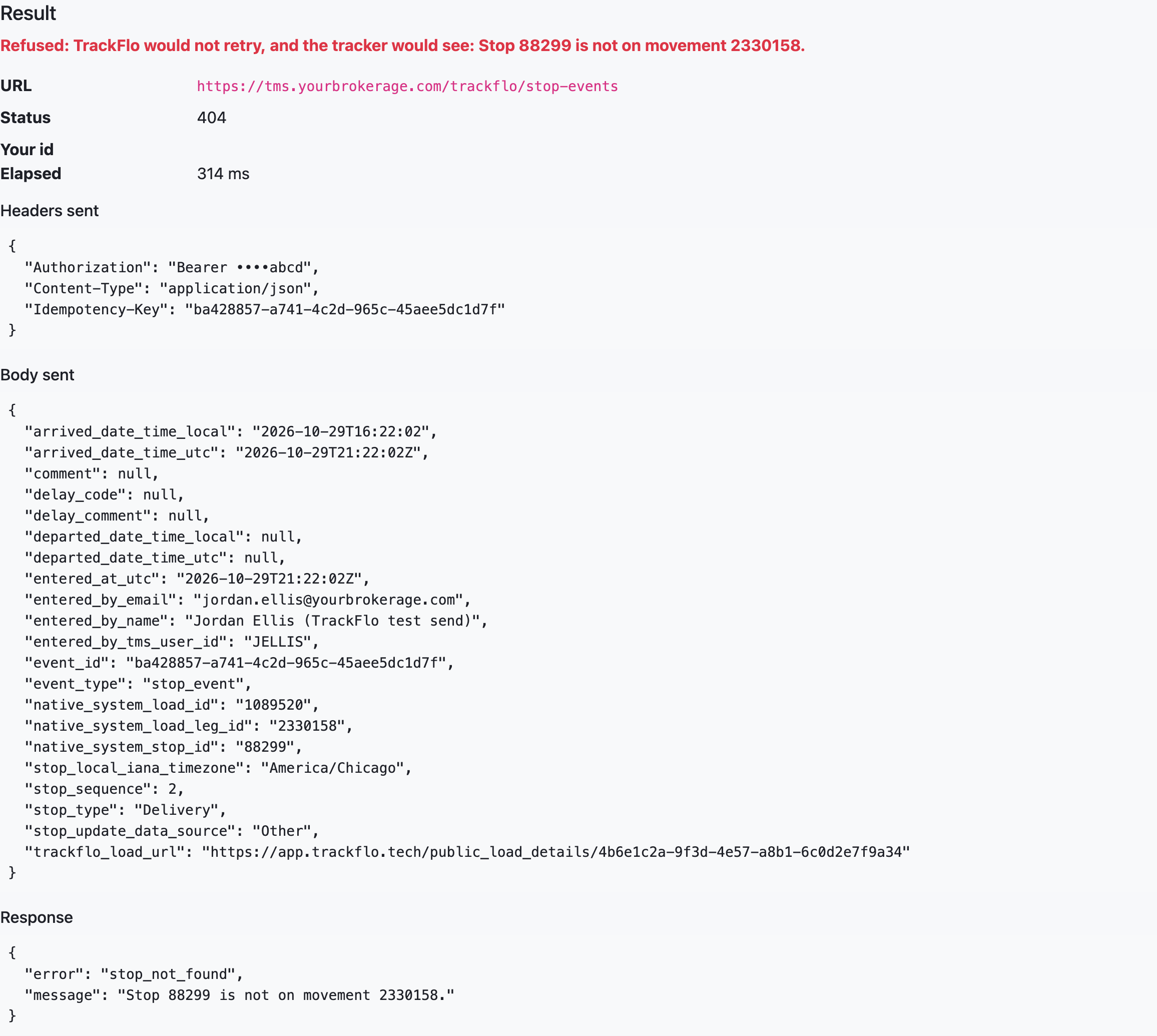
native_system_stop_idornative_system_load_leg_idto one your TMS doesn't hold to see your404and themessagea tracker would read.Test sends are marked.
entered_by_nameends in(TrackFlo test send), so your side can tell a test from a real update.
Read the result
The result shows the URL, the headers we sent (with the key masked), the body, your status code and response, your id, and how long you took to answer. Its first line says what we would do with that answer for a real update.
Your answer | What a real update does |
|---|---|
| Saved in TrackFlo, with your |
| Treated as already received, so it isn't sent again |
| Refused and not retried; the person who made the update gets an email with your |
| Retried up to 3 times over about 10 minutes |
Send again repeats the last request with the same event_id, so you can check you answer 409 or your original 2xx. It turns off when you pick another update. Every test also appears in API Calls, marked Test.
In production, a test send writes to your live TMS. If your TMS also sends load updates to the Integration API, it sends the test back to TrackFlo like any other update, and it shows on the load.
Check field coverage
One tab per object (Loads, Load Legs, Stops, Load Updates, Carriers) shows, for every field, the share of records created in the chosen window that have it filled in, plus sample values from the newest of those records. Switch the window between 12h, 24h, 7d and 30d at the top of the page.
Population % is red at 0%, yellow when some records have the field, and green above 90%.
Severity marks how much a field matters: critical fields are needed for a load to work in TrackFlo, important ones power specific features.
Integration fields only (on by default) hides fields TrackFlo fills in itself, so you see only what your integration is expected to send.
Hourly Volume under each table counts records created per hour over the last 24 hours (UTC), which shows whether your sync is running.
The Load Legs High Value Fields tab groups the leg fields TrackFlo relies on most, such as the latest location, account managers and carrier contacts.
When something doesn't look right
Find says there are no legs for my load
The result says "Not sent"
We don't have your endpoint URL or key for this environment yet. Send them to your TrackFlo contact; nothing reached your TMS.
The status says "no answer"
We couldn't connect to your endpoint, or it took longer than 30 seconds to answer. Check that your firewall allows our IP address and that the endpoint responds within 30 seconds.
Every test is refused with 401
The key we hold for this environment doesn't match the one your endpoint expects. Send us the current key through a password manager or a one-time link.
The Document button can't send
We haven't set up your document endpoint yet. Send us its URL.
Some values could not be sent as they are
A value doesn't fit its field, for example letters in a number field. Fix the field named in the message, or tick Null to send it empty.
I don't get a result
The page waits up to 90 seconds. If nothing comes back, the update is still listed in API Calls once it finishes; reload the page to see it.
My test update showed up on the load in TrackFlo
Your TMS sent it back to us through the Integration API. Skip records our endpoints created when you send updates to TrackFlo; comments we write end in (via TrackFlo).
A call I made isn't in API Calls
Without the full log, accepted calls aren't listed: look the load up instead. A call with a missing or unrecognised X-API-Key isn't listed either, and calls older than the windows above have dropped off.
Was this helpful?
Was this helpful?