

Recipients must be on your company's email domain. Send the report to the rep and have them forward it, or invite the customer to TrackFlo as a Customer User.
Email Your Reps a Daily Delivery Report for Every Customer
Updated today
Every weekday morning, each customer's rep gets an Excel report of that customer's upcoming deliveries, ready to forward before the customer asks. Teams tell us "you get four customers who are demanding an update on something and it kind of disrupts your flow." The scheduled report replaces the spreadsheet someone builds by hand each morning, and each load number in it links to the load's public tracking page.
What you need
An Admin, Internal User, or Tracking User account. Admins open Service Excellence > Scheduled Reports; other roles use the paper-plane icon in the top bar once an Admin turns on Include Scheduled Reports.
Recipients on your company's email domain. Reports go to your team, who forward them to the customer.
Set it up
1
Add a schedule
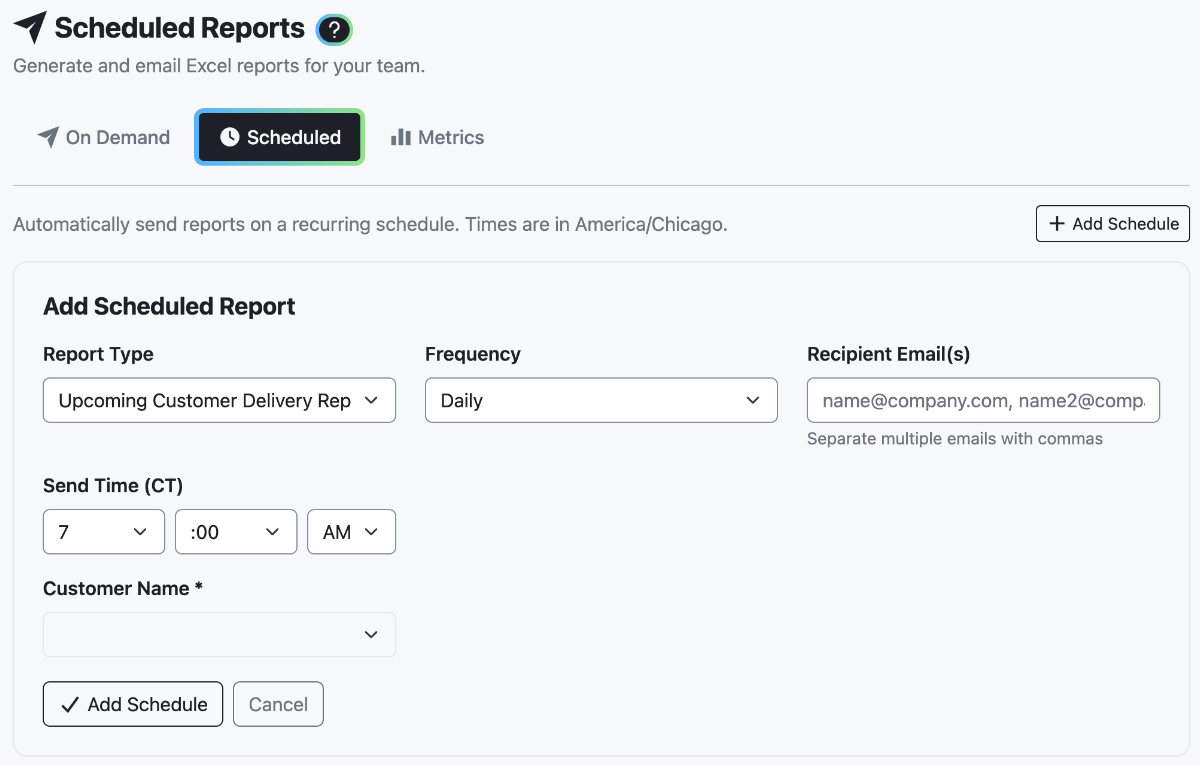
On Scheduled Reports, open the Scheduled tab and select + Add Schedule. Set Report Type to Upcoming Customer Delivery Report.
2
Choose the customer
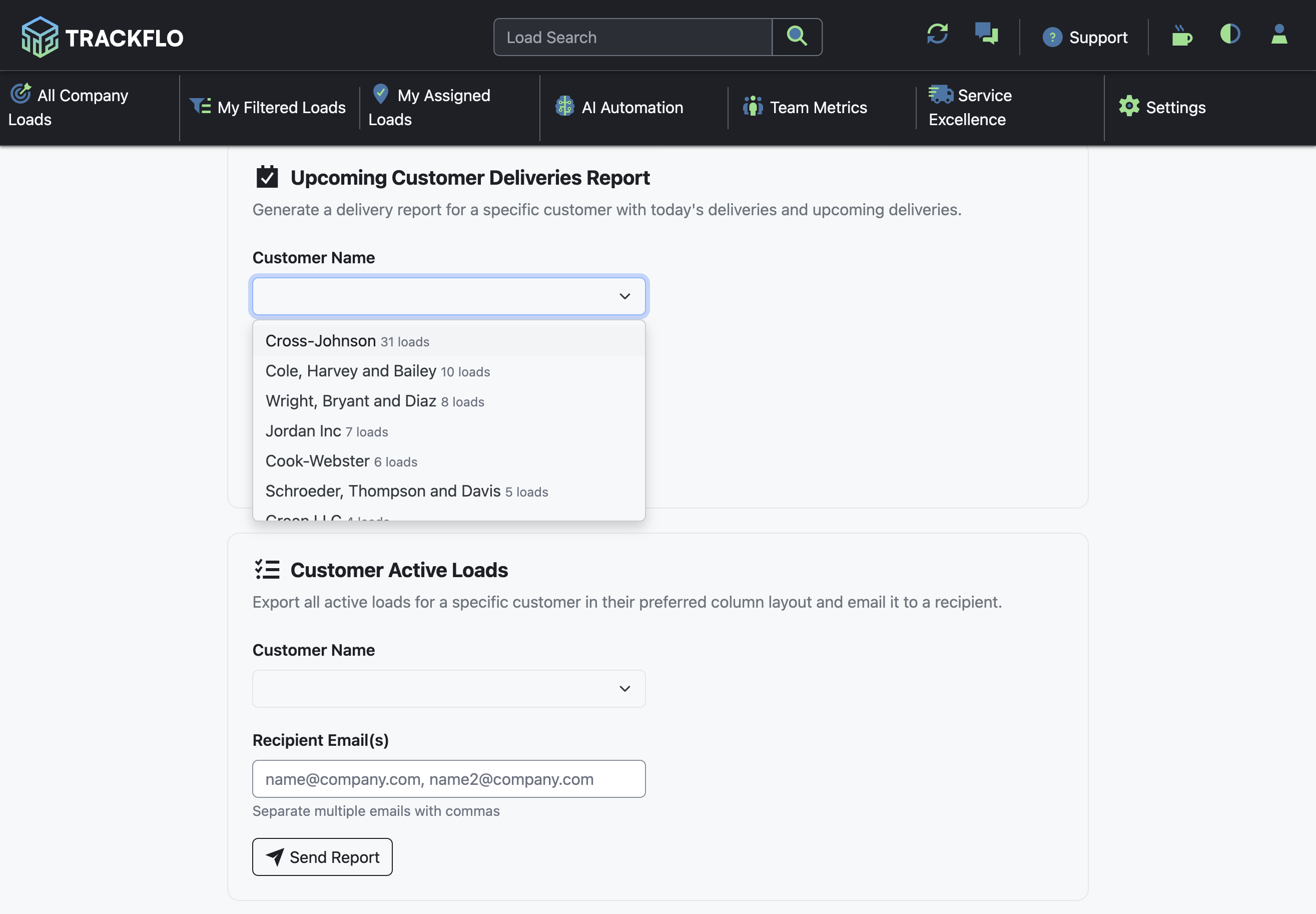
Pick the Customer Name from the list, which shows how many loads each name has on your board. One schedule covers one customer, so add one schedule per customer you report on.
3
Set when and to whom
Leave Frequency on Daily, which sends Monday to Friday. Set Send Time (CT); the default is 7:00 AM Central, on the hour or quarter hour. Enter the reps in Recipient Email(s), separated by commas, then select Add Schedule.
4
Send a sample
Select the paper-plane button on the schedule's row (Send Sample to Recipients) to send it now and check the contents before the first morning send.
The report lists every load whose delivery appointment is today or later, sorted by the end of the delivery window, with PO Number, Load Number, Status, Latest Location, Origin, Destination, and Delivery Window End.
The same page schedules three related reports: Customer Active Loads (every active load for one customer), Account Manager Report (one tab per customer for an account manager's book), and Issues Report (every board load with an open exception, for the account managers or customers you name).
When it doesn't go to plan
The customer's address is refused
The report arrived with an empty table
The customer name doesn't match the name on your loads. Pick it from the list rather than typing it, so the spelling matches.
No report arrived on Saturday
Daily sends Monday to Friday. Use Weekly for a weekend summary.
Measure it
The Metrics tab on Scheduled Reports shows your company's send history.
Status emails from customers fall, because the delivery list is in the rep's inbox at 7 a.m. and in the customer's shortly after.
Related recipes
Answer "Where's My Freight" Before the Customer Asks
Public load pages, exception alerts, and reports that put the answer in front of the customer first.
Read recipeTrack White-Glove Freight Tighter Than the Rest
Tighter thresholds and more exceptions for the freight your best customers watch.
Read recipeProduct docs
Customers can sign in to open the full guide:
Was this helpful?
Was this helpful?