

Driver info updates
Updated today
Enter driver info on a load's Tracking Info panel and TrackFlo writes it back to your transportation management system (TMS). This page lists every field you can see, which fields depend on your TMS setup, and what to do when the write fails.
The driver phone number is the field that unlocks everything else. Without it, no automated outreach can reach the driver, the SMS button doesn't appear, and AI voice calls have nowhere to dial — so a load with no driver phone is a load your team has to chase by hand.
Get this filled in early
Driver info usually arrives with the carrier's dispatch confirmation, well before the truck is moving. Entering it then is worth more than entering it when something goes wrong, because by the time a load is sitting still is exactly when you want automation already able to reach the driver.
A load with no driver phone and an open exception is the worst combination: the thing that would resolve it fastest is the thing you can't do.
Where to enter driver info
Open the load from the tracking board.
Select Tracking Info. The Update Tracking Info panel opens.
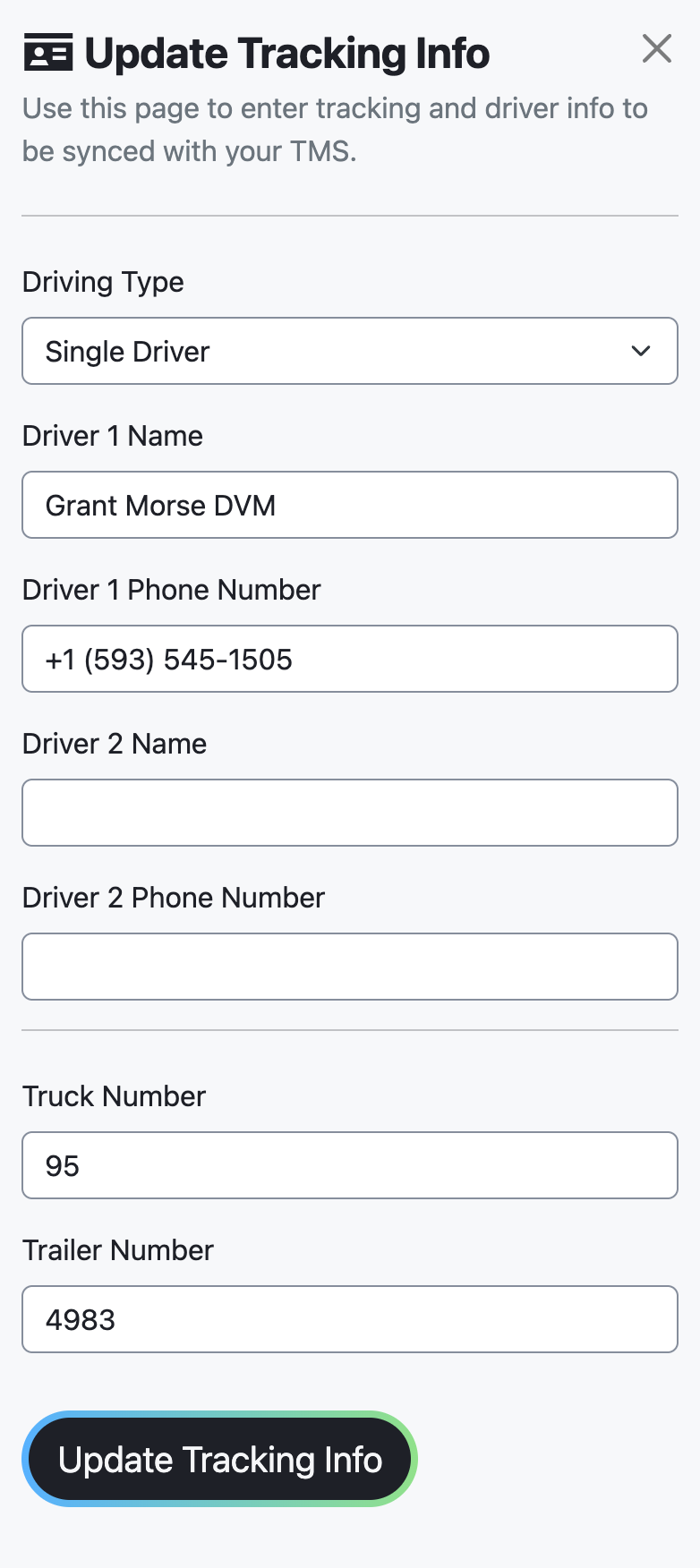
None of the fields are required, so you can enter a partial set. Which fields appear depends on how your TMS integration is configured.
Standard fields
Field | What to enter |
|---|---|
Driving Type | Single Driver or Team Drivers. Filling in Driver 2 makes it team drivers. |
Driver 1 Name | The driver's name. |
Driver 1 Phone Number | The driver's phone number. |
Driver 2 Name | The second driver's name, for team drivers. |
Driver 2 Phone Number | The second driver's phone number. |
Truck Number | The truck number. |
Trailer Number | The trailer number. |
Enter the driver's own mobile number rather than a dispatch line. Outreach and the SMS conversation go to whatever is in this field, and a text sent to a dispatch office doesn't reach the person in the truck.
Keep it current. Drivers get swapped mid-load more often than the record gets updated, and the symptom is a driver who "isn't responding" when in fact they were never contacted.
Turvo setups
If your TMS is Turvo, the panel replaces the manual name and phone fields with driver search fields:
Driver Search (Turvo) and Driver 2 Search (Turvo): type at least 2 characters to search Turvo drivers for this carrier.
If the driver is not in Turvo yet, use New Driver Name and New Driver Phone Number (and the Driver 2 equivalents). This creates the driver on the carrier in Turvo.
Search before creating. Creating a driver who already exists in Turvo leaves you with two records for the same person, and the next load may pick up the wrong one.
Extra fields in some setups
Depending on your TMS setup, the panel can also show:
Add Project44 Tracking and Asset Identifier (Vehicle ID) (one Turvo setup).
Tracking Method, with the choices Not set — TrackFlo will read it from Mastery, Macropoint - Driver Cell, Macropoint - ELD, Fourkites - Driver Cell, Fourkites - ELD, and Macropoint - TMS. ELD stands for electronic logging device.
ELD Vehicle ID, Empty City, State, and Empty Date & Time (local to stop) (one TMS setup).
Tracking Method decides where automatic location comes from. An ELD method needs the vehicle identifier to be right; a driver-cell method needs the phone number to be right. When a load reports no locations at all, this pairing is the first thing to check.
Team drivers
On a team load, fill in both drivers. Outreach reaches the contact on file, and on a team truck the person awake isn't always the one you have recorded.
What syncs to your TMS
TrackFlo sends the driver names, phone numbers, driving type, truck number, and trailer number to your TMS. After a successful write, TrackFlo updates its own load record with the same info, so both systems show it.
That means correcting a bad phone number here fixes it in both places at once — worth doing rather than working around it for the rest of the load.
When the sync fails
If a driver update does not reach your TMS, open Two Way Integration Status and check the Failed TMS Updates tab. Each failed row shows Status, TMS Response Code, TMS Response Message, and a Retry Update action.
If you see a Time out message, do not keep submitting. Check the Failed TMS Updates tab first: resubmitting a request that actually reached your TMS can create duplicate driver entries.
For response codes and other sync symptoms, see Troubleshoot TMS sync issues.