

Load updates
Updated yesterday
Load updates let you record what you learn about a load in TrackFlo and send it back to your TMS (transportation management system). You enter them on the load page in the Priority Updates or All Updates tab: select Load Update to open the Add Load Update panel. If your team uses Turvo, the button is labeled Turvo Status Update instead. That flow has its own page: Turvo status updates.
This page lists what you can enter in the panel and how the sync to your TMS behaves. For a step-by-step walkthrough of adding an ETA, see Update a load's ETA.
Why updates belong here
An update entered in TrackFlo does two things: it syncs to your TMS, and it counts toward your shift scorecard and team metrics. The same update typed directly into your TMS does neither — TrackFlo can only measure work that happened in TrackFlo, so it never sees it.
This is the single habit that decides whether a rollout succeeds. When a team's numbers look low in the first weeks, it's usually because part of the team is still updating in the TMS out of habit and getting no credit for the work.
Fields in the Add Load Update panel
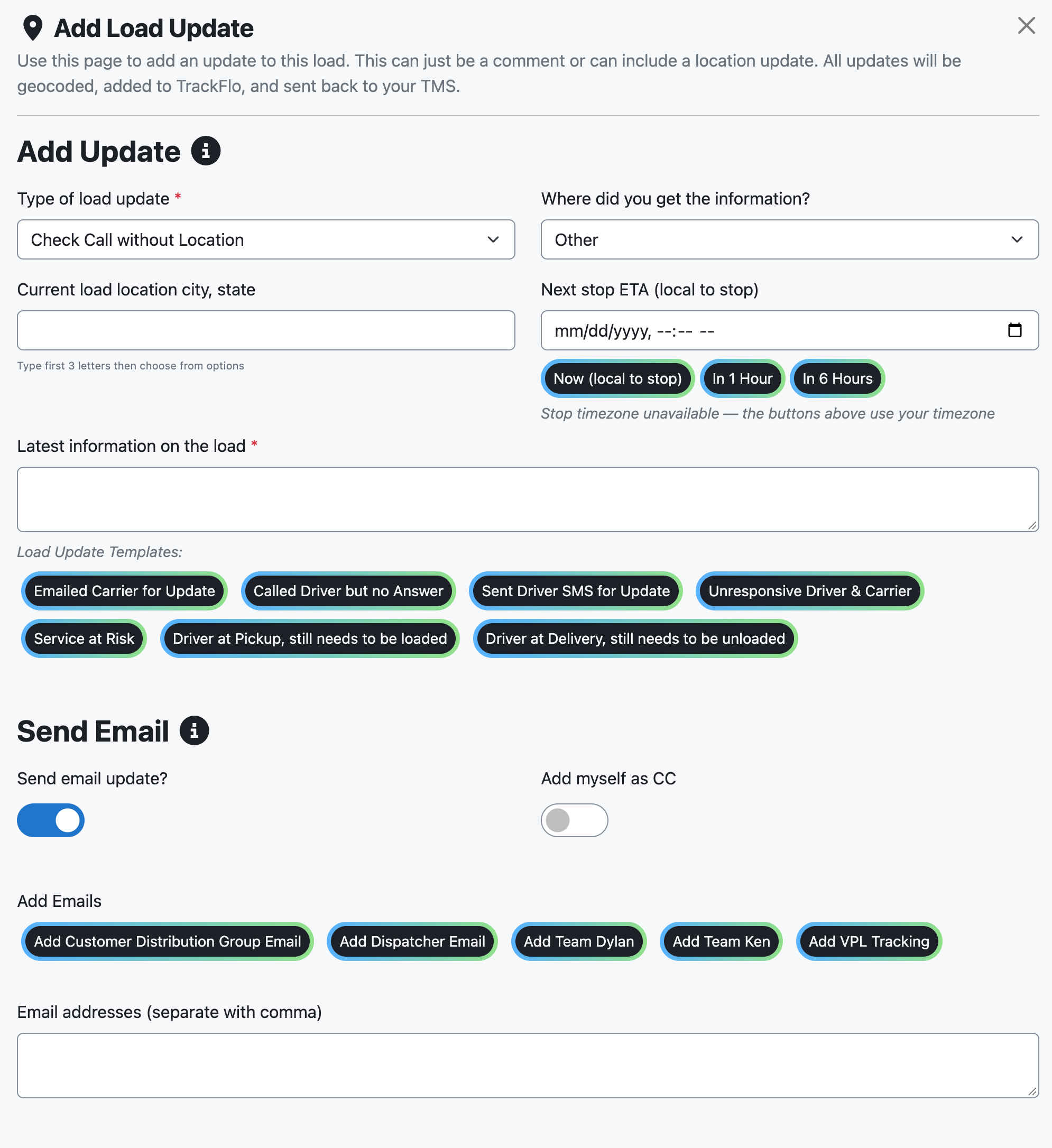
The panel states that the update is geocoded, added to TrackFlo, and sent back to your TMS. Not every field appears for every team: some fields are shown only for some TMS setups, and the update type list varies by company and TMS.
The Sent Driver SMS for Update button does not send a text message. It only fills the comment field with a note saying an SMS was sent. To actually text the driver, see Send an SMS to the driver.
Field | Required | What to enter |
|---|---|---|
Type of load update | — | The list varies by company and TMS. Common values include Check Call without Location, Check Call with Location, ETA Confirmation, Load is Late Update, Problem, Detention Warning, and No Response. |
Where did you get the information? | Optional | Pick the source of the update, such as a phone call with the driver. |
Current load location city, state | Optional | Type the first 3 letters of the city and choose from the options. |
Next stop ETA (local to stop) | Optional | Enter the ETA (estimated time of arrival), or use a quick-fill button: Now (local to stop), In 1 Hour, or In 6 Hours. |
Load Update Timestamp (your local time) | Optional | Shown only for some TMS setups. |
Is the load empty? | Optional | Only mark this before pickup. |
Temperature (°F) | Optional | Shown only for some TMS setups. |
Latest information on the load | Yes | Short comment on what you learned, limited to 600 characters. |
Send email update?, Add myself as CC, Email addresses (separate with comma) | Optional | Email controls for sending the update to others. |
Load Issue Managed, Load Issue Managed Type, Load Issue Managed Until, Load Issue Managed Until Time | Optional | Manage Issue controls for recording that a load issue is being handled. |
Picking the right update type
The update type is how anyone reading the load later understands what happened without reading every comment. It also feeds your reporting, so a shift of accurate types tells you something and a shift of everything-is-a-Check-Call tells you nothing.
Two distinctions worth getting right. Check Call with Location versus without should reflect whether you actually got a position, not whether you filled in the city field out of habit. And No Response is a real and useful outcome — recording an attempt nobody answered is more honest than leaving the load untouched, and it's the record that shows you tried.
Managing an issue instead of resolving it
The Load Issue Managed controls are how you handle a load you've dealt with but that isn't finished — you've spoken to the driver, there's nothing more to do for two hours, and you don't want it competing for attention in the meantime.
Setting a managed-until time takes the load out of your active work and brings it back when the time is up. That's different from resolving it: the underlying situation still exists, you've just decided when to look again.
Set the return time for when you'd actually want to know, not for the end of your shift. A load managed until 6pm on a shift ending at 6pm is a load handed to the next person with no warning.
Sending the update by email
The email controls send the update to people outside TrackFlo. Whatever you typed in the comment is what they read, so write it for that audience before you tick the box.
Add myself as CC is worth using on anything contentious — it gives you your own copy of exactly what went out and when.
Where the ETA goes
TrackFlo applies the ETA you enter to the next stop on the load that has no arrival time yet. There is no stop selector in the form, so you cannot target a different stop from here.
On a multi-stop load that means the ETA lands on the next unarrived stop rather than final delivery. If you mean a later stop, say so in the comment.
How the sync to your TMS behaves
Updates are sent to your TMS as background tasks, so they can take up to a minute to appear. The status line under the form shows the progress:
Load Update: Processing... — the update is on its way to your TMS.
Load Update: Completed — your TMS confirmed the update. TrackFlo records the update only after your TMS confirms it.
Load Update: Failed — your TMS rejected the update. It retries a few times before it stays failed.
Do not add the update again while the status still shows Load Update: Processing.... Resubmitting at that point creates duplicates. Wait for Load Update: Completed first.
Because nothing is recorded until your TMS confirms, walking away from a failed update means what you learned is stored nowhere — not in TrackFlo and not in your TMS. Watch the status line before moving to the next load.
When a load update fails
A failed update keeps its failure detail on the Two Way Integration Status page. Open the Failed TMS Updates tab to see the Status, TMS Response Code, and TMS Response Message for the failed row, then use Retry Update to send it again. A completed update that never appears in your TMS is a known report; the fix path is the same: check the Failed TMS Updates tab and retry from there. For the full picture, see Troubleshoot TMS sync issues.
Several failures at once usually points at the integration rather than at anything about the loads. Check the page before retrying each row individually.