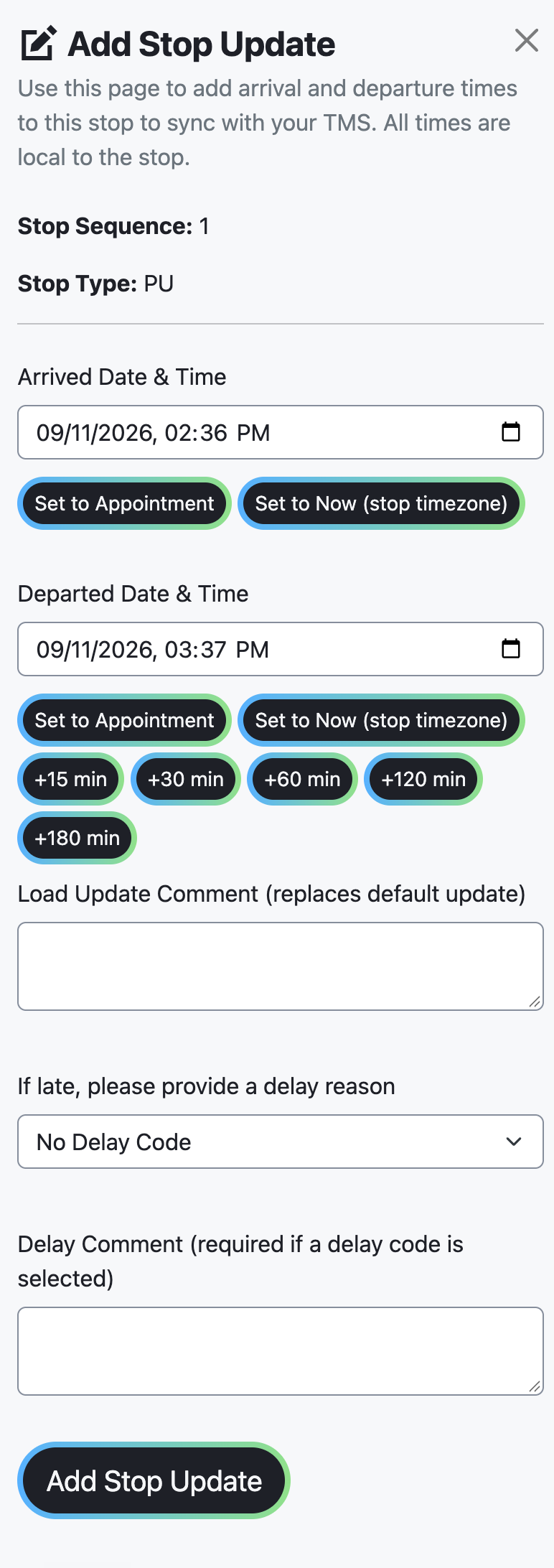
Stop updates send a stop's arrival and departure times from TrackFlo back to your transportation management system (TMS). You enter them in the Add Stop Update panel on the load page. This page lists the fields, quick-fill buttons, validation rules, and what to check when an update fails.
These are the highest-stakes times you enter anywhere in TrackFlo. Arrival and departure at a stop are what dwell time is measured from, which makes them the basis of any detention claim — and they're what on-time performance is judged on.
Add a stop update
Open the load.
In the stop table, select Update Stop. The Add Stop Update panel opens.
The panel states that arrival and departure times sync with the TMS and that all times are local to the stop. Select Add Stop Update to submit.
All times here are local to the stop, not to you. On a load crossing time zones, entering your own clock time puts the arrival hours away from when it happened — and takes the detention window with it.
Enter what happened, not what was scheduled
Set to Appointment fills arrival and departure from the appointment. It's convenient and it's the easiest way to quietly destroy your own data.
A stop recorded at its appointment time shows as perfectly on time and shows no dwell, whatever actually happened. Do that across a few hundred loads and your on-time numbers look excellent, your detention claims vanish, and your carrier scorecards say everyone performs identically.
Use the quick-fill buttons for what they're good at — Now (stop timezone) when you're being told in real time, the +15 through +180 buttons to record a departure a known interval after arrival. Use Set to Appointment only when the truck genuinely hit its appointment.
Fields
Field
What it does
Arrived Date & Time
The arrival time at the stop.
Departed Date & Time
The departure time from the stop.
Load Update Comment
Replaces the default update.
Update Source?
Shown for some TMS setups instead of the comment. Pick where the information came from (see the choices below).
If late, please provide a delay reason
Pick a delay code when the arrival is late (see the codes below).
Delay Comment
Required if a delay code is selected.
Stop Status, Next Stop ETA (local to stop), Carrier Rating
Shown only for some TMS setups. The next stop's estimated time of arrival (ETA) is local to the stop. A Carrier Rating is required before final delivery.
Update Source? choices:
Phone Call with Driver
Text Message with Driver
Phone Call with Carrier
Email with Carrier
Carrier Tracking Website
FourKites
MacroPoint
Trucker Tools
P44
No Contact
Other
Delay codes:
No Delay Code
Accident
Consignee Related
Driver Related
Mechanical Breakdown
Other Carrier Related
Previous Stop - Multistop Only
Shipper Related
Weather or Natural Disaster Related
Customer - Other
Internal Error
Delay codes assign responsibility
The delay code is where a late arrival gets attributed. Driver Related and Mechanical Breakdown point at the carrier; Shipper Related and Consignee Related point at a facility; Previous Stop explains a knock-on delay on a multistop; Internal Error points at your own team.
This is the record anyone reviewing carrier or customer performance reads later, so the code you pick under time pressure becomes the version of events in a conversation months from now. Defaulting everything to Other Carrier Related is the easy habit, and it makes every carrier look equally bad.
The Delay Comment is required with a code for good reason — the code says who, and the comment says what. A code alone rarely survives a dispute.
Quick-fill buttons
Set to Appointment: fills the arrival and departure fields from the appointment.
Now (stop timezone)
In 1 Hour
+15 min
+30 min
+60 min
+120 min
+180 min
What syncs to your TMS
Depending on what you enter, the update sends:
The arrival and departure times, converted to UTC.
The delay reason and delay comment.
The stop status.
The comment.
The carrier rating.
The next-stop ETA.
After a successful write, TrackFlo's own stop record is updated too.
Validation rules
An arrival cannot be more than 1 hour in the future: Arrival time cannot be more than 1 hour in the future!
A departure cannot be more than 1 hour in the future: Departure time cannot be more than 1 hour in the future from the local time!
A departure requires an arrival at least five minutes earlier.
A destination arrival requires the previous stop to have a departure.
A late arrival requires a delay reason, and a delay comment for most setups.
Some setups require a Carrier Rating before final delivery.
One TMS setup blocks stop times until the load is dispatched: Please dispatch this load before adding stop arrival or departure times.
Most of these exist to stop a sequence that couldn't have happened. If a rule blocks you, the usual cause is a missing earlier stop update rather than a problem with the one you're entering — fill in the previous stop's departure first.
When an update fails
Submitting the panel is manual; the write to your TMS happens in the background. If your TMS rejects the update, it appears on the Failed TMS Updates tab of Two Way Integration Status, which shows Status, TMS Response Code, TMS Response Message, and a Retry Update action. See Troubleshoot TMS sync issues.
I entered the stop times several times and they never save
Your TMS is rejecting the times. The TMS Response Message on the Failed TMS Updates tab shows the TMS's rejection, for example that a value was not found in the stop table. Use that message to see why the TMS rejected the times, and retry the update from the same tab with Retry Update.
Don't keep re-entering the times in the panel. Each attempt fails the same way, and the answer is on the Failed TMS Updates tab rather than in the form.
I can't clear an existing arrival or departure time
Clearing an existing time can be blocked when an arrival or departure date is required.
If a time was recorded wrongly and won't clear, note the correct time in a load update so the record shows what actually happened, and raise it with support.