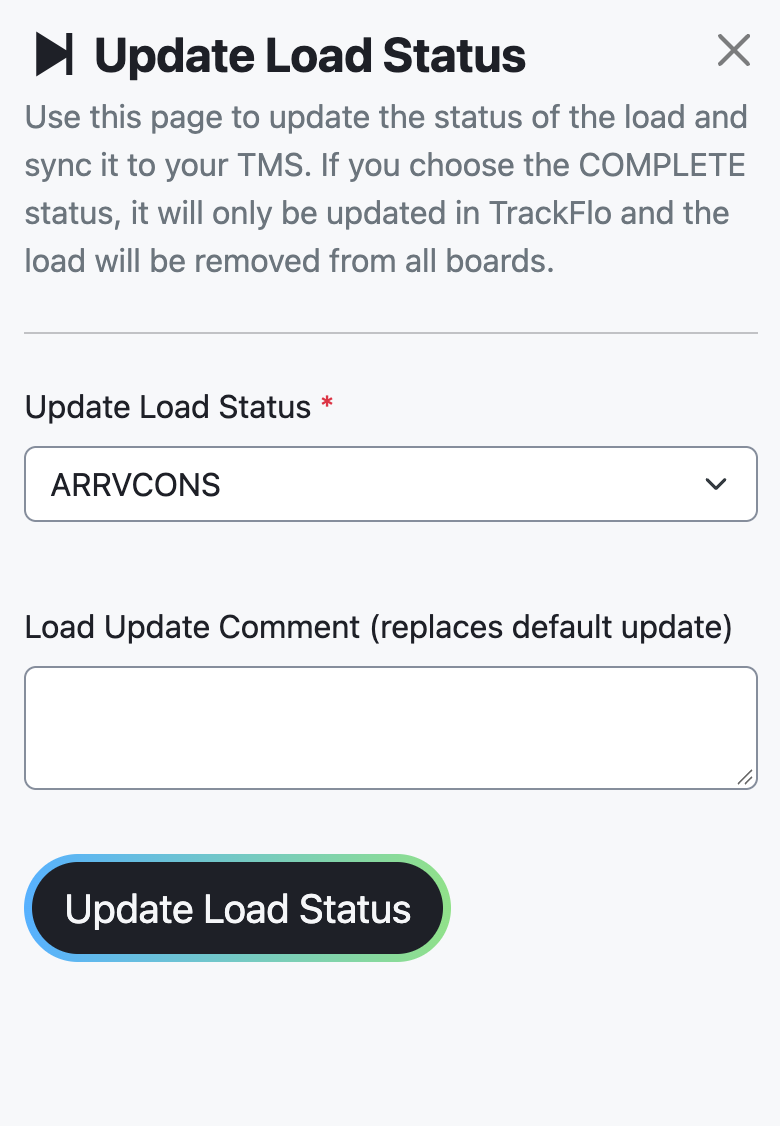
Change a load's status and sync it to your transportation management system (TMS): open the load, select Load Status, and submit the new status in the Update Load Status panel. The panel states that the update is synced to your TMS.
Status is the highest-consequence field on a load. It drives whether the load appears on tracking boards, and it's what your TMS and everyone downstream of it reads.
Status names come from your TMS
TrackFlo shows the statuses your TMS supplies, so the vocabulary is your TMS's rather than ours. That's why the same word means different things at different companies — covered in one system is booked in another.
When you raise a status question with support, say which TMS you're on. Half the confusion in these conversations is two people using the same word for different stages.
Before you start
You need a Tracker, Internal User, or Admin role to open a load page.
The status choices are set by your company and TMS, so the list on your screen may differ from another team's.
Update the status
Open the load from the tracking board.
Select Load Status. The Update Load Status panel opens with the load's current status already selected.
Choose the new status.
Optional: add a comment in Load Update Comment (replaces default update) to replace the default update text.
Optional, for some TMS setups: set Status Timestamp (your local time), or use Set to Now (my timezone).
Select Update Load Status.
Wait for the confirmation: updates take up to 1 minute to fully sync.
The comment field replaces the default text that would otherwise be recorded. Use it when the status change needs explaining — a load going to a problem status is more useful to the next person with a sentence about why.
Choosing COMPLETE updates TrackFlo only. It does not sync to your TMS, and it removes the load from all boards.
That combination is worth pausing on: nobody on your team will see the load again, while your TMS still shows it as it was. Use COMPLETE deliberately, not as a way to clear something off your board.
Record statuses in order
Statuses are a sequence, and on a multi-stop load each arrival and departure belongs to a specific stop. Two mistakes account for most "the status is wrong" reports.
Skipping a stage. Marking a load Delivered while it still reads Dispatched leaves the pickup stop without times in your TMS. Record At Pickup and Picked Up first, even if you are catching up after the fact.
The wrong stop. An At Delivery recorded against the pickup stop puts the arrival on the wrong facility, and every dwell and on-time number for that load follows it. On a multi-stop load, check the stop picker before you submit.
To move a status backwards, do it in your TMS. TrackFlo records the next stage and syncs it; it is not the place to unwind a stage that already reached the TMS.
Changing status changes who sees the load
Tracking boards only show loads in an active state. Moving a load out of that state takes it off every board, including boards belonging to people who weren't expecting the change.
If you're clearing a load because you've dealt with it for now rather than because it's genuinely finished, use the Manage Issue controls on a load update instead. That sets a return time and keeps the load in the workflow. See Load updates.
How the sync behaves
Submitting is manual: the status change is sent to your TMS in the background after you select Update Load Status. Once your TMS confirms the update, TrackFlo changes the load's own status and records a load update on the load.
So the load's status in TrackFlo trails your TMS by design — TrackFlo doesn't change it until the TMS agrees. If the status hasn't changed after a minute, the update hasn't been accepted.
If your team uses Turvo, the load page shows a combined Turvo Status Update flow instead. See Turvo status updates.
Who changed the status
TrackFlo never advances a status on its own. Every change has a source, and the load page shows it in two places.
Update History lists the updates your team and TrackFlo's automation sent, with who sent each one and whether the TMS accepted it. Start here to find who or what changed a status.
All Updates is the location and event timeline: tracking pings, TMS status changes, and automated updates in time order. Use it to see when a change happened relative to the truck's movement.
A status that changed with nobody on your team touching it usually came from a tracking provider or your TMS's own automation, and the source column says which.
When it doesn't work
The status didn't sync to your TMS
Open Two Way Integration Status and check the Failed TMS Updates tab for the TMS Response Code and TMS Response Message, then use Retry Update. See Troubleshoot TMS sync issues.
A rejection often means the status isn't valid for the load's current stage in your TMS — the TMS response message usually says which.
A status changed but you didn't change it
Status changes also come from automated updates, such as a driver answering an AI outreach, or from your tracking provider. Check the load's Update History and All Updates tabs to see where a change came from before you change it back.
Reverting an automated change without reading it first is how good information gets thrown away. The driver's answer is usually more current than what you were working from.
The board shows one status and the load page another
The load page reads the load directly; the board is a cached table that refreshes on its own schedule. Select Refresh Table & Big Number Data above the board, or wait for the next refresh. The load page is the current value.
The load disappeared after a status change
Boards only show loads in an active state, so a status change can remove a load from view. The load still exists and is findable in Load Search.