

Open Two Way Integration Status and check the Failed TMS Updates tab. Each failed row shows Status, TMS Response Code, TMS Response Message, and a Retry Update action. Read the response message to see why the TMS rejected it, then select Retry Update. If the row is not there, the POD reached the TMS and re-uploading sends it twice.
POD updates
Updated today
Upload a POD (proof of delivery) from a load, and TrackFlo stores the file and sends it to your TMS (transportation management system) in the background. This page covers what you can enter, how the sync behaves, and what to check when a POD never shows up in the TMS.
The POD is what invoicing waits on. A load can be delivered, closed, and forgotten, and still not be billable until this document lands — which makes chasing PODs one of the few tracking tasks with a direct line to cash.
Where to upload a POD
Open the load and select Upload POD. The panel says: Use this page to upload PODs and send to your finance team and TMS.
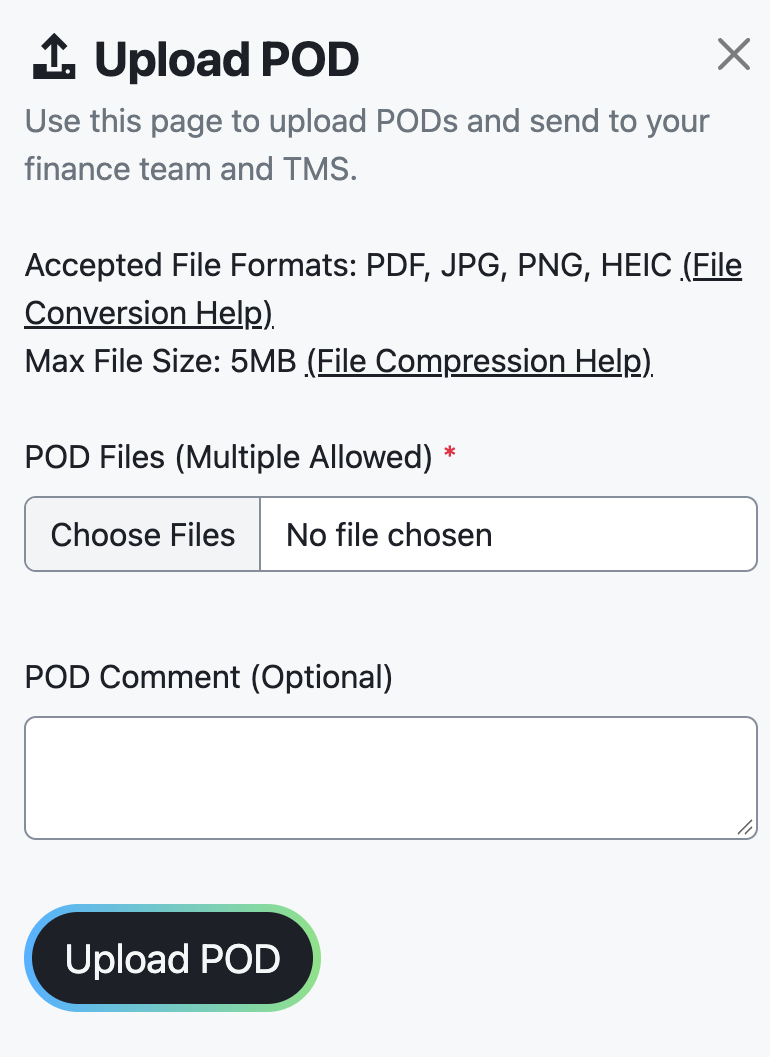
Field | Details |
|---|---|
POD Files (Multiple Allowed) | Required. Upload one or more files. |
POD Comment (Optional) | Maximum 500 characters. |
Accepted File Formats | PDF, JPG, PNG, HEIC. |
Max File Size | 5MB. |
Submit button | Upload POD. |
HEIC is on the list because most PODs arrive as a photo taken on a driver's phone. You can upload what the driver sent without converting it first.
Check the document before you upload it
A POD only does its job if someone downstream can read it. Delivery paperwork photographed in a cab is often dark, angled, or cut off at an edge, and the signature and delivery date are exactly the parts that get lost.
It's much easier to ask a driver for a second photo while they're still at the dock than to chase one back a week later when invoicing rejects the document.
Multiple files are allowed, so upload every page rather than just the one with the signature.
Use the comment for what the document doesn't show
The comment is where anything unusual belongs: a noted shortage, damage, a signature that's illegible, pages that arrived separately. Whoever handles the invoice sees the document and your comment, and nothing else about the delivery.
How the sync works
After you submit, TrackFlo stores the file and sends it to your TMS as a background task. For Turvo setups, the POD arrives in Turvo as a document typed Proof of delivery.
Not every TMS setup accepts POD uploads from TrackFlo. For some setups, the POD is emailed instead and is not pushed to the TMS.
Worth knowing which one your company is on. If your setup emails PODs rather than pushing them, looking for the document in your TMS will always come up empty and nothing is wrong.
If a POD saves in TrackFlo but you don't see it in the TMS, check the Failed TMS Updates tab before uploading again. A file that actually reached the TMS can end up there twice.
Duplicate PODs are worse than a missing one — invoicing has to work out which version is authoritative, which is slower than just chasing the document.
When a POD doesn't reach your TMS
The POD saves in TrackFlo but never appears in the TMS
The upload panel rejects the file
Check the file format and size. The panel accepts PDF, JPG, PNG, and HEIC, with a maximum file size of 5MB. A file outside those limits won't upload.
A multi-page scan is the usual cause of an oversized file. Splitting it into separate pages and uploading them together works, since multiple files are allowed.
If the TMS response message doesn't explain the failure, see Troubleshoot TMS sync issues.
Related
Workflow Settings — POD lookback and AI scanning
Outreach Settings — where PODs are emailed
Was this helpful?
Was this helpful?