If your team has Driver AI Voice Call enabled, you can have an AI agent call the driver for you and ask the questions you pick. The AI records the answers, and the transcript is stored on the load. Use it to get the driver's location, ETA (estimated time of arrival), temperature, or stop status without dialing yourself.
This is the manual version of the automated voice outreach. It's most useful when a load needs an answer sooner than the automation schedule would get to it, or when you want a specific combination of questions asked on one call.
Before you start
The Driver AI Voice Call button appears only when your company's load-page layout includes it and the load has a driver phone number.
Check the load's existing outreaches first. If the driver was contacted recently, another call from the same number within the hour is more likely to annoy them than to get you a better answer.
Place the call
Open the load from the tracking board.
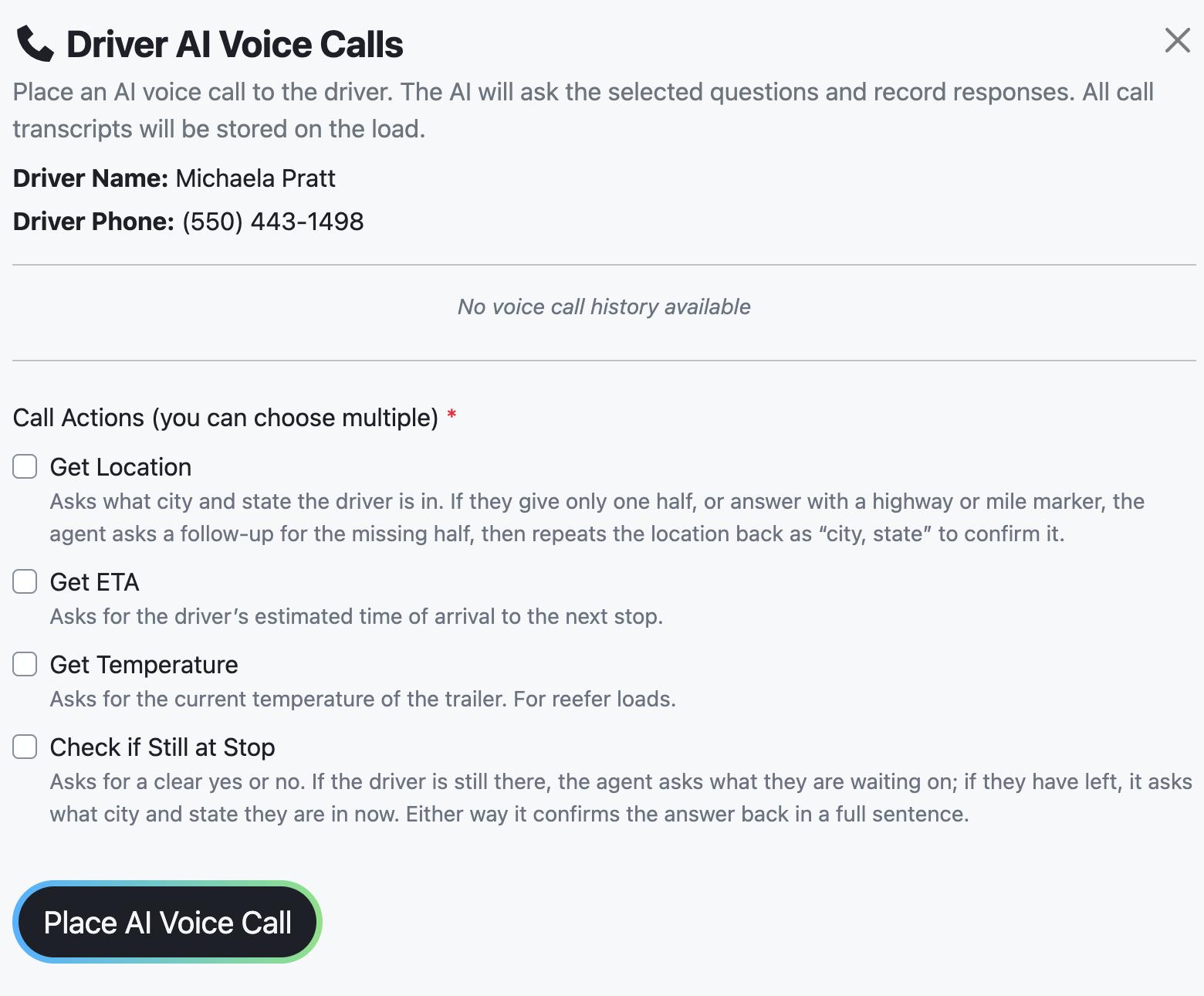
In the External Contact button group, select Driver AI Voice Call. The Driver AI Voice Calls panel opens. The panel reads: Place an AI voice call to the driver. The AI will ask the selected questions and record responses. All call transcripts will be stored on the load.
Check Driver Name and Driver Phone at the top of the panel to confirm who the AI will call.
Under Call Actions (you can choose multiple), select at least one: Get Location, Get ETA, Get Temperature, or Check if Still at Stop.
Select Place AI Voice Call.
The screen shows Voice call queued successfully! and AI voice call queued. The driver will be called shortly. The call is queued, not placed instantly.
Choosing call actions
Select everything you'd want from this call. The driver is answering their phone once either way, and a call that gets location and ETA together saves you calling again in twenty minutes.
Match the actions to the situation rather than selecting all four out of habit. Check if Still at Stop is the one that matters on a load sitting at a facility; Get Temperature only makes sense on reefer freight, and asking a dry van driver for a temperature makes the call sound like it isn't about their load.
You cannot submit with no call action selected. The form blocks it with Select at least one action!, and if the load has no driver phone number, with Driver Phone Number is required to place a voice call!
What good looks like
After the call completes, the load's outreach history shows the call with an AI Summary, a Recording, and View Full Transcript (collapsed by default). Each call entry also shows the ended reason (Ended: <reason>), whether the call was Outbound or Inbound, the duration, and the phone number. The summary and recording appear only when that data exists.
Read the summary before acting on it, and open the transcript when something matters — a disputed detention claim or a delivery failure is worth the extra thirty seconds. The recording is the strongest record you have of what a driver actually said.
When the call syncs to your TMS
A completed call does not by itself create a load update or sync to your TMS (transportation management system). If the driver answered and the transcript produced a valid load update, TrackFlo creates that load update and syncs it to your TMS like any other update. See Load updates for how updates sync.
A call that connects but produces no usable answer leaves nothing in your TMS. If the driver said something worth recording and no load update appeared, add one yourself — otherwise the information stays in a transcript nobody outside TrackFlo will read.
When it doesn't work
The call stays queued and never places
This usually means the voice agent is not fully configured. The Driver AI Voice Call button can appear even when the setup is incomplete, so you find out when you submit. An admin needs to complete the Voice Agent Settings in company settings. Contact your TrackFlo admin.
If it fails this way once it will fail for every load until an admin fixes it, so raise it rather than retrying load by load.
The driver doesn't answer
If the driver doesn't answer, the AI leaves a voicemail message written for voicemail calls and ends the call without asking the questions. When the voicemail produces transcript text, the outreach history records the call as AI voice call reached voicemail. The voicemail content is not treated as a driver response, so no load update is created and nothing syncs to your TMS. Check the ended reason on the call in the outreach history, then try again or contact the driver another way.
Record the attempt as a load update with type No Response so the next person can see you tried, and set a Manage Issue time rather than sitting on the load.
If the driver asks the AI not to call again, for example "Stop calling me" or "Take me off your list", the AI acknowledges the request and ends the call. The driver's phone number is then marked SMS Opted Out on the load page, and future automated outreach to that number, including SMS, is blocked.