

The load has no driver phone number, or your company's load-page layout doesn't include the button. Add the phone number in Tracking Info (see Driver info updates), or ask your admin to add the button to the layout. If the number disappears before you send, the panel blocks the send with Driver Phone Number is required to send SMS!
Send an SMS to the driver
Updated yesterday
Text a driver directly from the load page with Driver SMS Conversation. The message and the driver's replies are stored on the load, and the outbound SMS (short message service) syncs to your transportation management system (TMS) as a load update when your company enables that setting.
This is the manual version of what outreach rules do automatically. Reach for it when a load needs a human question that no template covers, not as a substitute for automation that's already chasing the same load.
Before you start
You need a Tracker, Internal User, or Admin role to open the load page.
The Driver SMS Conversation button appears only when your company's load-page layout includes it and the load has a driver phone number. If you don't see it, the load has no driver phone number yet. Add one in Tracking Info first (see Driver info updates).
Check the load's existing outreaches before you send. If automation texted this driver twenty minutes ago, a second message from the same number reads as pestering and usually gets you a worse response than waiting.
Send the SMS
Open the load from the tracking board.
In the External Contact button group, select Driver SMS Conversation. The Driver SMS Conversation panel opens.
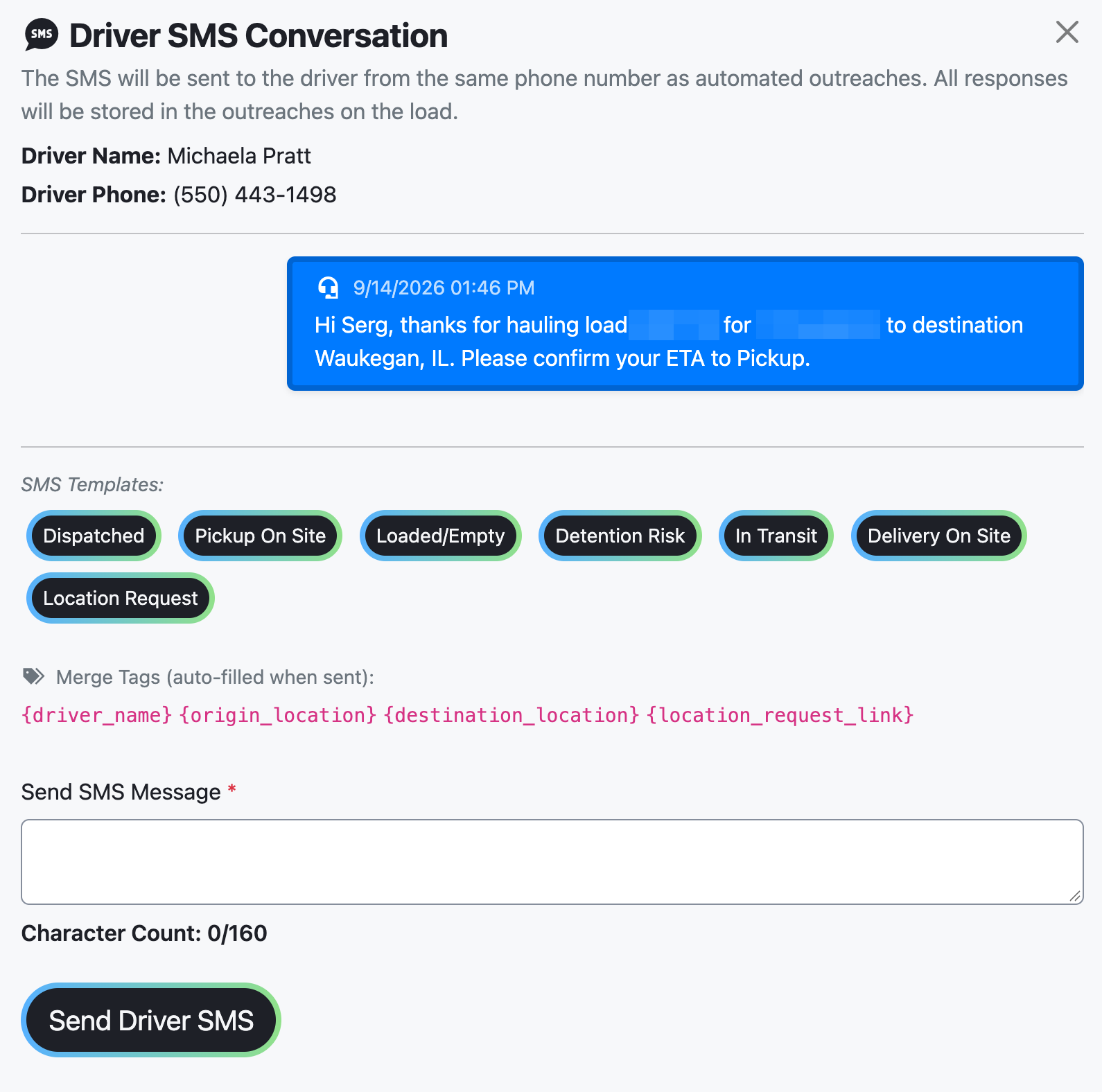
Check Driver Name and Driver Phone to confirm the number is correct.
Optional: select an SMS Template to fill the message field. The choices are Dispatched, Pickup On Site, Loaded/Empty, Detention Risk, In Transit, Delivery On Site, and Location Request. Selecting a template fills the field but does not send anything.
Edit the message in Send SMS Message. The merge tags {driver_name}, {origin_location}, {destination_location}, and {location_request_link} auto-fill when the message is sent. Watch the Character Count: 0/160 counter, because the message is limited to 160 characters.
Select Send Driver SMS.
Wait for the confirmation SMS queued successfully! The message is queued, not sent instantly, and the driver receives it shortly after.
Confirming the phone number matters more than it looks. Drivers change on a load, and a text about someone else's freight going to the wrong driver is both useless and confusing for them.
The SMS goes out from the same phone number as automated outreaches, and every reply from the driver is stored in the outreaches on the load.
Because the number is shared with automation, the driver can't tell your message from an automated one. Write it so it makes sense either way — a short, specific question gets a faster answer than a message assuming context they don't have.
Writing the message
160 characters is tight, and merge tags expand after you hit send, so a message that fits in the box can still run long. Keep it to one question.
{location_request_link} is the most useful tag: it asks the driver to share a position without them having to type anything or take a call. That's the lowest-effort request you can make of someone who's driving.
Templates are a starting point, not a requirement. Edit them — a driver who has had three identical templated texts stops reading them.
What TrackFlo records
TrackFlo stores the outbound message and the driver's replies as outreaches on the load.
The message syncs to your TMS as a load update only when your company setting Add all Outreaches as Load Updates? (under the Update TMS for all SMS Outreaches heading in company settings) is enabled. When it is, the TMS update reads SMS sent to driver: followed by your message. If the setting is off, the SMS stays on the load only, so add a load update manually if your TMS needs one.
If that setting is off at your company, texting a driver leaves no record in your TMS and doesn't count as a load update. Whatever the driver tells you needs entering as a load update separately, or the work disappears from both your TMS and your metrics.
What good looks like
The screen shows SMS queued successfully! and Thanks for your outreach. The driver will be notified shortly. The outbound message appears in the load's outreaches, and any reply from the driver shows up there too.
When it doesn't work
The Driver SMS Conversation button is missing
TrackFlo says the driver opted out
The send is blocked with This driver has opted out of SMS — message was not sent. The driver asked not to receive texts, and no message goes out on this channel. Contact the driver another way, such as calling the number shown in Driver Phone, and log what you learn as a load update.
Opt-out is the driver's choice and applies to the number, not to one load. Don't try to reach them by text on another load either.
The panel blocks the send
An empty message field shows Add an SMS Message to send! A message over 160 characters shows Use less than 160 characters! Fix the message, then select Send Driver SMS again.
The driver hasn't replied
Drivers are driving. A reply can take a while, and a second text within a few minutes rarely speeds it up.
Record the attempt as a load update with type No Response so the next person knows you tried and when, then set a Manage Issue time to bring the load back rather than watching it.
The SMS didn't sync to your TMS
First check whether the Add all Outreaches as Load Updates? setting is enabled. If it is and the update still doesn't appear in your TMS, check Two Way Integration Status for failed updates. See Troubleshoot TMS sync issues.
Related
Outreach Settings — where the TMS sync setting lives
Was this helpful?
Was this helpful?