

🧱 Customizable Big Numbers Layout
Your board, your order. No tickets, no deploys, no waiting.
The Big Numbers at the top of every TrackFlo board are the first thing your team looks at. Until now, customizing them meant filing a ticket and waiting for a backend change. Customizable Big Numbers Layout moves that control into the UI — drag tiles into rows, set widths, save, done.
This is a small change with a real payoff: every team thinks about exceptions differently, and now your board reflects how your team works.
What it is
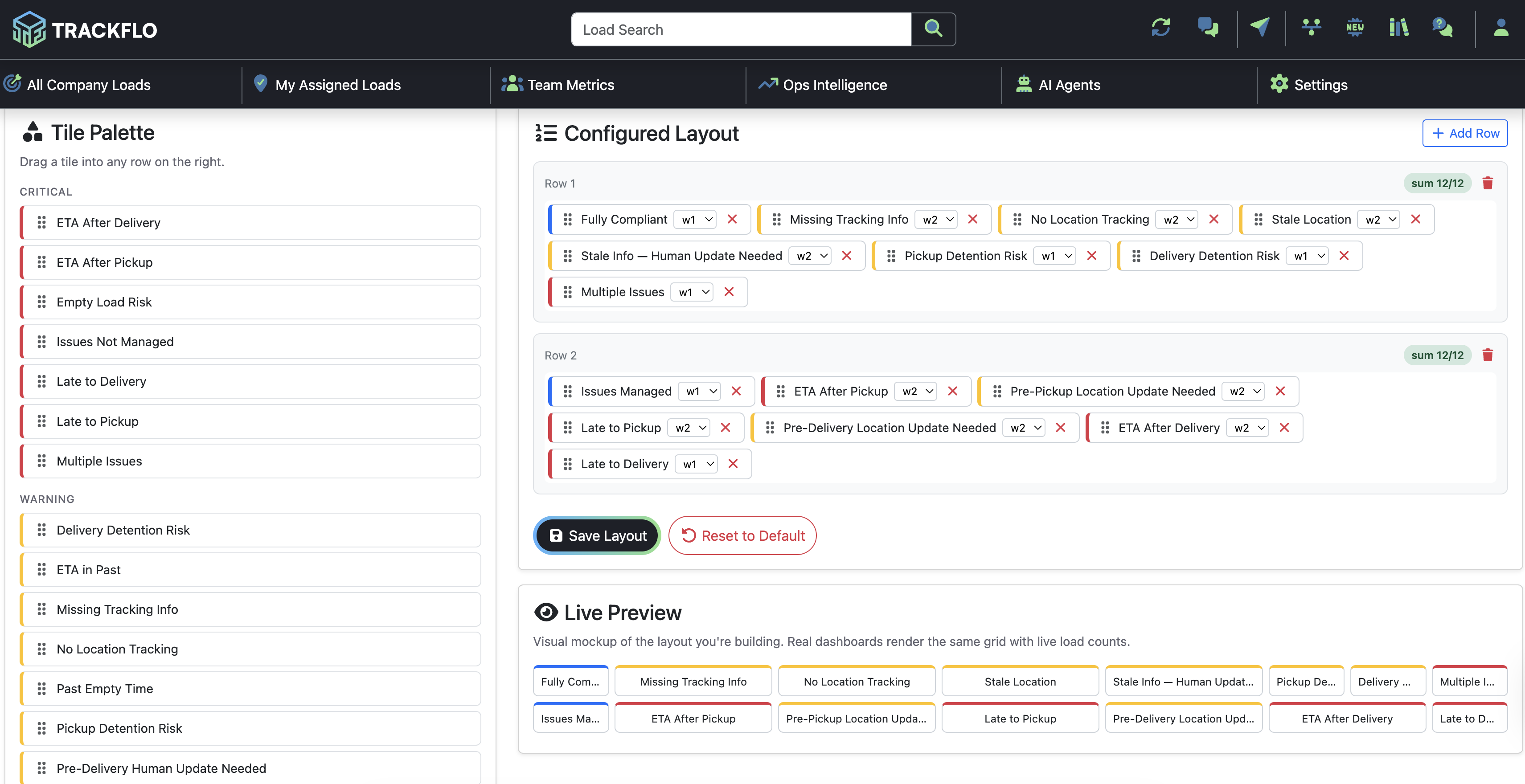
The Big Numbers Layout editor lets any admin reconfigure the tile grid at the top of your boards. Each layout has:
A tile palette — every exception type TrackFlo supports, grouped by Critical and Warning severity
One or more rows — drag tiles into the rows you want them in
A column width per tile — each tile is 1 to 6 columns wide, and each row sums to 12 for a clean grid
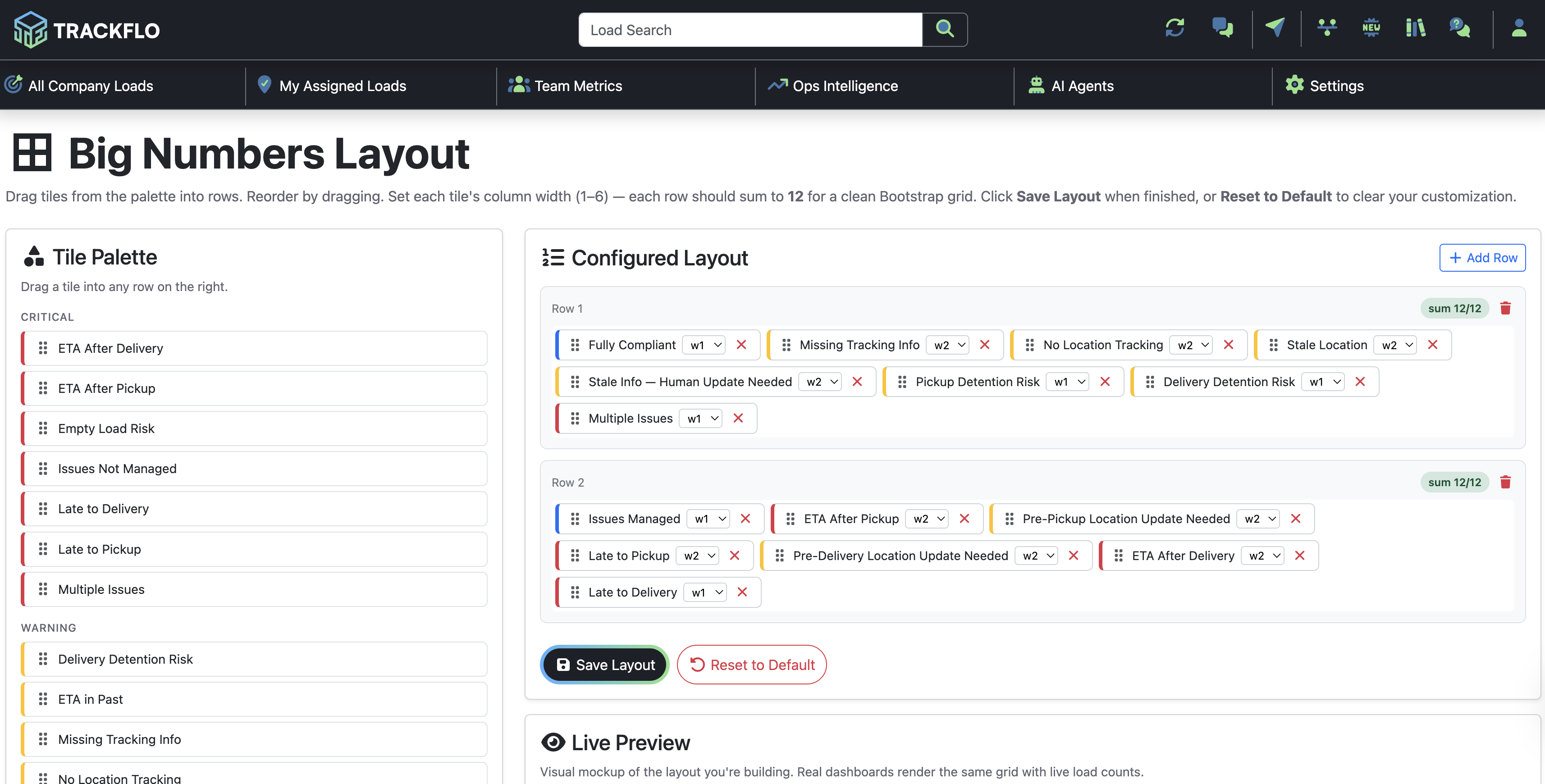
A live preview — see exactly what your saved layout will look like as you build it
Changes apply across your boards once saved. Hit Reset to Default anytime to undo your customization.
How to read it
The Tile Palette
The left panel lists every available tile, grouped by severity.
Critical — high-priority exceptions (ETA After Delivery, Late to Delivery, Multiple Issues, etc.)
Warning — secondary exceptions (Delivery Detention Risk, ETA in Past, Stale Location, etc.)
Drag any tile from the palette into a row on the right.
The Configured Layout
The right panel is where your board takes shape.
Row 1, Row 2, … — each row is a horizontal band on your board. Add as many as you need with + Add Row.
Tiles within a row — drag to reorder. Each tile has a width selector (w1 through w6) and an × to remove it.
Sum 12/12 indicator — a green badge confirms the row's tile widths sum to 12. If they don't, the row won't render cleanly.
The Live Preview
Below the layout editor, the Live Preview shows a visual mockup of the grid you're building. Real dashboards render the same grid with live load counts, so what you see here is what your team will see.
Saving and resetting
Save Layout — commits your changes and applies them to your boards.
Reset to Default — clears your customization and reverts to TrackFlo's default layout.
Common use cases
Lead with what your team chases first. If detention is your biggest cost, move Pickup Detention Risk and Delivery Detention Risk to Row 1. If on-time performance is your KPI, lead with Late to Pickup and Late to Delivery.
Hide tiles you never use. If your freight doesn't have temperature tracking or empty load monitoring, leave those tiles in the palette. Less noise, faster scanning.
Group by severity. Put Critical tiles in Row 1 (red and yellow) and Warning tiles in Row 2 (gray and yellow). Trains your team's eye to scan top-down by urgency.
Group by workflow stage. Row 1 for pre-pickup issues, Row 2 for in-transit, Row 3 for delivery. Matches how trackers actually move through a load's lifecycle.
Wider tiles for the most important counts. Bump Fully Compliant or Multiple Issues to w2 or w3 so they visually dominate. Smaller w1 tiles for the rest.
Tips & best practices
Match tiles to your Tracking Service Levels. If a service level disables an issue type, the corresponding tile will always read zero. Skip those tiles to keep the board clean.
Each row should sum to 12. The green "sum 12/12" badge is your confirmation. If a row sums to 10 or 14, the grid won't render evenly.
Two rows of six is a safe default. Most teams find that two rows of six w2 tiles (or one row of mixed widths and one row of standard w2s) covers their day-to-day without feeling cluttered.
Use the Live Preview before saving. It's the fastest way to spot an awkward layout — uneven widths, too many tiles in one row, or tiles in a confusing order.
Reset is one click. Don't be afraid to experiment. If a layout doesn't work after a week, hit Reset to Default and start over.
Coordinate with your team. Big Numbers Layout is company-wide. Loop in your tracking leads before saving major changes.
FAQs
Who can edit the Big Numbers Layout? Any TrackFlo admin.
Does this affect every board? Yes. The Big Numbers Layout applies to your main boards and all Custom Boards. Each board still shows scoped counts based on its filters, but the tile arrangement and widths are shared.
What happens if my row doesn't sum to 12? The row won't render cleanly. The "sum 12/12" badge tells you when a row is correctly balanced — adjust the widths until you see green.
Can I have more than two rows? Yes. Click + Add Row to create as many rows as you need. Each row sums independently to 12.
Can I hide a tile completely? Yes — just leave it in the Tile Palette. Tiles not added to a row don't appear on the board.
What if a tile maps to an exception my service level disables? The tile will appear with a count of zero. To keep the board clean, only add tiles for exceptions that are actually enabled in your Tracking Service Levels.
Can I have a different layout per board? Not today. The Big Numbers Layout is shared across all boards. If you need different layouts per segment of freight, let us know — it's on the radar.
Will my customization survive a TrackFlo update? Yes. Your saved layout persists across updates.
How do I revert to the original layout? Click Reset to Default. This clears your customization and restores TrackFlo's standard tile arrangement.