

🏆 Shift Objectives for Admins
Summary
The overall goal of shift objectives is to provide a bridge between manager expectations and tracking team member understanding and performance. Too often, we’re seeing managers set tracking goals, but their teams simply aren’t being measured or evaluated on these goals… mostly because measurement is hard and time-consuming. Not anymore, with shift objectives!!!
Getting Started
Activating and setting Shift Objectives
To get started with shift objectives, simply go to any assignment schedule where you want to add an objective, update the target updates per hour and unmanaged issue percentage, and click the toggle to turn shift objectives on. That’s it!
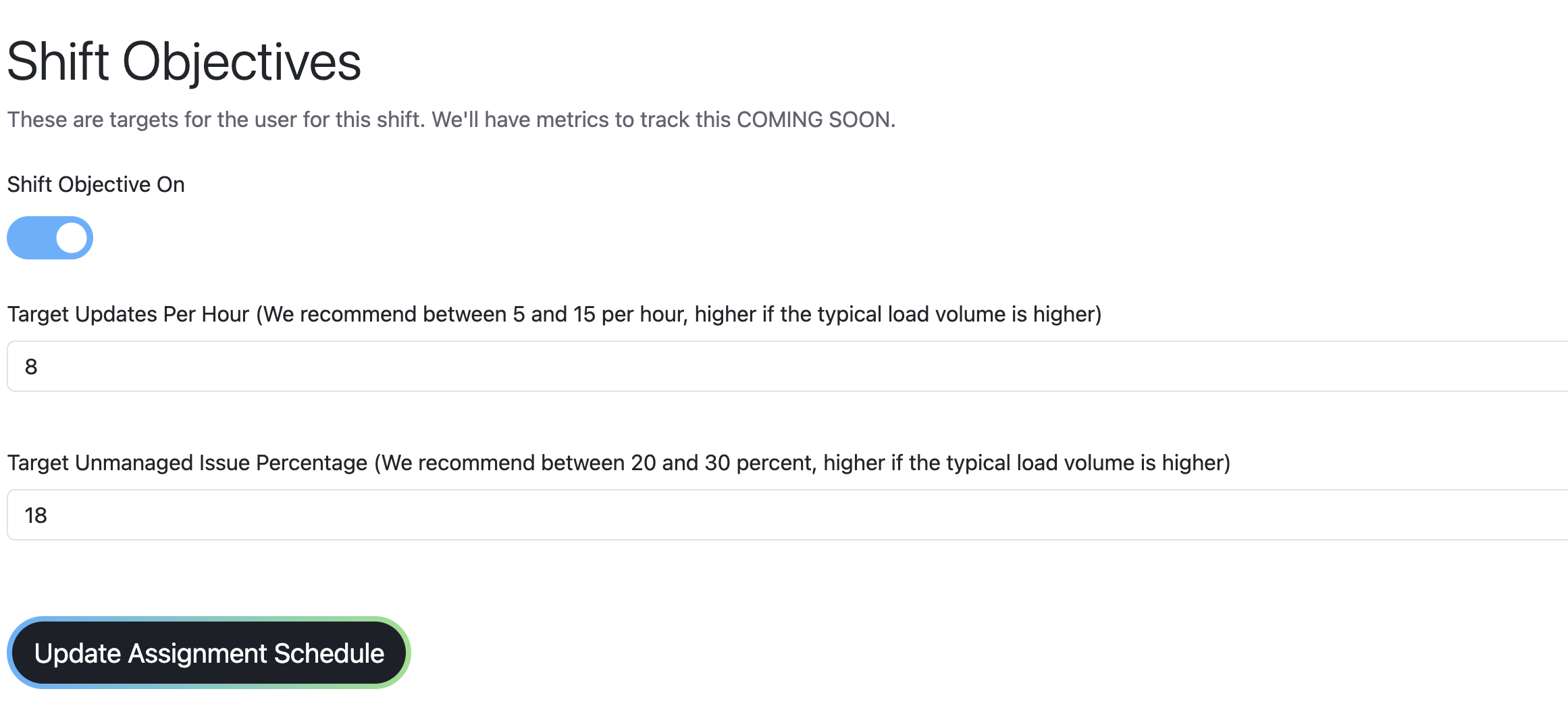
Important notes about shift objectives:
Shift objectives only measure a users assigned loads over the period they’re assigned loads, you must be using assignment schedules reliably for this to work
Shift objectives measure all loads assigned to a user over a given period, so if you have several assignment schedules for one user at one time, please ONLY ADD ONE SHIFT OBJECTIVE to one of the assignment schedules. The metrics will consider all loads assigned to that user over time.
Setting objectives is a give and take, you can change your objectives any time and all new shifts will be evaluated on the new objectives.
The evaluation of performance is calculated hourly at the 57th minute of ever hour, so shifts that start or end in the middle of the hour might be cut short.
Measuring your Team
Shift Metrics over Time
Under the Team metrics tab, admins see a “Shift Metrics over Time”
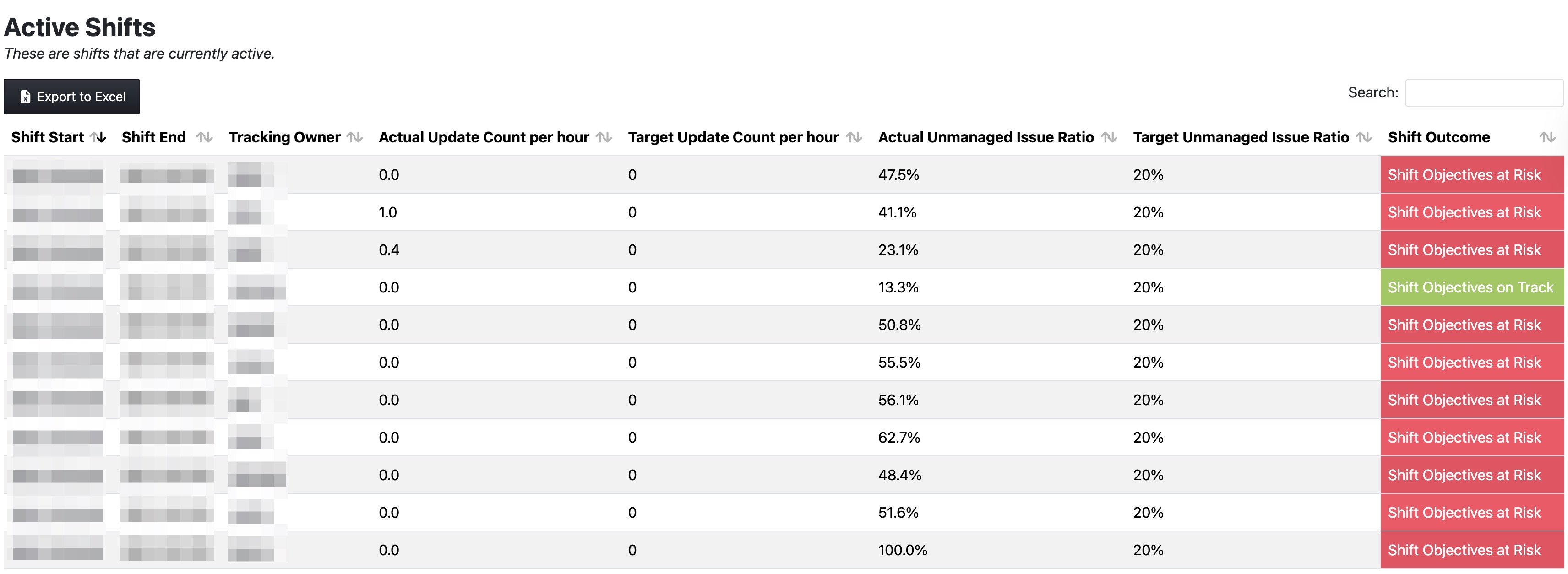
The first tab includes active shifts, and whether they’re trending the right direction… if it’s marked as on Track, that means the shift is going to meet the objectives based on the metrics so far, if it’s at Risk, that means it’s not going to meet the objectives based on the metrics so far.
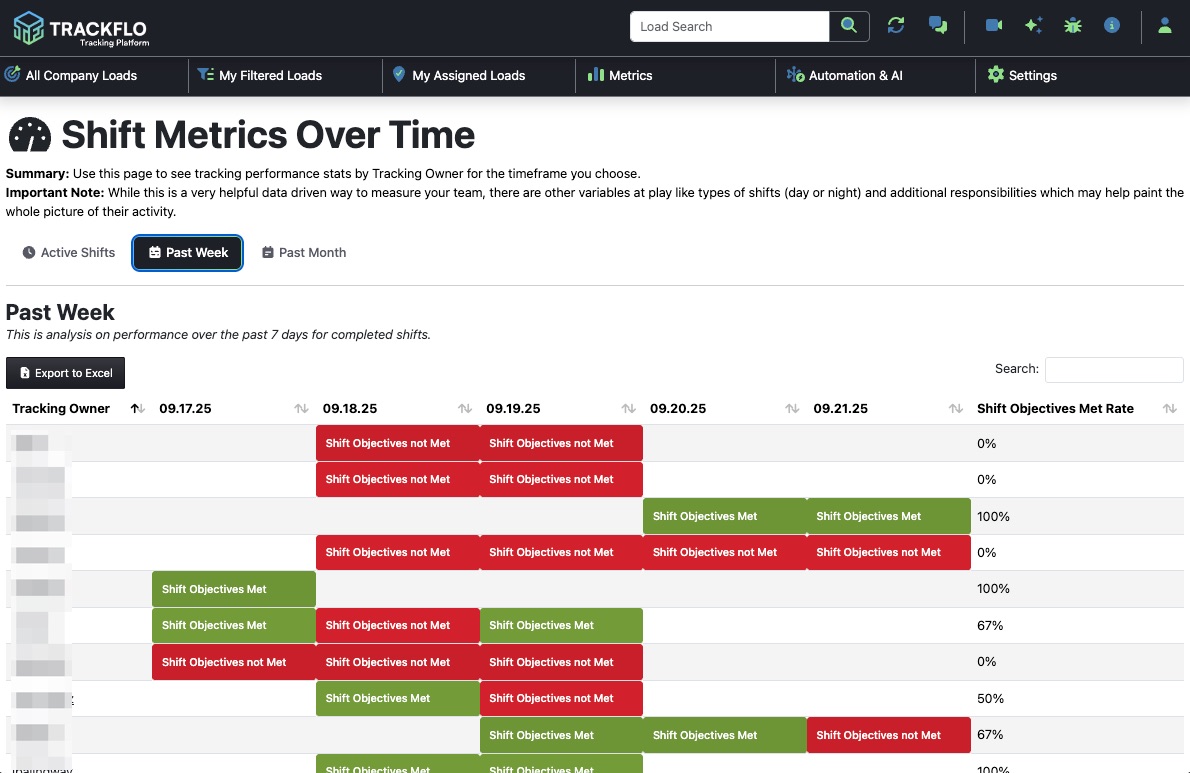
In the Past Week and Past Month tabs, you get a picture by day how each team member did and what they’re pass rate is for the time period. This is an EXTREMELY useful data point for measuring your team's performance. If you click on any shift, it will take you to its scorecard.
Shift Scorecard
🏆
Each shift produces a shift scorecard which deep dives the performance on the shift. If the colors of the big numbers are green then they are meeting the objective, if they are red, they are not. Tracking users have access to this scorecard on their top navbar.
Below the big numbers are tabs that have data on the shift. The first tab is an hourly metrics tab which shows metrics by hour, then a shift actions tab which is all the activity on each shift by that user, lastly, an issue audit shows the issues that arose during the shift. Between these three, you’ll get a very clear picture of what took place on the shift.
Shift Performance Widget
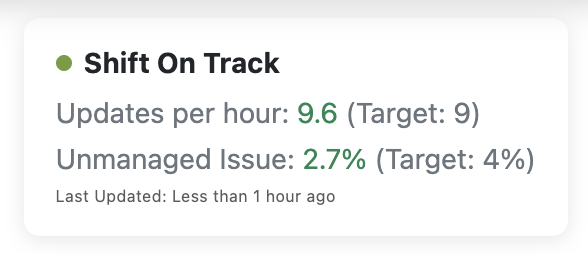
It’s important Tracking users know what their objectives are and if they’re on track… that’s why we added a shift performance widget to each of the workflows in the top right. If a user is on shift, they’ll see this widget and it will refresh on every page refresh. It very clearly articulates their metrics and target, and if they click on it, it takes them to the shift scorecard.
In Conclusion
Shift Objectives are meant to align expectations and reality between managers and trackers. We’re excited to see these metrics drive alignment and improved overall tracking performance. If you have any feedback please reach out to support@trackflo.tech!