

🪜 Tracking Service Levels
One set of tracking rules never fit all your freight. Now it doesn't have to.
Service Levels let you set different exception rules, thresholds, and visual cues for different types of loads — all on the same board. White-glove freight gets white-glove tracking. Standard freight gets standard tracking. Trackers see the right exceptions at the right time, and admins get fine-grained control over what fires when.
This is our biggest change to the boards in six months, and it unlocks a foundation for smarter automation across every tier of freight you move.
What it is
A Service Level is a tier of tracking rules that applies to a matching set of loads. Each service level has:
A match rule — which loads it applies to (e.g., high-value freight, LTL, a specific customer)
A priority — lower numbers evaluate first, so specific tiers should sit above broader ones
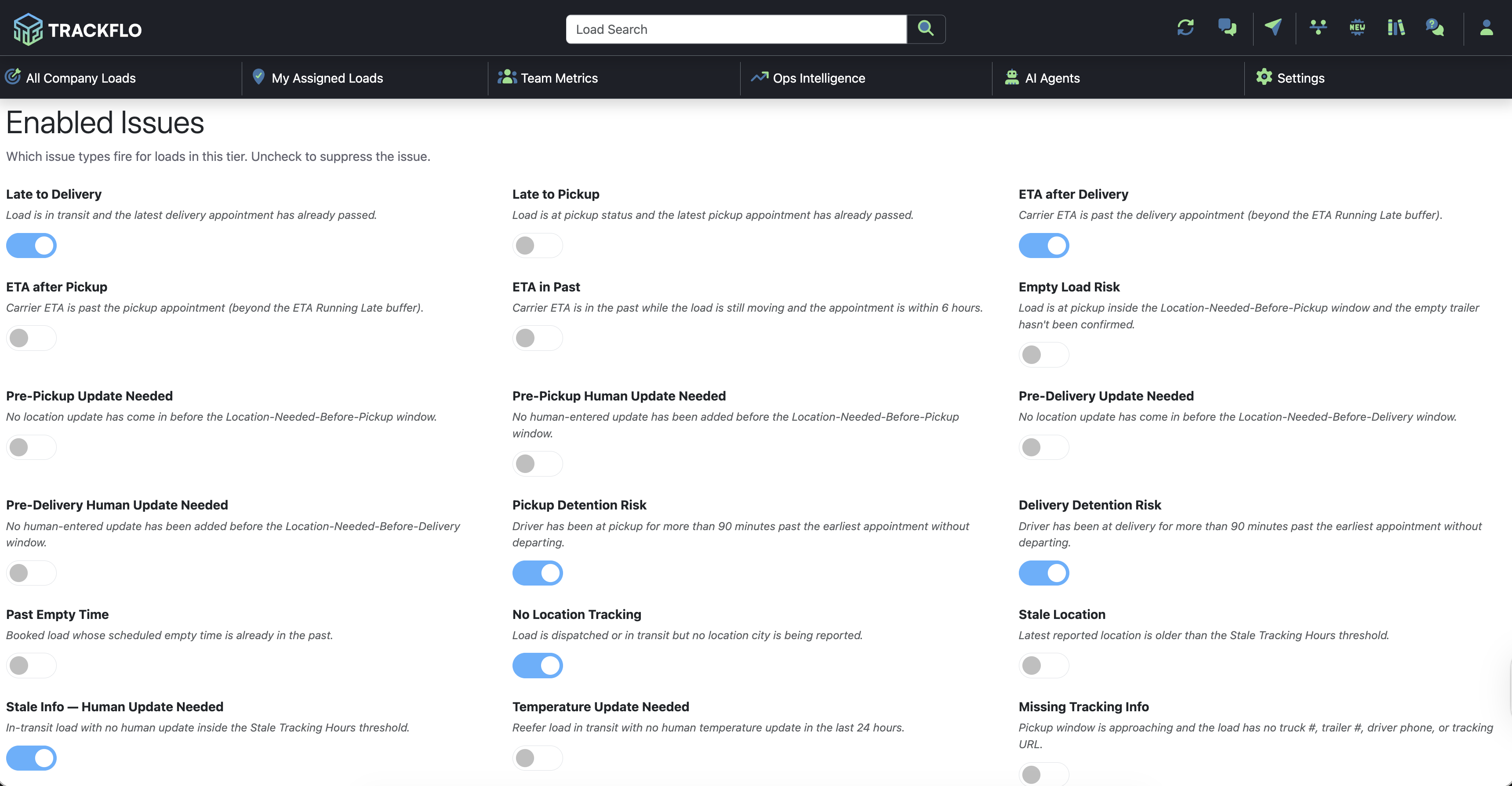
Enabled issues — which exception types fire for loads in this tier (Late to Delivery, Stale Location, Detention Risk, and more)
Service thresholds — timing configs like Stale Tracking Hours, Location-Needed-Before-Pickup, and ETA Running Late buffer
A visual identity — an icon and color shown on load cards and detail views
Every company has one default service level that catches any load not matched by a more specific tier. You can layer as many additional tiers on top as you need.
How to read it
The Service Levels list
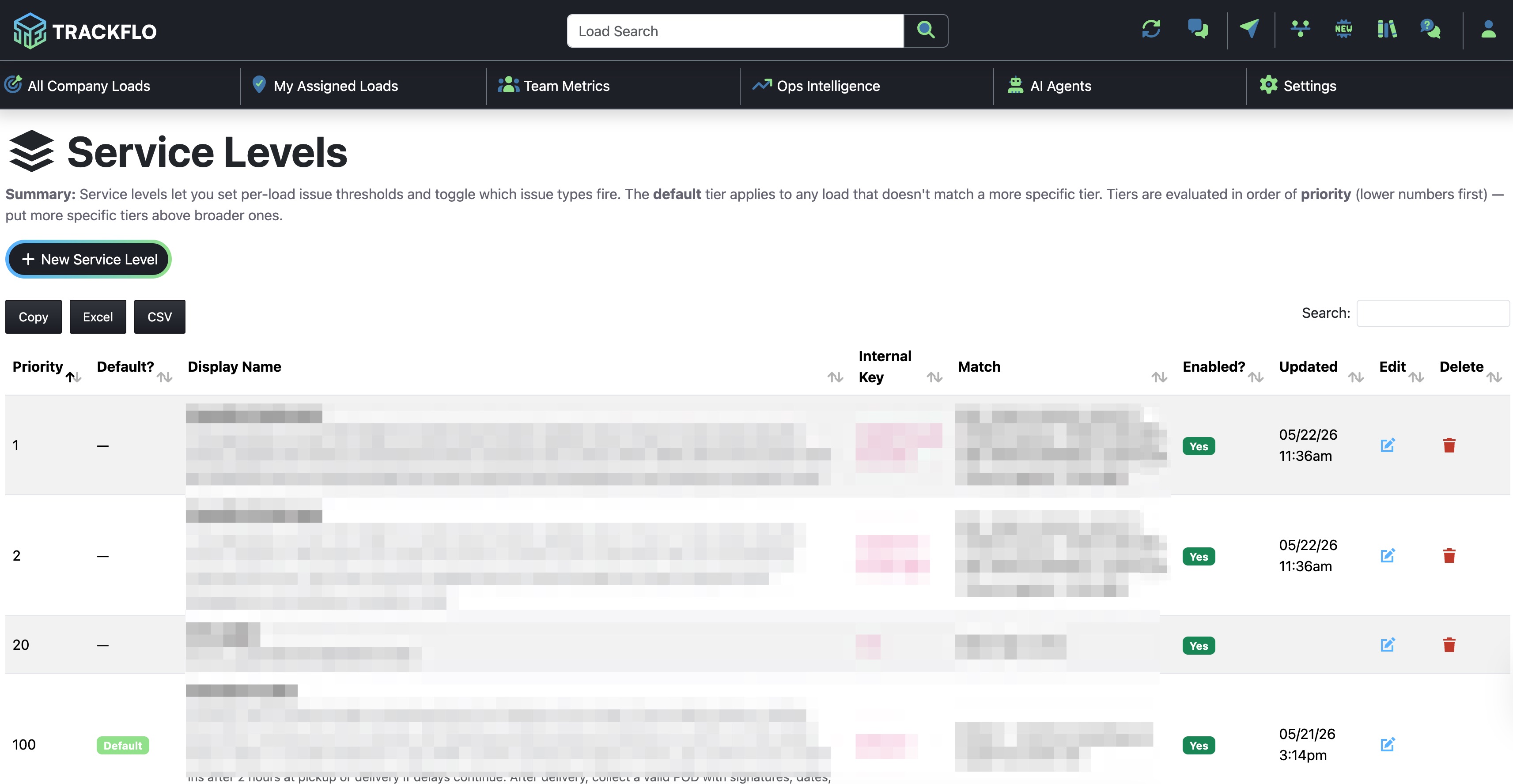
The list view shows every tier you've configured, sorted by priority.
Priority — evaluation order. Lower numbers run first.
Default? — marks the catch-all tier that applies when no other match is found.
Display Name — what users see on the load card and detail view.
Internal Key — the system identifier (used in reporting and integrations).
Match — the rule that determines which loads land in this tier.
Enabled? — whether the tier is active.
An individual Service Level
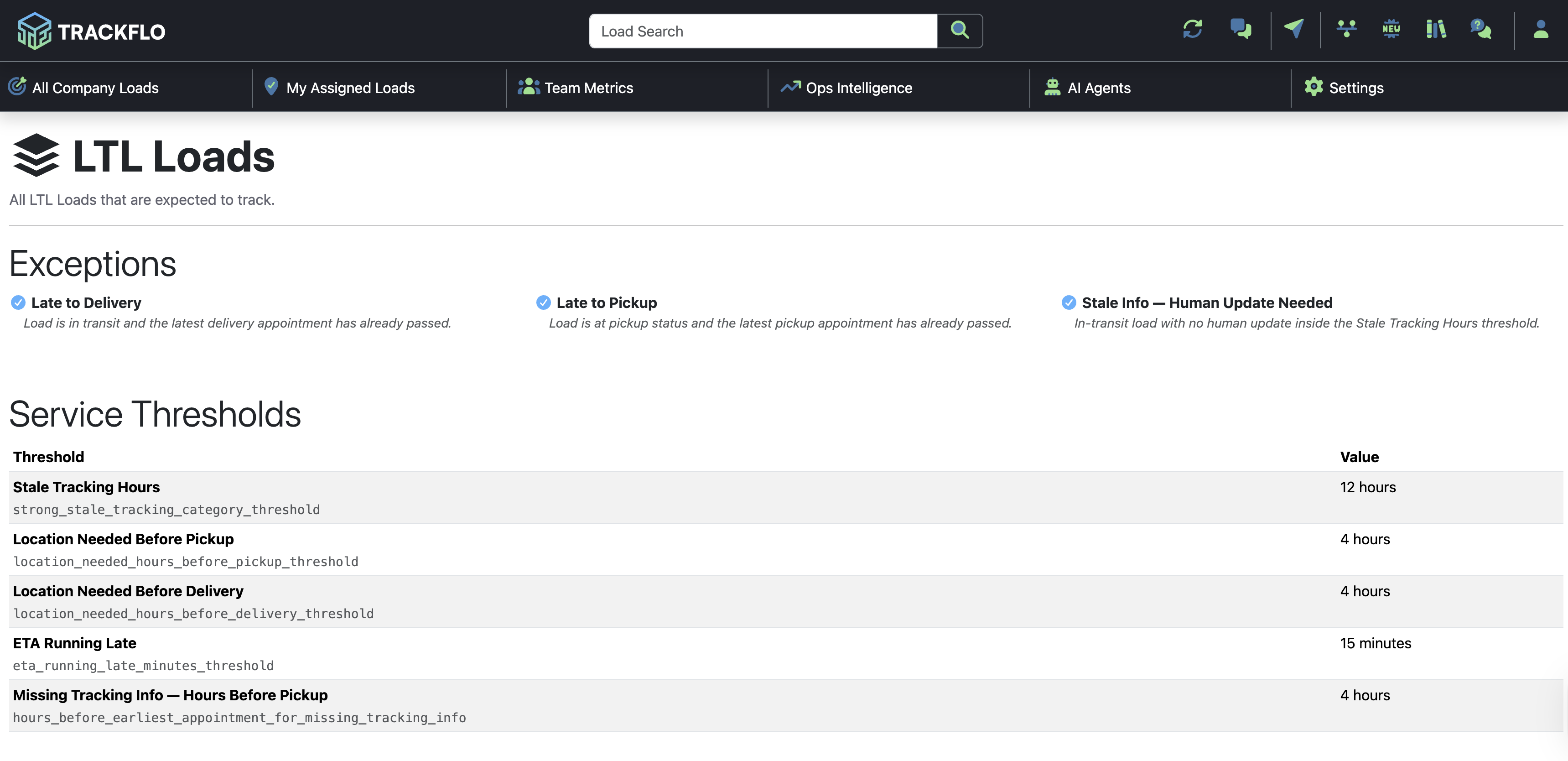
When you click into a service level, you'll see:
Exceptions — the issue types currently firing for loads in this tier. Each has a checkmark and a plain-language description.
Service Thresholds — the timing values that control when exceptions trigger.
On the load
Every load now shows its service level on the detail view, next to a clickable icon. Trackers can click the badge to see exactly which rules apply to that load and why an exception fired (or didn't).


Common use cases
High-value freight gets more touchpoints. Create a "High Value" tier with tighter Stale Tracking thresholds, more enabled exceptions (like Pre-Pickup Update Needed), and a distinct icon so trackers immediately know it needs extra attention.
LTL needs different rules than truckload. LTL carriers don't always provide GPS, so you can disable location-based exceptions for LTL while keeping Late to Pickup and Late to Delivery active.
A specific customer requires white-glove handling. Match on customer name, give them their own tier with custom thresholds, and rest easy knowing their freight is held to the right standard automatically.
Reduce noise on low-touch freight. Create a "Standard" or "Low Touch" tier with fewer enabled exceptions so your team focuses on the freight that actually needs intervention.
Tips & best practices
Order matters. Priority is evaluated lowest-to-highest. Put your most specific tiers (a single customer, a single mode) at the top with low priority numbers. Put broader tiers below.
Always keep a default. The default tier catches any load that doesn't match a more specific rule. Don't disable it.
Start with one custom tier. If you're new to Service Levels, build one tier on top of the default before adding more. It's easier to tune.
Use icons and colors intentionally. Trackers scan boards visually. A bright icon on high-value freight is more effective than burying the signal in text.
Audit your enabled issues. A tier with every issue enabled creates noise. A tier with too few misses problems. Tune over time.
Exception counts stay unified. No matter how many tiers you have, the big exception numbers at the top of the boards still roll up everything across every service level. Nothing gets hidden.
FAQs
What happens if a load matches more than one service level? The tier with the lowest priority number wins. Priority is evaluated first to last, so put specific tiers above broader ones.
What happens if a load doesn't match any service level? It falls into the default tier.
Can I change a service level after loads are already using it? Yes. Changes apply instantly across the boards. Exceptions will re-evaluate based on the new rules.
Will my existing loads break when I add new service levels? No. Every load that doesn't match a new tier stays on the default, which preserves your current behavior.
Can trackers edit service levels? No — service level configuration is admin-only. Trackers can view which service level applies to a load and what rules are in effect.
Does this affect outreach automation? Service Levels are the foundation for smarter, tier-aware automation. Expect more here soon — AI outreach frequency, escalation rules, and quickfill behaviors will all become service-level-aware over time.
Can I disable a service level without deleting it? Yes. Toggle "Enabled" off and the tier stops applying. Loads that previously matched it will fall through to the next priority.