
🗂️ Custom Tracking Boards
Your TrackFlo, filtered your way. No engineering, no support ticket, no waiting.
Custom Boards let any TrackFlo admin spin up filtered dashboards in seconds — and unlike the filtered views you'd get in a TMS, the big numbers and Load Issue Distribution recalculate to match your filter set. You see exactly the freight you care about, with exception counts scoped to just that freight.
Build a board for a service level, a customer, a mode, a carrier rep, or any combination of filters in your company catalog. Pin it to the nav. Bookmark it. Share it. Get back to work.
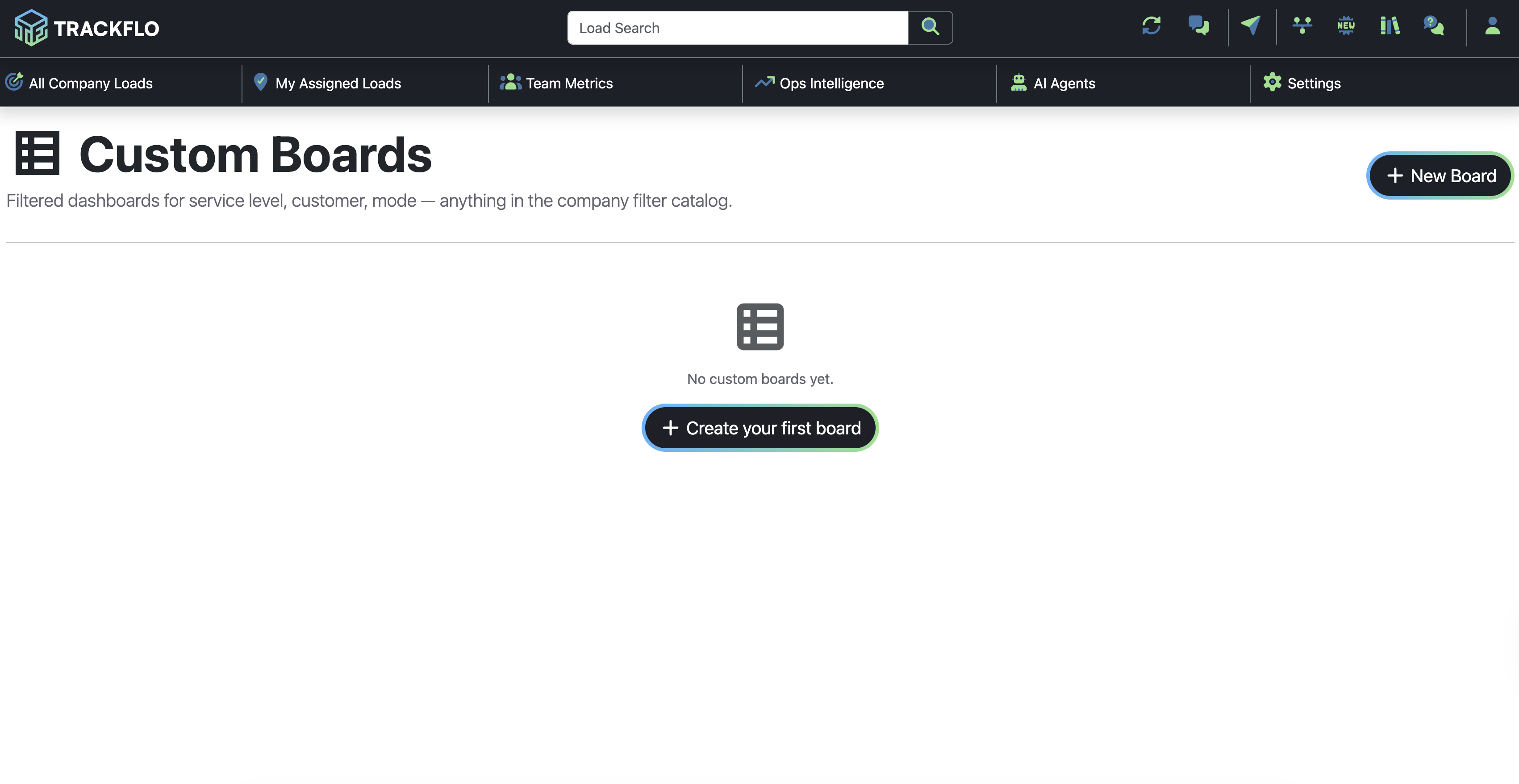
What it is
A Custom Board is a filtered version of your standard load board. Each board has:
A name and optional description — so your team knows what they're looking at
One or more filters — combined with AND logic across rows; comma-separated values within a row act as OR (e.g.,
Customer: Walmart, Costcomatches either)An optional pin position — lower numbers appear first in the nav; blank means unpinned
Scoped exception counts — the big numbers, Load Issue Distribution bar, and table all reflect only the loads that match your filters
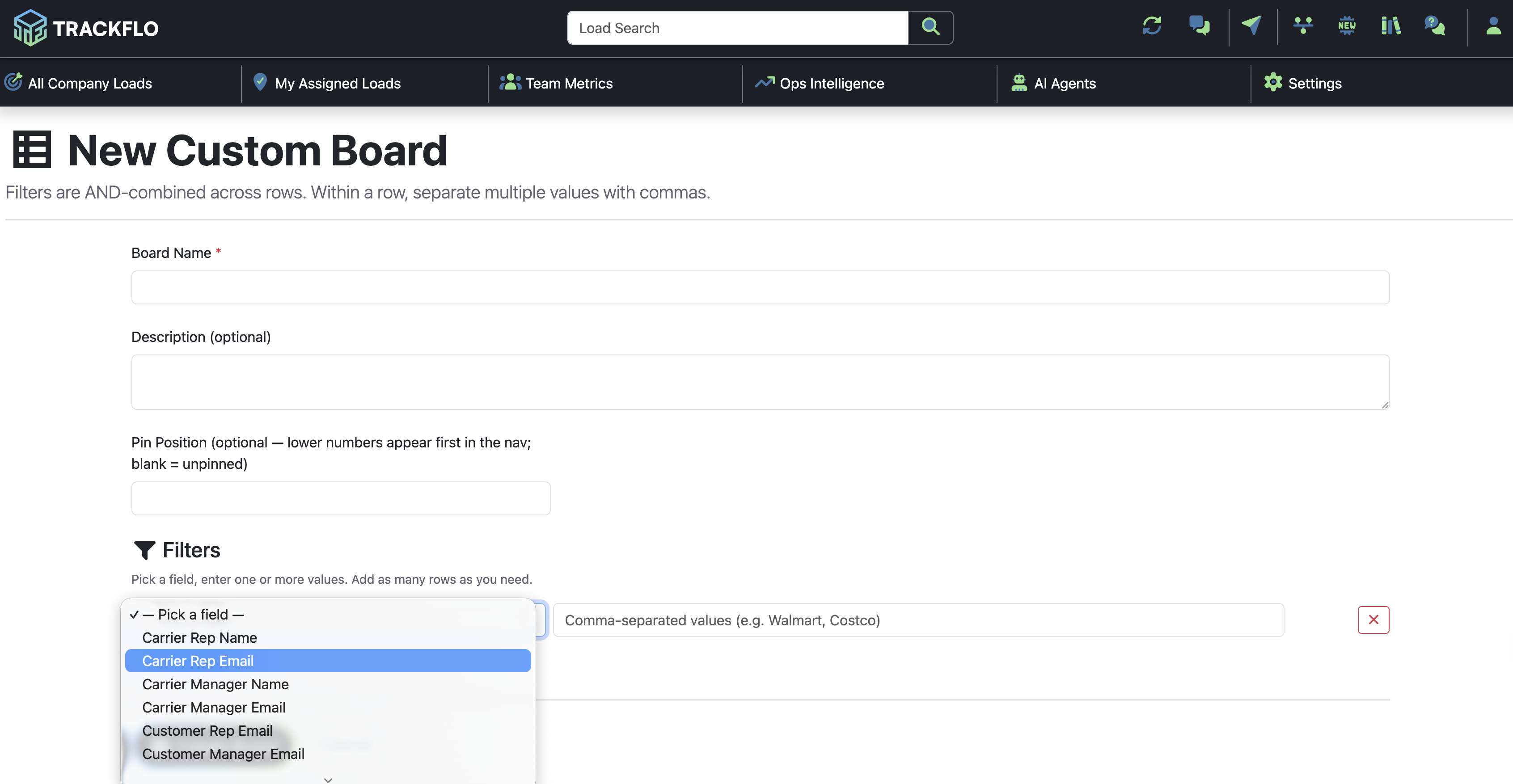
Filters draw from your company filter catalog — the same fields you already use for assignments and user filters. That means service level, customer, mode, carrier rep, customer manager, and anything else your admin has set up.
How to read it
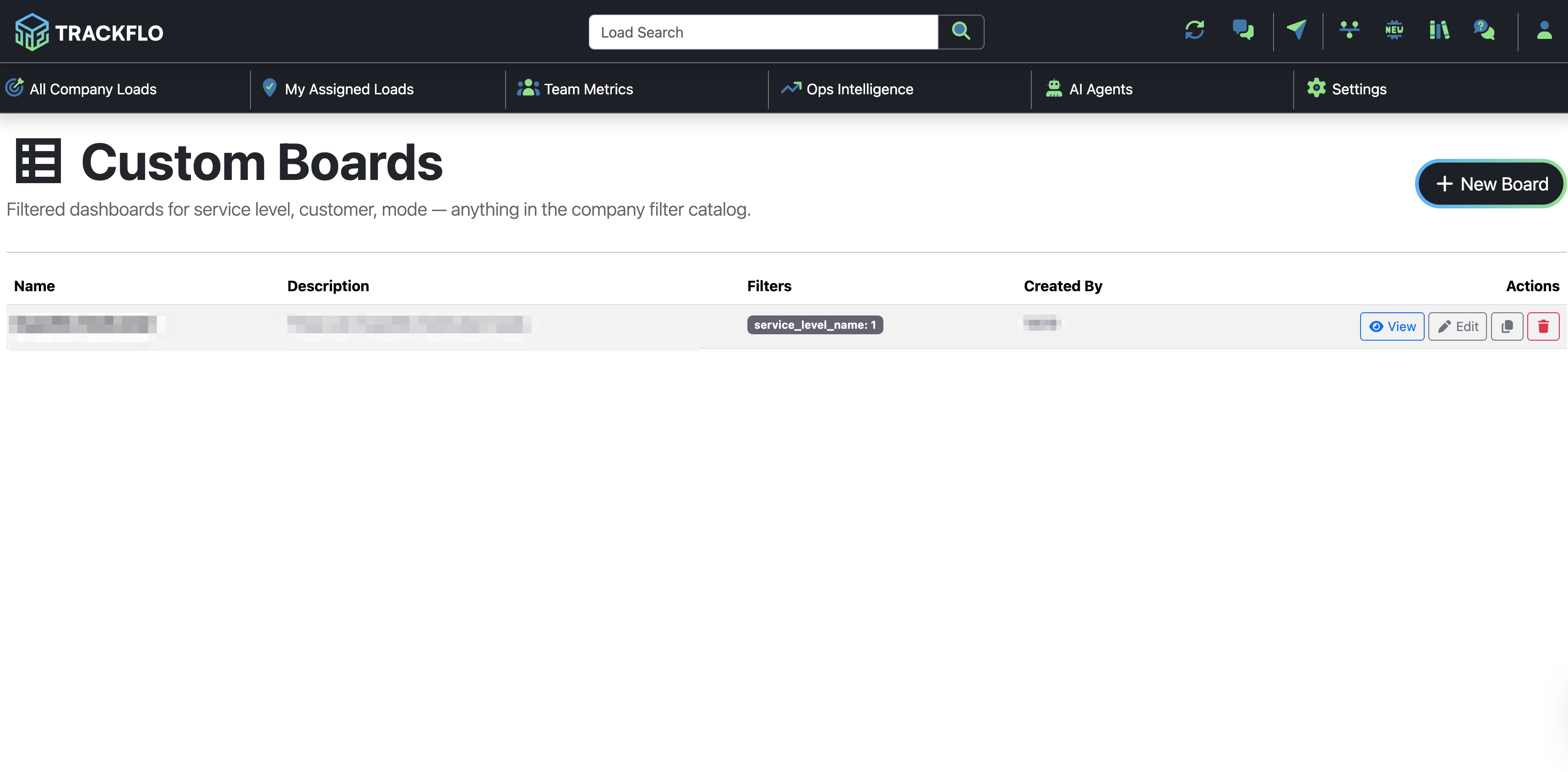
The Custom Boards list
The list view shows every board your team has created.
Name — what it shows up as in the nav.
Description — optional context for what this board is for.
Filters — a quick-look summary of the rules in effect.
Created By — who built it.
Actions — view, edit, duplicate, or delete.
Inside a Custom Board
When you open a board, you get the full TrackFlo load board experience — scoped to just the loads that match your filters.
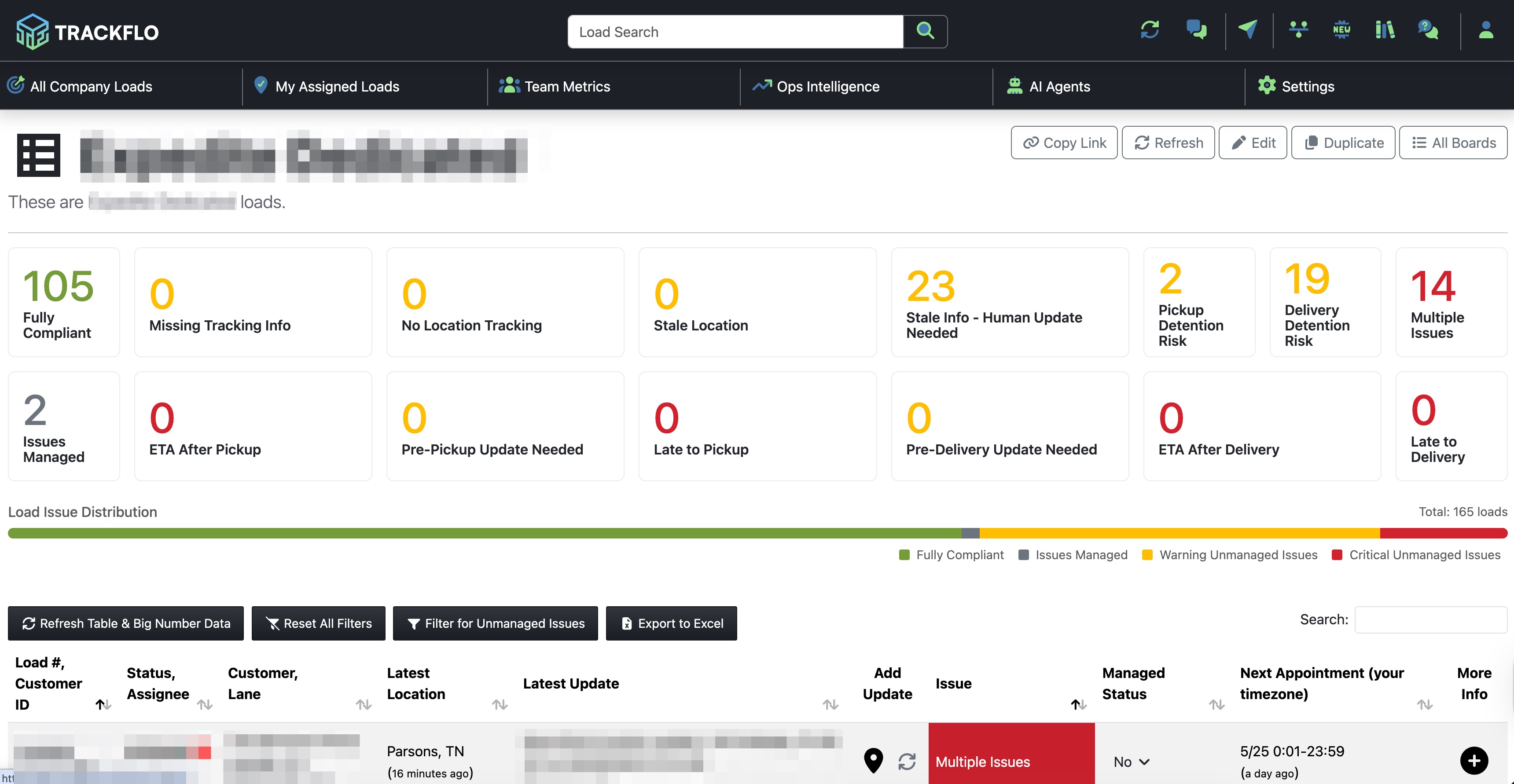
Big numbers at the top — Fully Compliant, Missing Tracking Info, Stale Location, Detention Risk, and the rest, all recalculated to the filter set.
Load Issue Distribution — the green/gray/yellow/red bar shows the health of just this segment of freight.
Load table — only loads matching the filters appear.
Top-right toolbar — Copy Link, Refresh, Edit, Duplicate, and All Boards.
The New Board form
Filters are AND-combined across rows. Within a row, separate multiple values with commas to match any of them.
Common use cases
A board per Tracking Service Level. Build one board for service_level_name: High Value and another for service_level_name: LTL. Your team can switch between them depending on what they're working on.
A board per major customer. Big shippers often warrant their own board so the team can see at a glance how that customer's freight is performing.
A board for a single carrier rep or customer manager. Managers can build a board scoped to their reports or their book of business and bookmark it.
A board for problem freight. Filter by mode, lane, or customer where service has been an issue, and keep it pinned for focused monitoring.
A board for interested observers. Sales, account managers, or leadership can have view-only boards that give them visibility without needing to wade through every load.
Tips & best practices
Name boards clearly. "High Value Freight" is better than "HVF." Other admins should be able to tell what a board shows at a glance.
Use the description field. A one-line description ("All white-glove freight for top-tier customers") saves your team from clicking around to figure out what a board does.
Pin sparingly. Pinning every board defeats the purpose. Reserve pin positions for boards your team actually uses daily.
Duplicate before editing. If you want to tweak someone else's board, duplicate it first instead of editing in place — especially if it's shared or pinned.
Combine with Tracking Service Levels. Custom Boards filtered by service level are the obvious combo. Build one per tier and your team has a focused view for every class of freight you move.
Bookmark the URLs. Each board has a unique URL — bookmark the ones you visit often for one-click access.
FAQs
Who can create Custom Boards? Any TrackFlo admin.
How do filters combine? Filters are AND-combined across rows — every condition must be true for a load to appear. Within a single row, comma-separated values act as OR (e.g., Customer: Walmart, Costco matches loads from either).
What fields can I filter by? Anything in your company filter catalog. The dropdown shows the same fields you already use for assignments and user filters — service level, customer, mode, carrier rep, customer manager, and more.
Do the big numbers update to match the filter? Yes. All exception counts, the Load Issue Distribution bar, and the load table reflect only the filtered loads.
Can I share a Custom Board with someone else? Yes. Use Copy Link in the top toolbar to grab a shareable URL, or Duplicate to create a copy that another admin can modify.
Can other admins edit my board? Yes — Custom Boards are shared across admins. If you want a personal version, duplicate it.
Can I pin a board to the nav? Yes. Set a Pin Position when creating or editing the board — lower numbers appear first. Leave it blank to keep the board unpinned (accessible via the Custom Boards list).
Where do Custom Boards live in the nav? Pinned boards appear at the bottom of the nav bar. Unpinned boards are accessible via the Custom Boards list page.
Can I use OR logic across rows? Not yet — today, rows are AND-combined. To get OR-like behavior within a single field, use comma-separated values in a single row.
What happens if I delete a board? The board is removed for everyone. Bookmarks to that board's URL will break. Duplicate sensitive boards before deleting.