

⛓️💥 Detention Audit
Every load that earned detention. Every dollar you could recover. One dashboard.
The Detention Audit is your end-to-end view of detention exposure across your book. It identifies every load that crossed the detention threshold, estimates the potential payout, and gives you the customer- and facility-level breakdown to start the recovery conversation. More detention recovered means better margins — and more room to share with the carriers actually doing the waiting.
What It Is
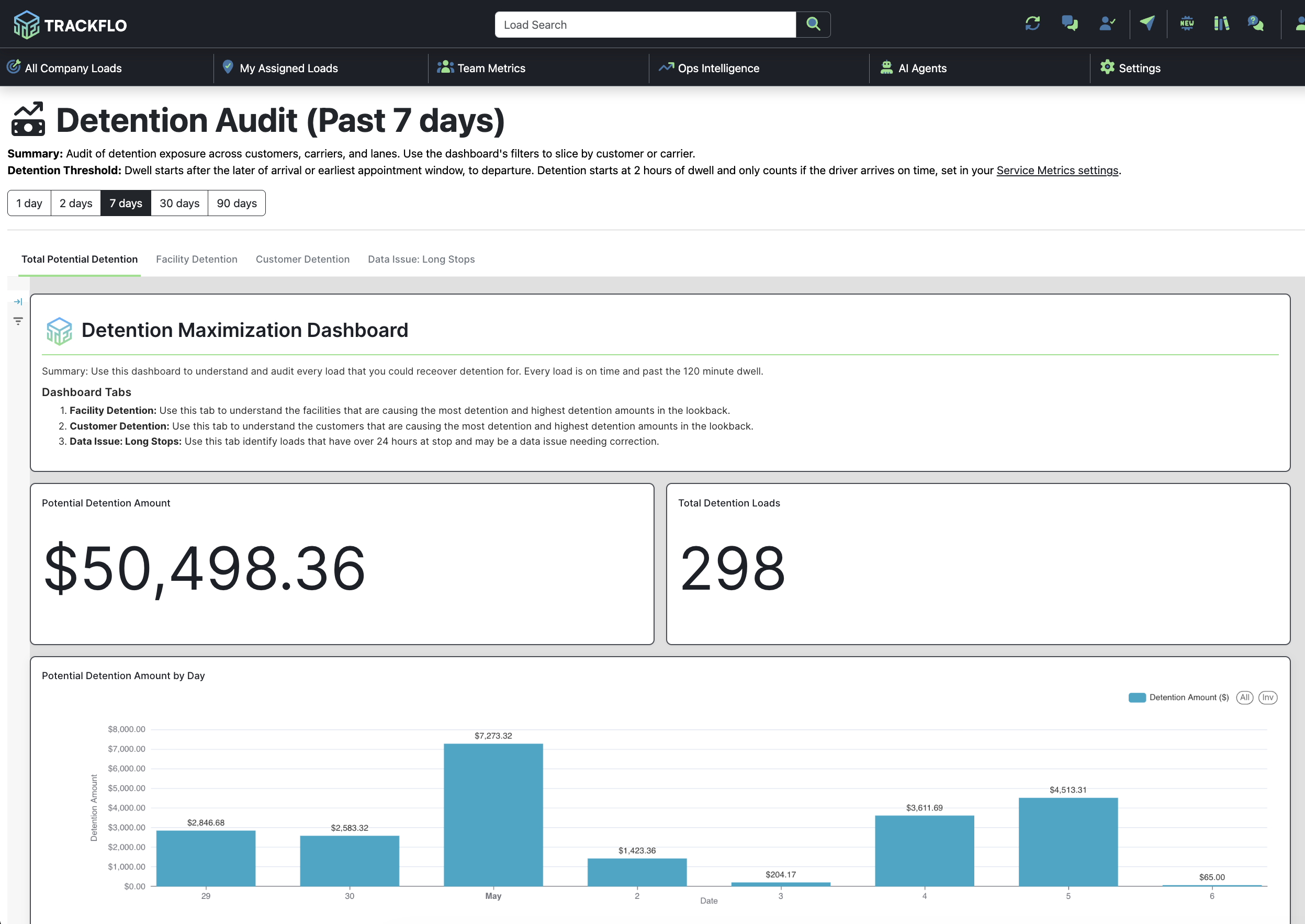
The Detention Audit pulls every load with a stop that crossed your detention threshold (default: 2 hours of dwell, configurable in Service Metrics settings) and surfaces:
Potential Detention Amount — Estimated total payout you could be capturing
Total Detention Loads — Count of loads eligible for detention
Detention by Day — Trend chart so you can spot patterns
Drill-down tabs — By facility, by customer, plus a data quality check Detention is only counted on loads where the driver arrived on time — so the data reflects fair, defensible recovery cases.
How to Read It
Lookback Period
Toggle between 1, 2, 7, 30, or 90 days. Shorter windows for daily ops triage, longer windows for billing reviews and customer conversations.
Headline Numbers
Potential Detention Amount — The total dollar value of recoverable detention in the window.
Total Detention Loads — How many loads contributed to that total.
Potential Detention Amount by Day — Daily trend chart so you can see whether detention is growing, shrinking, or spiking.
The Tabs
Total Potential Detention — The dashboard view. Headline numbers, daily trend, and overview. Start here.
Facility Detention — Detention exposure broken down by facility. Use this to identify the worst-offending pickup and delivery locations — the ones systematically holding your drivers.
Customer Detention — Detention exposure broken down by customer. Use this to prioritize who to bill (or have a tough conversation with) first. Bigger numbers = bigger recovery opportunity.
Data Issue: Long Stops — Loads where the dwell time exceeds 24 hours. Usually data quality issues (e.g., a missed departure ping) rather than genuine 24-hour holds. Review and correct so your detention numbers stay accurate.
Key Definitions
Dwell — Time on-site at a stop. Starts at the later of the actual arrival time or the earliest appointment window. Ends at departure.
Detention Threshold — How much dwell qualifies as detention. Default 2 hours, configurable in Service Metrics settings.
On-Time Arrival Requirement — Detention is only counted when the driver arrived on time. Late drivers don't earn detention.
Common Use Cases
Monthly Detention Billing — Set lookback to 30 days → review Customer Detention tab → export the data → submit your detention invoices with confidence.
Identifying Problem Facilities — Open Facility Detention → sort by total detention loads or potential dollars → these are the facilities to address with the customer (or to surcharge in your rates).
Improving Carrier Relationships — Detention recovered from customers can be shared with the carriers who actually did the waiting. Use this dashboard to identify what's recoverable, then partner with carriers on getting it back.
Daily Ops Triage — 1-day or 2-day lookback → spot detention building up before it falls through the cracks.
Data Cleanup — Open the Data Issue: Long Stops tab regularly. Loads showing 24+ hours of dwell are almost always data corrections waiting to happen — clean them up so your real detention number is accurate.
Tips & Best Practices
Review weekly. Detention recovery has a shelf life — the longer you wait, the harder it is to bill.
Calibrate your threshold. If your contracts use a 2-hour threshold, leave the default. If they're different, update Service Metrics settings to match.
Trust the on-time filter. Because detention only counts when the driver arrived on time, the numbers on this page are defensible — you can confidently bring them to a customer.
Use Customer Detention for QBRs. If you're heading into a QBR, knowing the customer's detention exposure gives you leverage and a real number to discuss.
Don't skip Long Stops. A handful of bad data points can dramatically inflate your potential detention — keep them clean.
Cross-reference with the Customer Deep-Dive. The "All Detention Eligible Loads" tab in any customer's deep-dive shows the same loads at the individual level.
FAQs
How is the potential detention amount calculated? We multiply each detention-eligible load's billable detention time by the configured detention rate. Configure rates in Service Metrics settings. Why don't all my late loads show detention? Detention is only counted when the driver arrived on time. Late arrivals forfeit detention. Why are some loads in the Long Stops tab? Anything with more than 24 hours of dwell shows up here. It's usually a missing departure update — fix the data and the load will fall back into normal detention reporting (or out of it entirely). Can I customize the detention threshold per customer? Currently the threshold is set globally in Service Metrics settings. Per-customer thresholds are on the roadmap. Where can I change the grace period or detention threshold? Settings → Service Metrics. Changes apply across all Ops Intelligence pages. How often does data refresh? Every 6 hours.